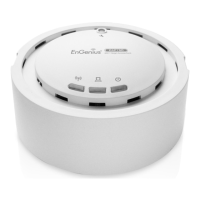
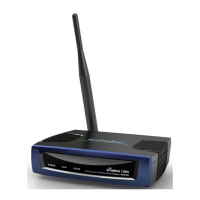
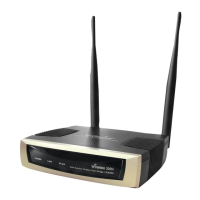
EnGenius EOC1650 Wireless Access Point / Client Bridge Version 2.0
12
3 SwitchingBetweenOperatingModes
This device canoperatein three modes: AccessPoint, Client Bridge, WDSBridge and Client Router.
Thischapterwilldescribehowtoswitchbetweenoperatingmodes.
3.1 LoggingIn
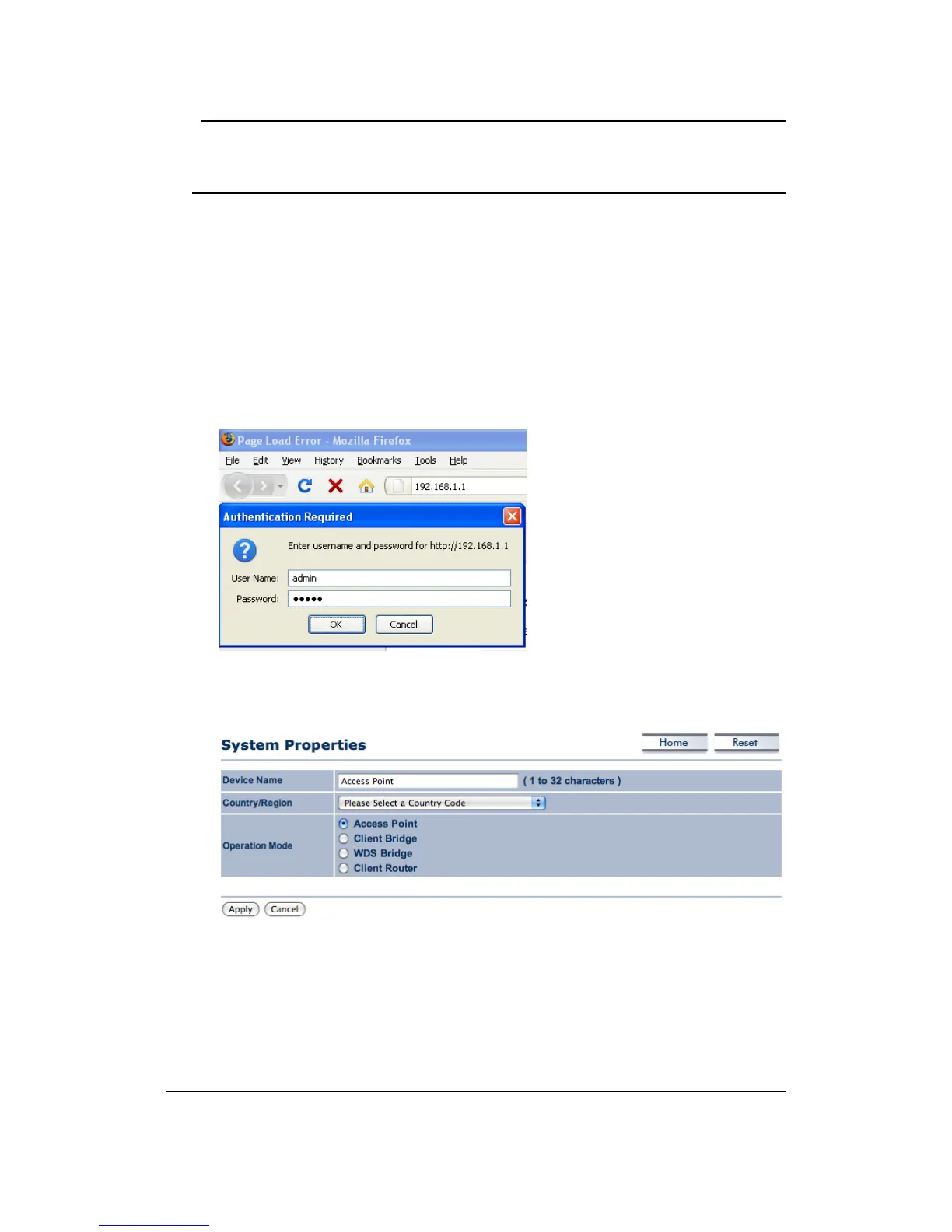
To configure the device through the web‐browser, enter the IP address of the device (default:
192.168.1.1)intotheaddressbaroftheweb‐browserandpressEnter.
Make sure that the device and your computer are configured on the same subnet. (Refer to
Chapter2inorder
toconfiguretheIPaddressofyourcomputer)
AfterconnectingtotheIPaddress,theweb‐browserwilldisplaytheloginpage.
Specifyadminforboththeusernameandpassword.
After logging in, you will see the graphical user interface of the device. Click on the System
PropertieslinkundertheSystemnavigationdrop‐downmenu.
Selectoperatingmodeyouwantfromthelist (Access Point,Client Bridge,WDS BridgeorClient
Router)andthenclickontheApplybutton.


 To Next Page