EnGenius EOC1650 Wireless Access Point / Client Bridge Version 2.0
51
Read‐Only Community Name: Specify the password for access the SNMP community for
readonlyaccess.
Read‐Write Community Name: Specify the password for access to the SNMP community
withread/writeaccess.
Trap Destination IP Addres s: Specify the IP address of the computer that will receive
the
SNMPtraps.
TrapDestinationCommunityName:SpecifythepasswordfortheSNMPtrapcommunity.
ClickontheApplybuttontosavethechanges.
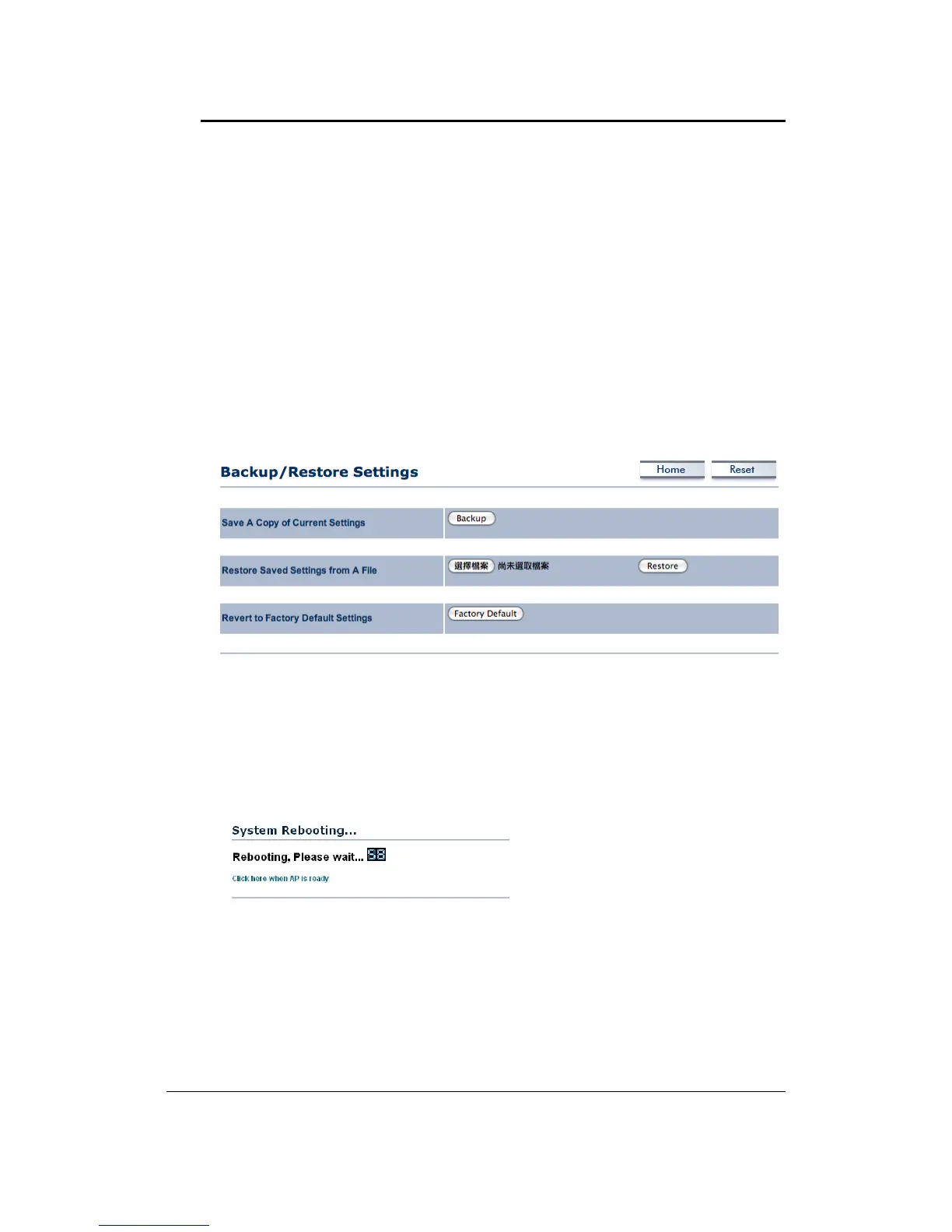
6.5.3 Backup/Restoresettings,Resettofactorydefaultsettings
ClickontheBackup/RestoreSettinglinkundertheManagementmenu.Thisoptionisused
tosavethecurrentsettingsofthedeviceinafileonyourlocaldiskorloadsettingsontothe
device from a local disk. This feature is very handy for administrators who have several
devicesthatneedtobeconfiguredwiththesamesettings.
Save a copy of the cu rrent settings: Click on the Backup button to save the current
configuration.
Restore saved settings from a file: Once a file has been backedup, you may restoreit by
clickingontheBrowsebuttontoselectthefile,andthenthe
Restorebutton.
Revertto factorydefaultsettings:ClickontheFactoryDefaultSettingsbuttontoresetthe
device to the default settings. Please wait while the device restart and then access the
deviceusingthedefaultIPaddress:192.168.1.1
6.5.4 FirmwareUpgrade
Click on the Upgrade Firmware link under the Management menu. This page is used to
upgradethefirmwareonthedevice.Makesurethatdownloadedtheappropriatefirmware
fromyourvendor.


 To Next Page