Operating of the Machine
4-70 © Essemtec AG Paraquda Startup & Safety
0000003/11 / November 4, 2014
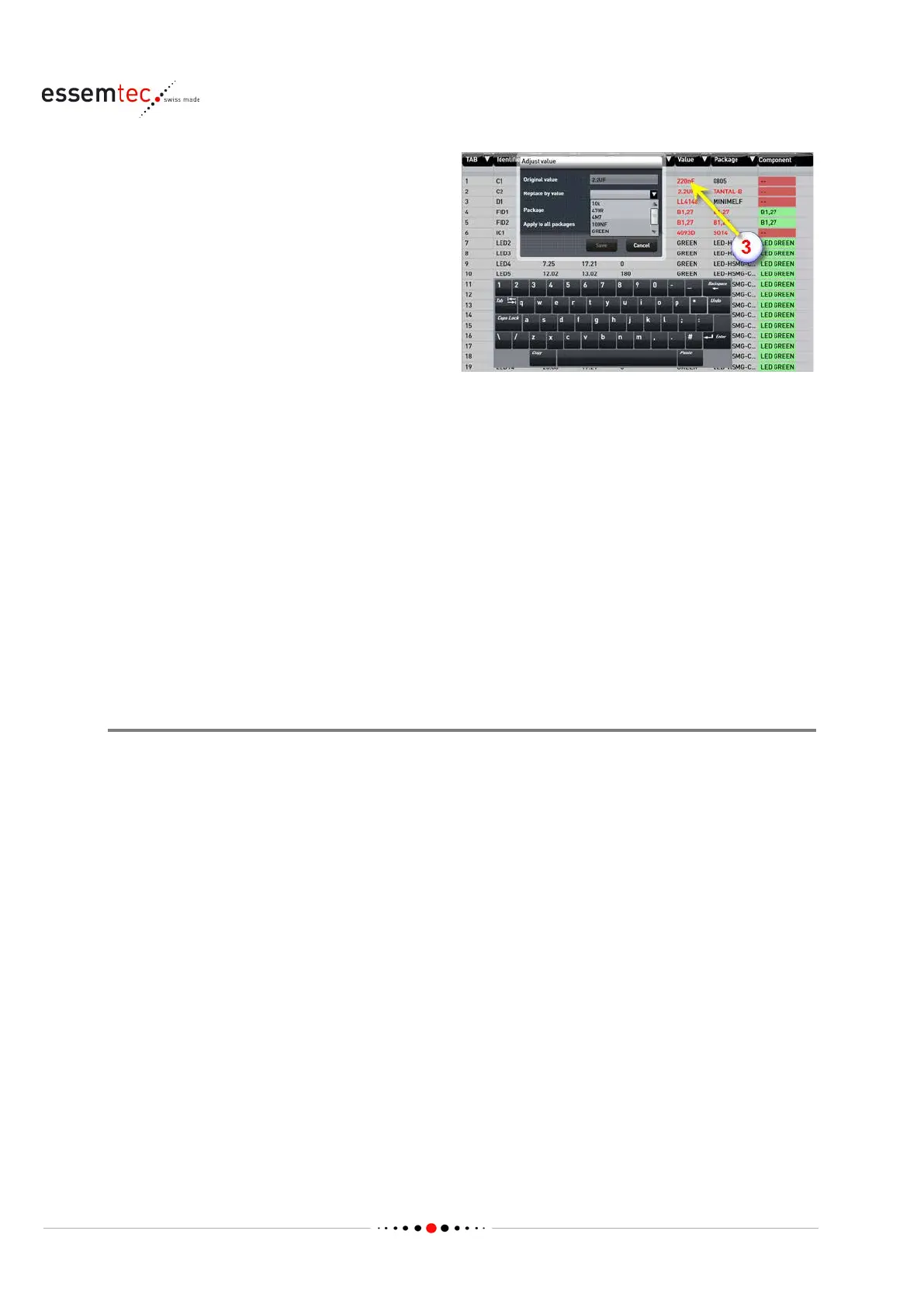
The value changes to red (3), while the package
remains black. That means no value with this
name exist within the machine environment.
There are two p
ossibilities:
• The same value already exists but the
spelling is different (e.g. 1K5 instead of 1.5K).
In this case click the red value. The pop-up
window Adjust value opens. Click on the
parameter Replace by value. In the drop
down list all known values are listed. Select
the correct value. Click on the parameter
Package. In the drop down list all known
packages are listed. Select the correct one to
create a component with appropriate value
and package name. Save the new
replacement. All original values with the
given package are replaced by the new
value. If the value of any package (with
exactly the same electrical value) should be
replaced by the new value, check Apply to
all packages before saving.
• The value does not exist, even not with
another spelling. In this case continue with
the step below 'Define Component'.
Special Cases
• Two or more rows per component: some CAD data files use two or more rows per record. That
means for each component more than one row is used. Usually only the first row does contain
relevant data for the machine. In this case use the parameter Line step to hide not used rows.
• Column separator not in drop down menu: if the CAD file has a column separator not found in
the drop down menu of the parameter Separator, the file has to be edited first. Exchange the
current separator with one of the pull down menu (TAB / SPACE / , / ; / :)
• First Line / Last Line: Some CAD files have heading and footing rows which are not relevant for
the machine. To mask out these rows select the first relevant row and press the softkey Define
first line, select the last relevant row and press the softkey Define last line.


 To Next Page