Install and Configure Software
Paraquda Startup & Safety © Essemtec AG
5-7
0000003/11 / November 4, 2014
Edit User Group Rights
Configuration
User group rights
User group rights can be edited or
assigned only on same user group (or
lower) th
e logged in user belongs to.
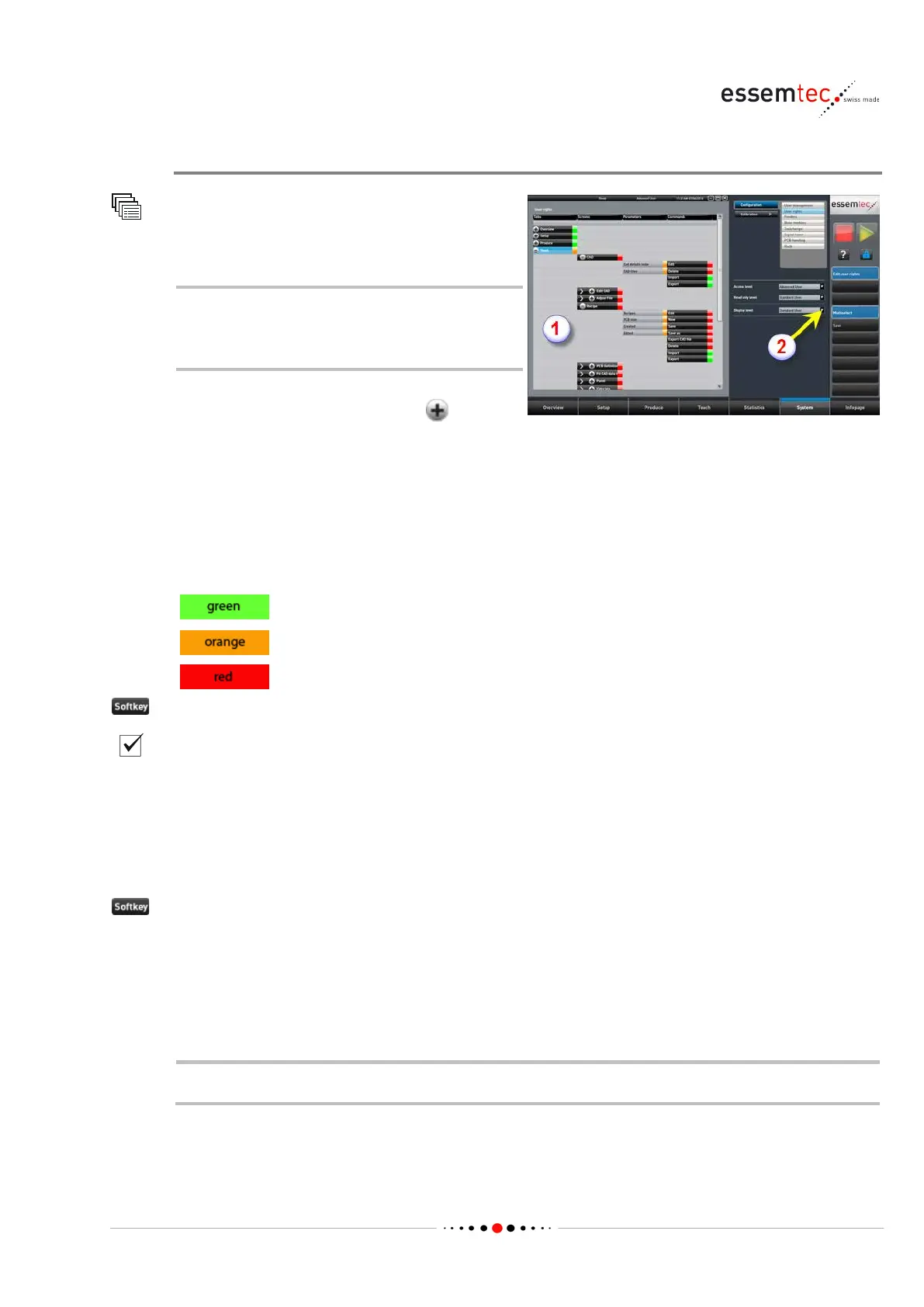
Open all the tabs, screens, parameters and
commands of interest by using the
button
Display level (2), e.g. Standard User,
the current setup. The colors
indicate the access status of the desired user
group:
Color Access indication
Full access with no restrictions
Read only
No access, no visibility
Edit user group rights
Chose the desired tabs, screens, parameters and commands to edit.
Use Multiselect for multiple selections.
Select Access level to define what user group (and higher) should have full access to the choosen
tabs, screens, parameters and commands.
Select Read only to define what user group (and lower) should read only rights to the choosen
tabs, screens, parameters and commands.
Save
Select the Display level (e.g. Standard user) again to check the new setup.
5.5 Organize the Option Management
Not available at print time.


 To Next Page