Human Machine Interface HMI
Paraquda Startup & Safety © Essemtec AG
3-5
0000003/11 / November 4, 2014
Auto
Input source selection
Select button (up) within menu
Operation step for AUDIO, OSD and PIP SETUP are same with AV and COMPUTER
input source
MENU
The main menu is displayed. Four main groups of options PICTURE, AUDIO, OSD and
PIP are displayed.
UP
Calls the volume setup directly
Navigation within menus (up)
Adjust button to increase value (e.g. brightness)
DOWN
Calls the volume setup directly
Navigation within menus (down)
Adjust button to decrease value (e.g. brightness)
Set up Monitor type c (Projected Capacitive Touch 21,5'')
Usually the monitor is pre
-adjusted and does not
need any setup. But in case of a bad setup, the
settings below are possible. For a detailed
description, consult the manua
l of the monitor.
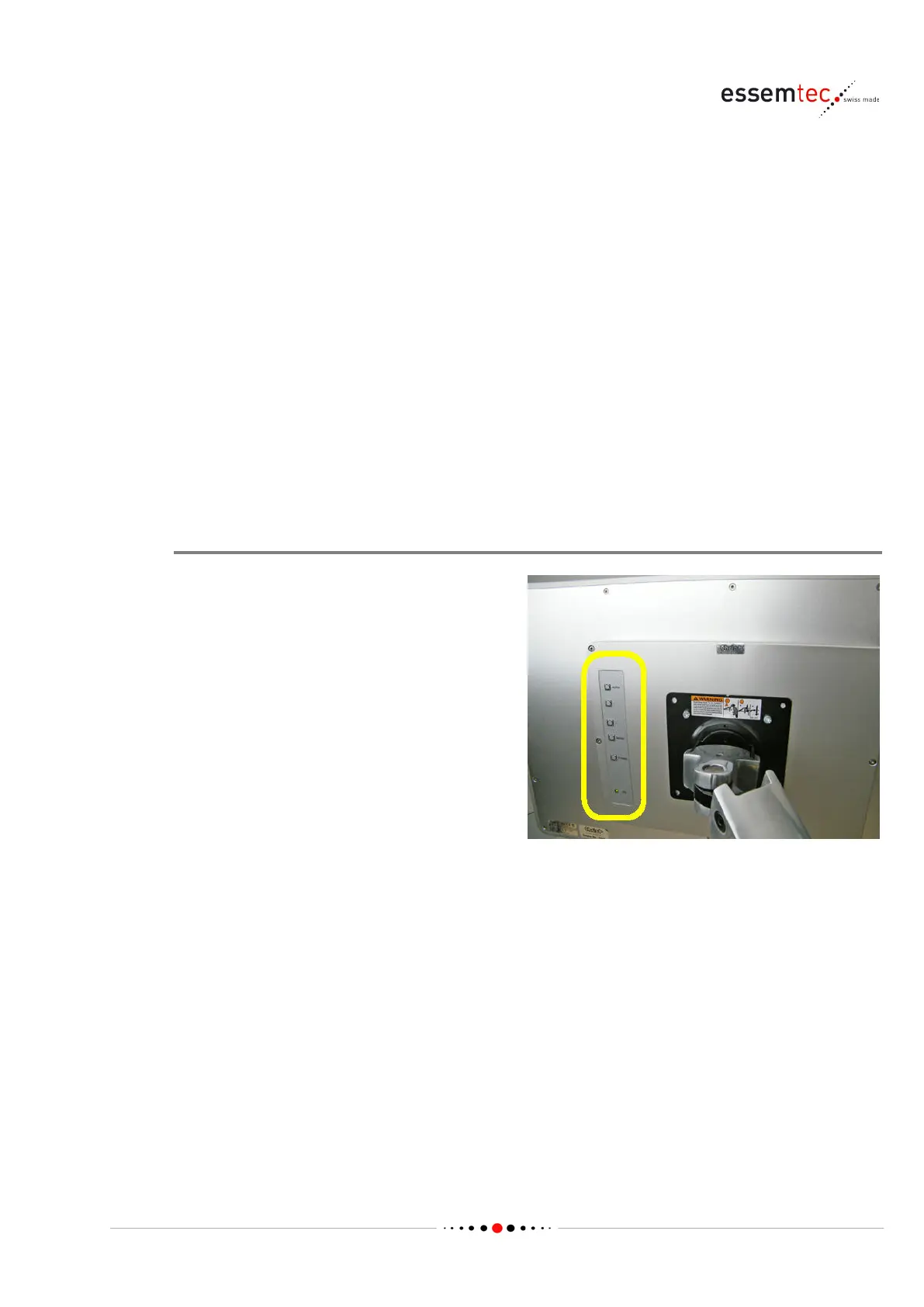
Every button can have different functions,
depending on the menu.
AUTO To adjust the best suited values press the AUTO button.
-
Select button (down) within menu
+
Select button (up) within menu
MENU
Opens the OSD menu. Navigate with +/- buttons and press MENU again to enter the
selected submenu. Close the OSD menu by pressing AUTO
POWER
To switch on or off the monitor


 To Next Page