5 Patch 87
Step 5: Use the [Page] keys to navigate to any parameter slots that you wish to alter the
default parameter designations for.
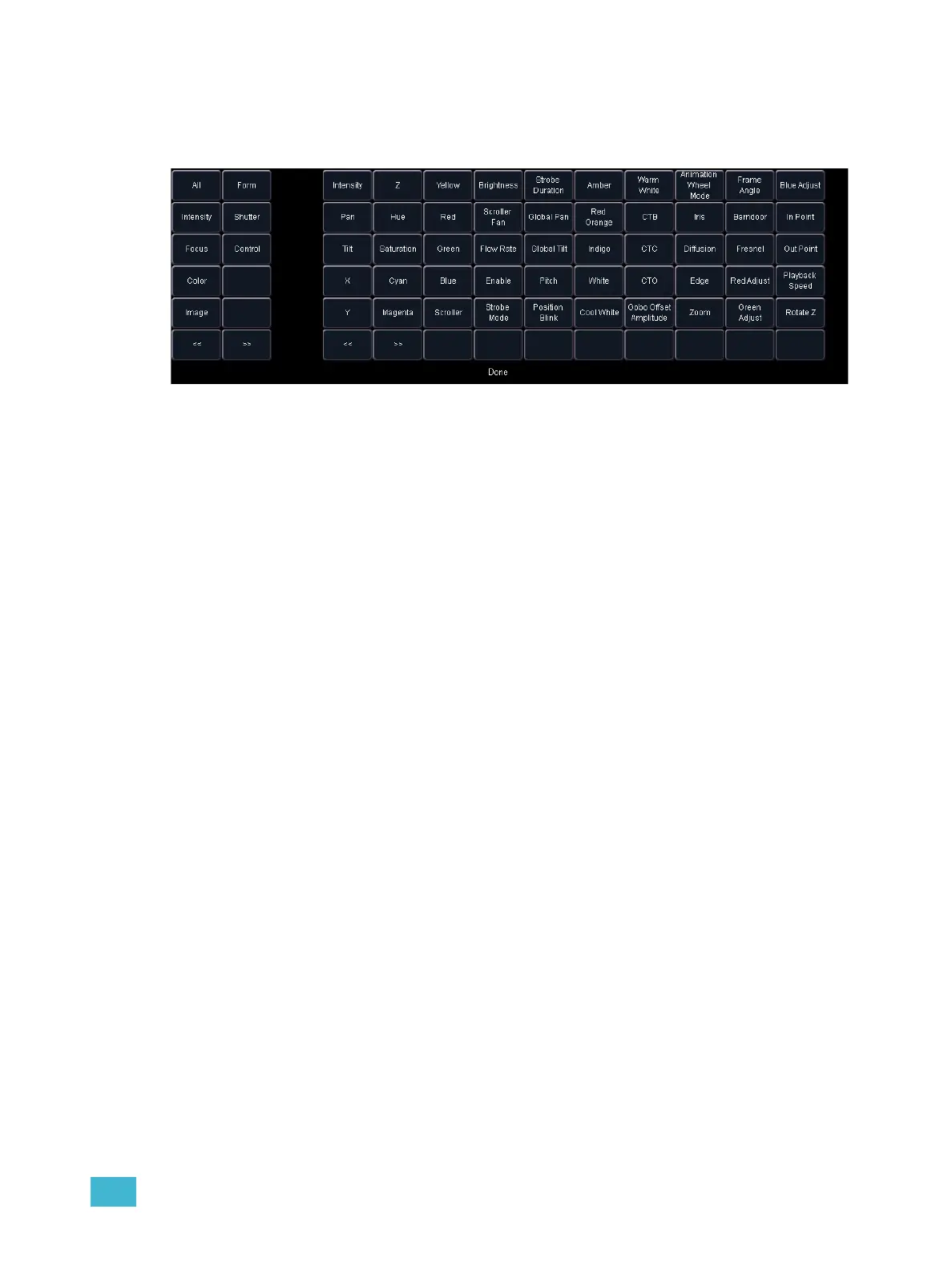
Step 6: When you have selected a slot, press {Parameters}. The CIA will display
touchbuttons representing all of the available parameters.
a: Use the {>>} and {<<} buttons to scroll through the available parameters (in
alphabetical order).
The touchbuttons on the left side of the CIA can be used to speed your search. You may
press them to see only parameters that fall into the specific categories of {Intensity},
{Focus}, {Color}, {Image}, {Form}, {Shutter}, or {Control}. {All} returns you to the
complete list of parameters.
b: Use the parameter category buttons on the left of the CIA to expedite
searching for a particular parameter.
Step 7: Press the touchbutton for the desired parameter in the CIA.
Step 8: Repeat steps 3-5 until you have entered all of the required parameters for the new
fixture.
If you are missing a parameter slot: At any point you can use the [Page] keys and
{Insert}, to insert a parameter slot above the selected one.
If you want to remove a parameter: you can use the [Page] keys and {Delete}, to remove
a parameter from the list.



 To Next Page