242 Eos Operations Manual
Step Effects
In step effects, each step contains an on-state and an off-state. The on-state is the action the
channels in the step should take when the step is active. The off -state is the action the channels in
the step should take when the step is not active. Step effects are a quick and easy way to build
simple chases.
When building step effects, channels must be defined for each step. This is different from absolute
and relative effects.
Once complete, you may play back the effect on all channels embedded in it by pressing [Recall
From] [Effect] [x] [Enter]. Or you may specify only certain channels to play back from the
embedded channel list.
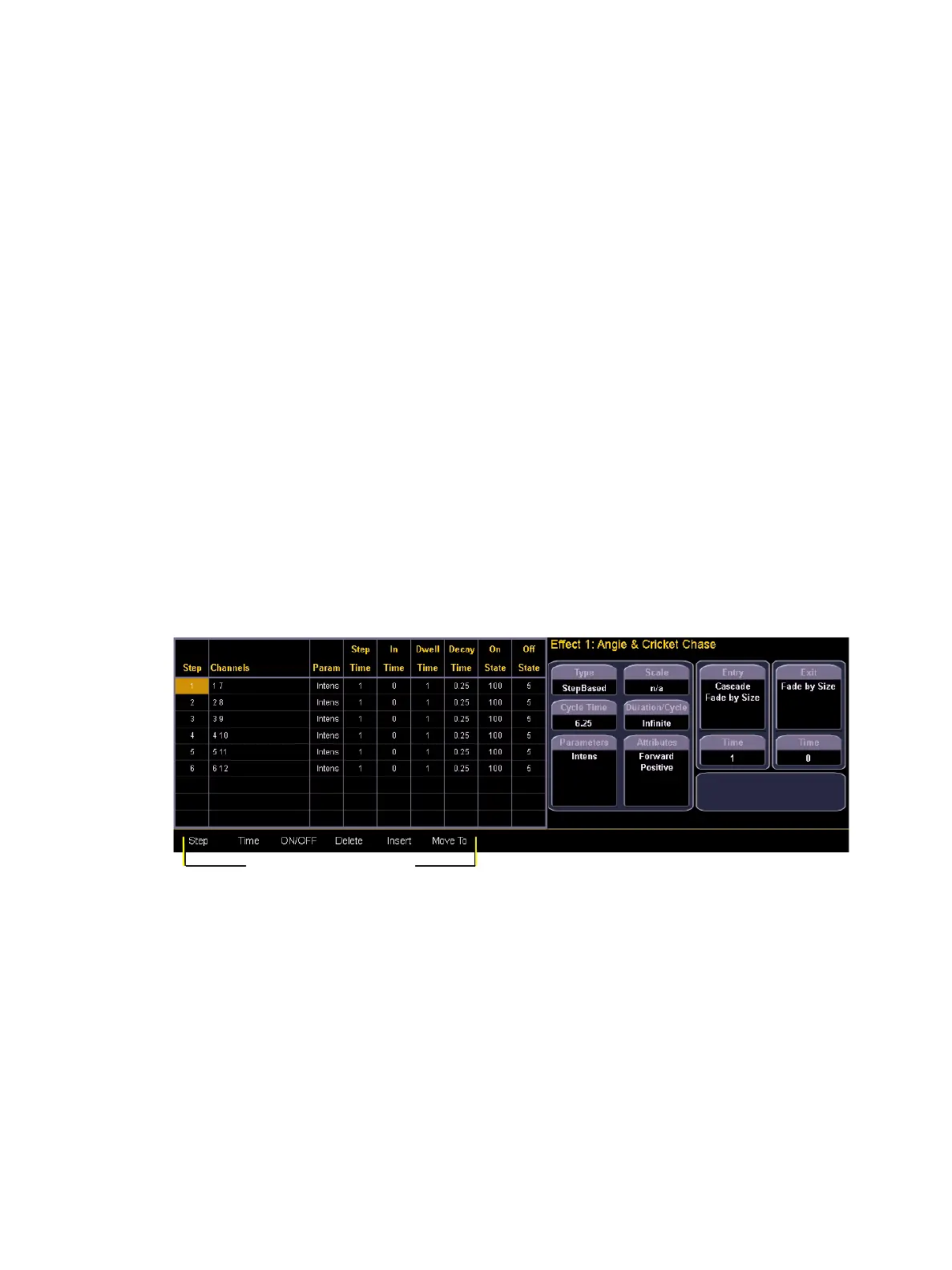
A step effect is displayed in a chart with the following columns:
• Step - indicates the step numbers.
• Channels - displays the channel(s) in the step.
• Param - displays the parameter (if other than intensity) controlled by the step.
• Step Time - time from triggering the associated step to triggering the next step.
• In Time - the length of time for the channels to fade to the “on-state”.
• Dwell Time - the length of time the step remains in an “on-state”.
• Decay Time - the length of time it takes for the channels to fade to the “off-state”.
• On State - the parameter level (in%), or referenced data to be used for the on-state.
• Off State - the parameter level (in%) or referenced data to be used for the steps off-
state. If you want the “off-state” to be the background state from playback, select the
column and press [At] [Enter].
All times are entered from the keypad in minutes and seconds, tenths and hundredths.
Here is an example of a step effect when viewed in the CIA:



 To Next Page