84 Eos Operations Manual
Adding Keywords in Patch
If you plan on being able to query channels based on a keyword association, the keyword must be
defined in patch.
To enter a keyword for a channel:
Step 1: Press [Displays], to the right of the CIA.
Step 2: Press {Patch} at the bottom of the CIA.
Step 3: Press {Database}.
Step 4: Select a channel or range of channels in the command line.
Step 5: Touch one of the {Text (1-4)} touchbuttons in the CIA to specify which keyword you
are entering. A list of previously defined keywords will be posted. Select from these
or press {New Keyword}. A virtual alphanumeric keyboard will appear.
Step 6: Type the keyword or words you wish to use.
Step 7: When finished, press [Enter].
Once keywords have been created, they will appear in the keyword section of the CIA when a query
is performed. For more information on keyword queries see Using [Query], page 226.
Deleting Channels
It is possible to delete channels in patch. Deleting channels is different from unpatching in that
deleted channels cannot be manipulated or have parameter data stored for them. When deleted,
the channel numbers will still be visible in the live/blind display, but the channel outline, containing
the parameters and level information, will be removed from the display.
For Example:
To delete channels in the patch display, press:
• [6] [Thru] [1] [0] [Delete] [Enter] [Enter]
In the live blind display, the channel numbers will still be visible but the channel outlines and
parameter data will be hidden from view.
Clearing the Patch
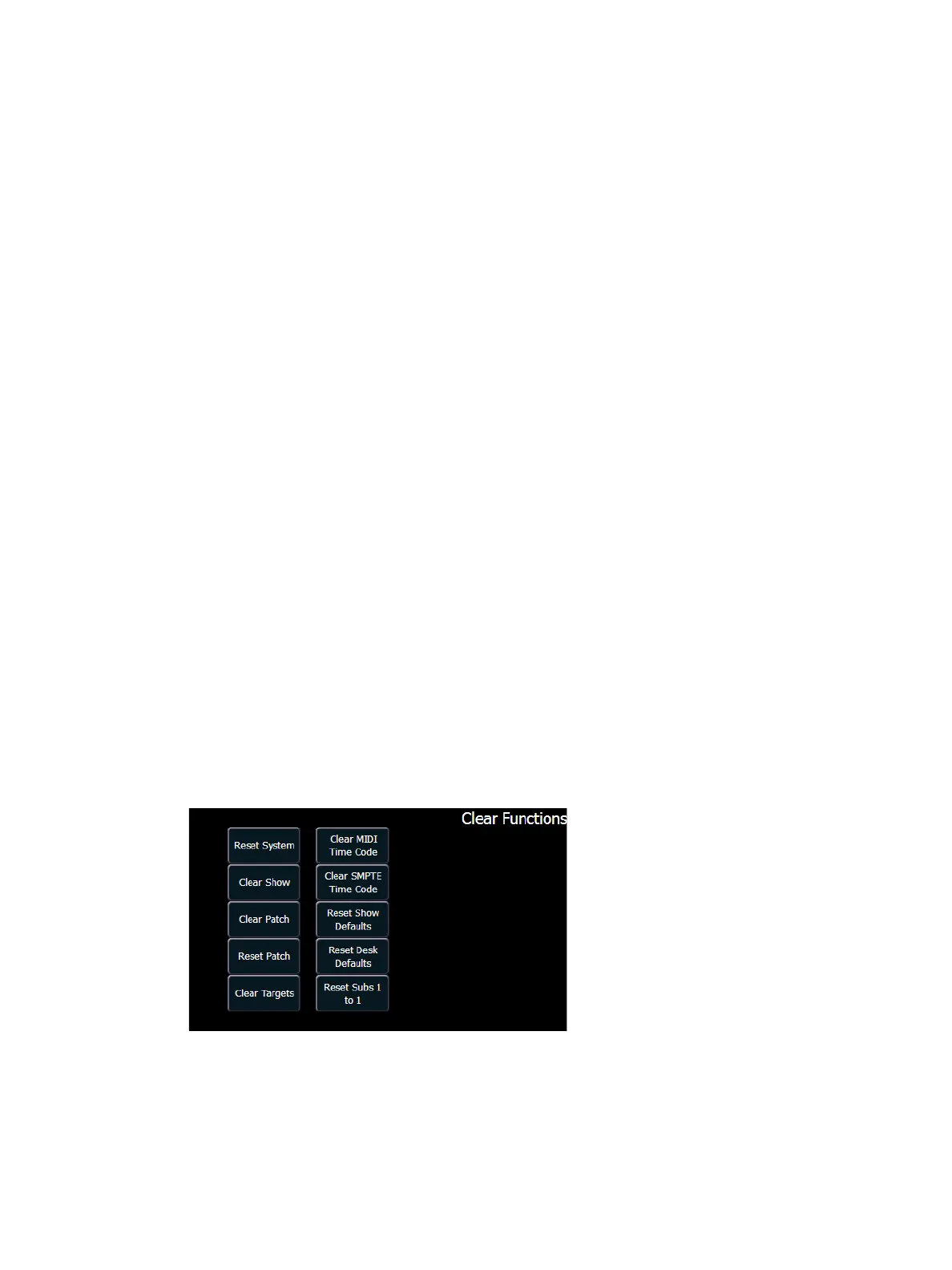
You can clear the patch entirely by accessing the clear functions from the browser. Select {Clear}
from the main browser menu. The clear functions window will open in the CIA.
To clear the patch, click {Clear Patch}. A confirmation is required before the patch will be cleared.
To exit the clear functions screen without clearing, press the [Displays] key at any time or select a
clear button and then select {Cancel} from the confirmation screen.



 To Next Page