3 System Basics 29
Setting Up the Touchscreens
When you first power up your Eos, the direct selects may not be open on the touchscreens. It may
also have other displays visible on the touchscreens. This section describes how to populate and
arrange displays, direct selects, and virtual faders on the touchscreen monitors of your Eos
console.
Clearing the Touchscreens
Before opening direct selects or other virtual controls, touchscreens must be blank. Therefore you
must move any displays onto external monitors. Likewise, to move displays onto the touchscreens
you must first clear any direct selects or other virtual controls.
To remove a display from a touchscreen:
Step 1: Select the display by pressing [Tab] & [display number] together. Display number is
indicated at the bottom left corner of the display (for example, “1. Live Channel”).
When selected, it is highlighted in gold.
Step 2: Move the selected display by pressing [Tab] & [Page
X] or [Page W] together. The
display will move to the next available screen. You may have to do this more than
once to move it entirely off of the touchscreens. You can also close Tabs 3 and higher
by pressing [Escape].
For more information on moving displays, see Display Control and Navigation, page 33.
Populating the Touchscreens
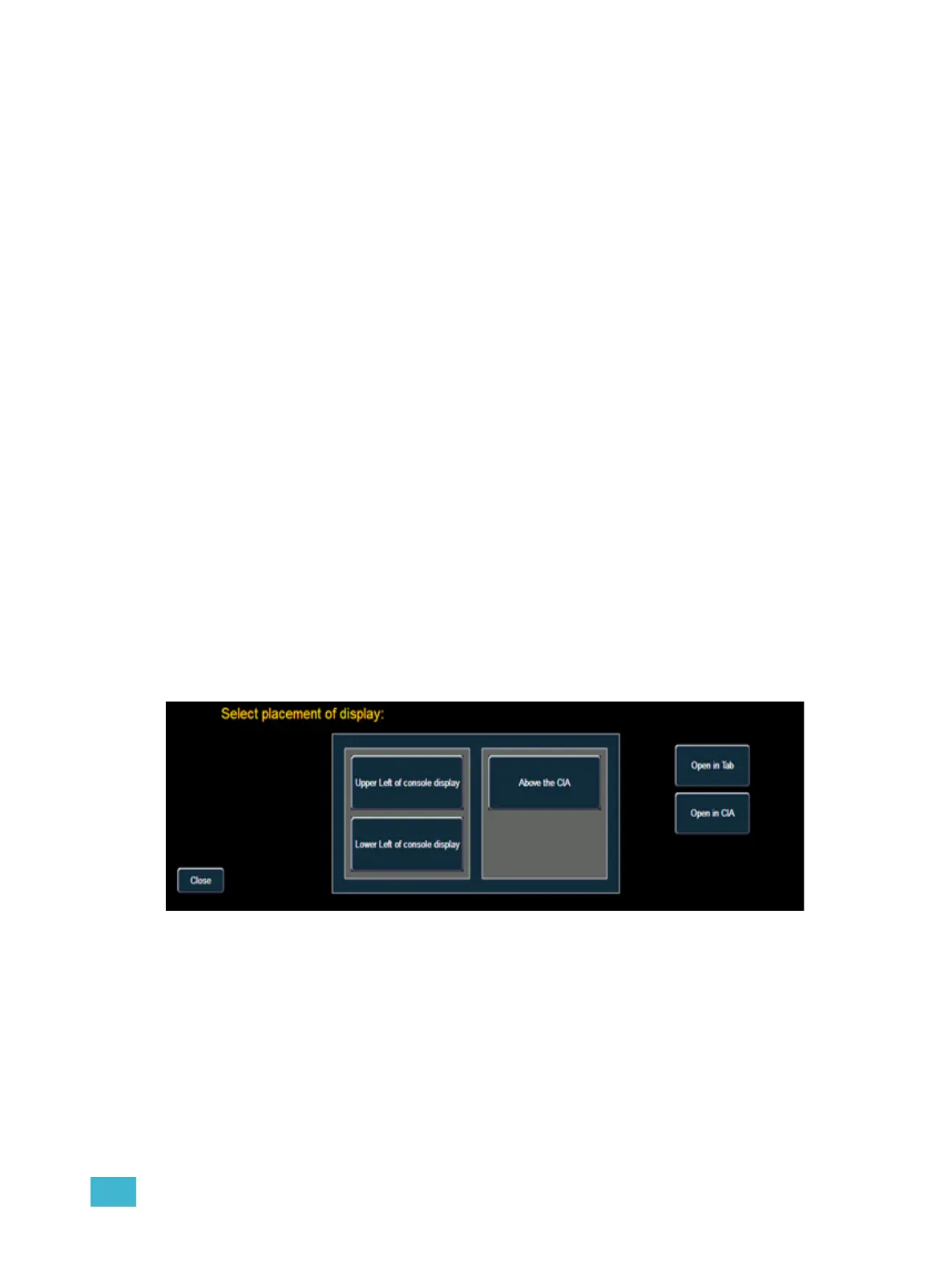
To display Direct Selects, Virtual Faders, or other virtual controls, press [Displays] {Virtual
Controls} to see a list of the virtual controls. Select a control and the select placement of display
screen will open. Select the placement you would like and that area of the touchscreens will
populate with the selected controls. To unselect or clear a control, press [Displays] {Virtual
Controls} {Close Module}, and select which placement you want to clear.



 To Next Page