4 Managing Show Files 61
Saving the Current Show File
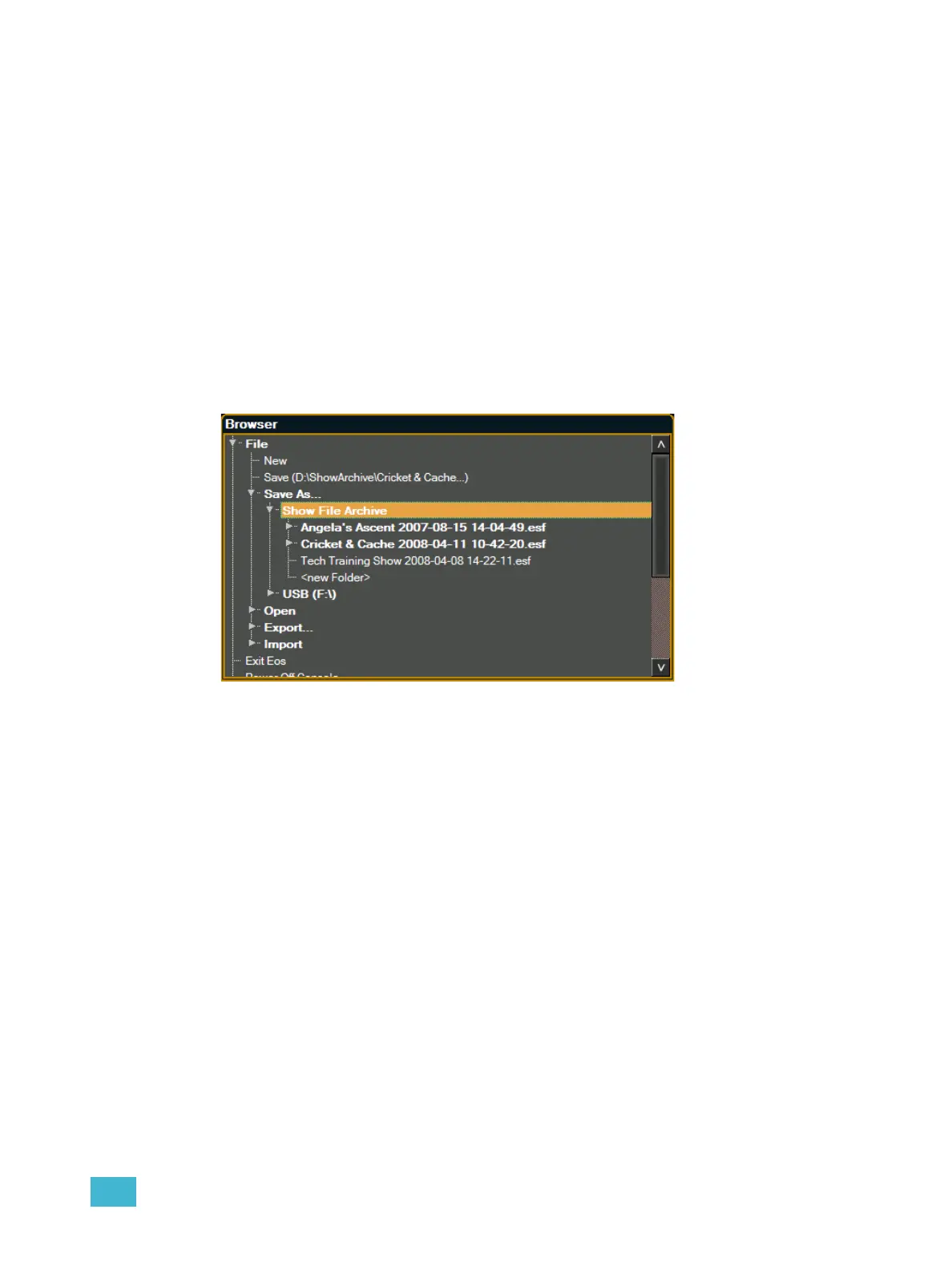
To save the current show data, navigate within the browser to: File>Save> and press [Select].
The Show File Archive is the default storage location for show files when they are saved. The new
time stamp located beneath the show file name on the CIA indicates that the show file has been
saved.
All previous saves are stored in the Show File Archive with the time stamp following the file name.
Using Quick Save
To save the current show data to the hard drive without having to navigate to the browser, hold
down [Update] and press [Select].
Using Save As
To save an existing Eos show file to a different location or with a different name, navigate within the
Browser to: File> Save As> and press [Select].
Eos provides you with three locations to save an Eos show file (.esf) including the Show File
Archive, the File Server (if connected) or a USB device (if connected).
Navigate to the desired storage location and press [Select]. When using “Save As” to save the
show file to a specific location, the alphanumeric keypad will display on the CIA. Name the show file
and press [Enter]. The show file will be saved in the specified location with the show file name you
entered with a time stamp suffix.
By default, the current show file name will be used. Press [Clear] until this is removed. When
saving from an untitled show file, the default name will be “showfile”.



 To Next Page