3 System Basics 27
Using the Browser
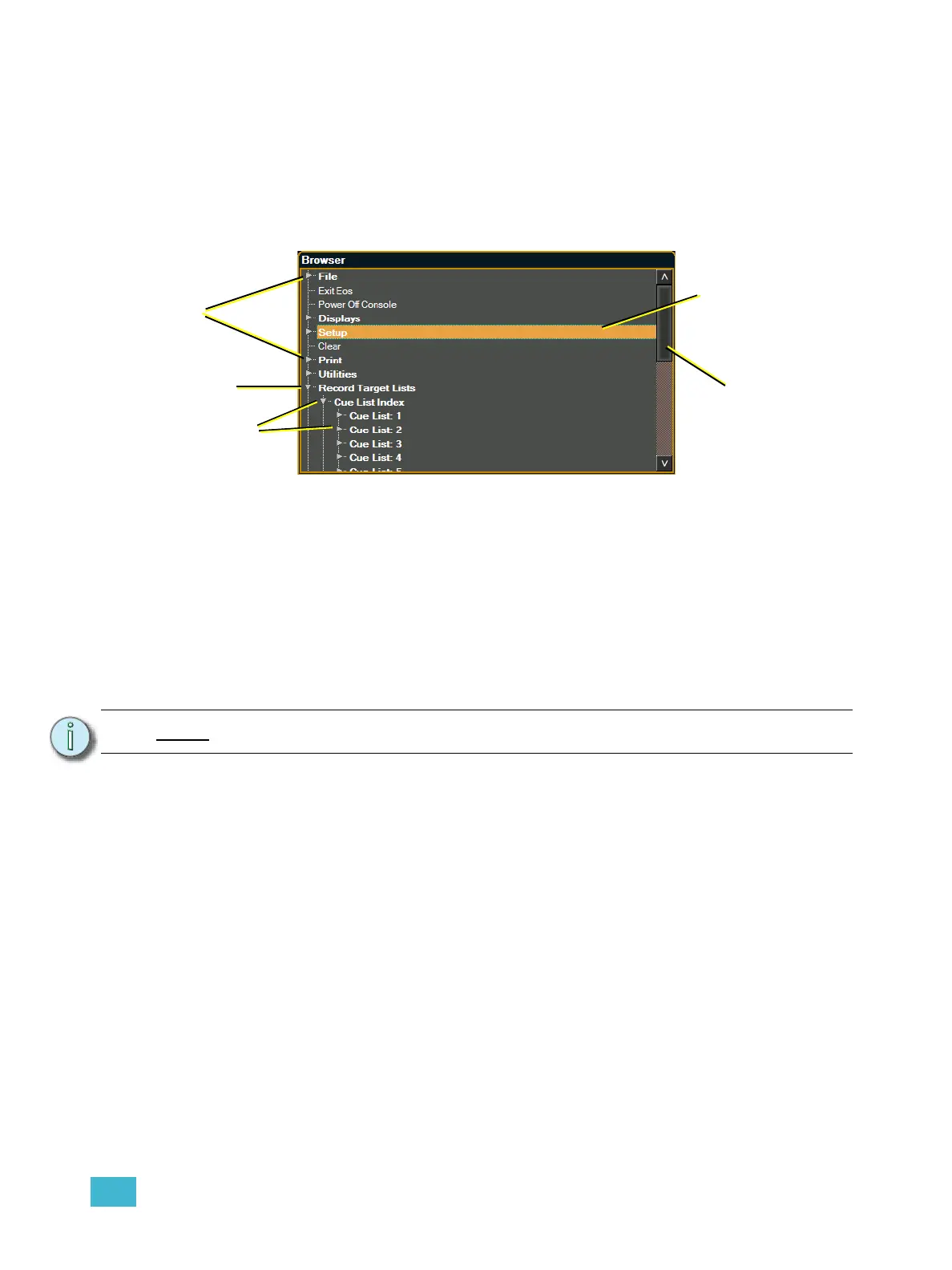
To use the browser, you must first draw focus to it by touching anywhere in the browser area of the
CIA. If the browser is not visible, press the [Displays] key and then the {Browser} softkey to open
the browser.
When focus is on the browser, the window border highlights in gold. The scroll lock LED illuminates
red and the paging keys will now control selection in the browser.
• Use the page arrow keys to move the selection bar up and down the list. You may also use
the level wheel to scroll through the list.
• When the bar highlights the desired menu, press [Page
X] to open the menu.
• Continue pressing [Page
X] to open submenus.
• Scroll to the item you wish to open using [Page
S] or [Page T] and then press [Select]. You
may also touch the item you wish to open and then press [Select].
• If you wish to close a submenu scroll to that item and press [Page
W].
• To draw focus to the browser at any time, press any area within it or press the [Displays]
button.
Virtual Keypad
It is possible to open a touch keypad in the CIA which mimics the hard keys found on the actual Eos
keypad. This virtual keypad is accessible from the browser.
The virtual keyboard is found with the other virtual controls in the browser. Navigate to
Browser>Virtual Controls>Virtual Keyboard.
This will give you touch access to the Eos hardkeys on the CIA. The browser and parameter display
will be hidden from view while the virtual keypad is open. To close the virtual keypad, press the
[Displays] button, to the right of the CIA.
Note:
The [Select] key can be used to confirm a choice in the browser.
Menu Arrows
Opened Menu
Sub Menus
Scroll Bar
Selection Bar



 To Next Page