18 Creating and Using Effects 237
Effects Editor
When viewing the effect list, the selected effect is displayed in the CIA. The effect properties/
attributes are shown in categorized buttons in the CIA. To change any property/attribute, press the
corresponding button and enter data as required.
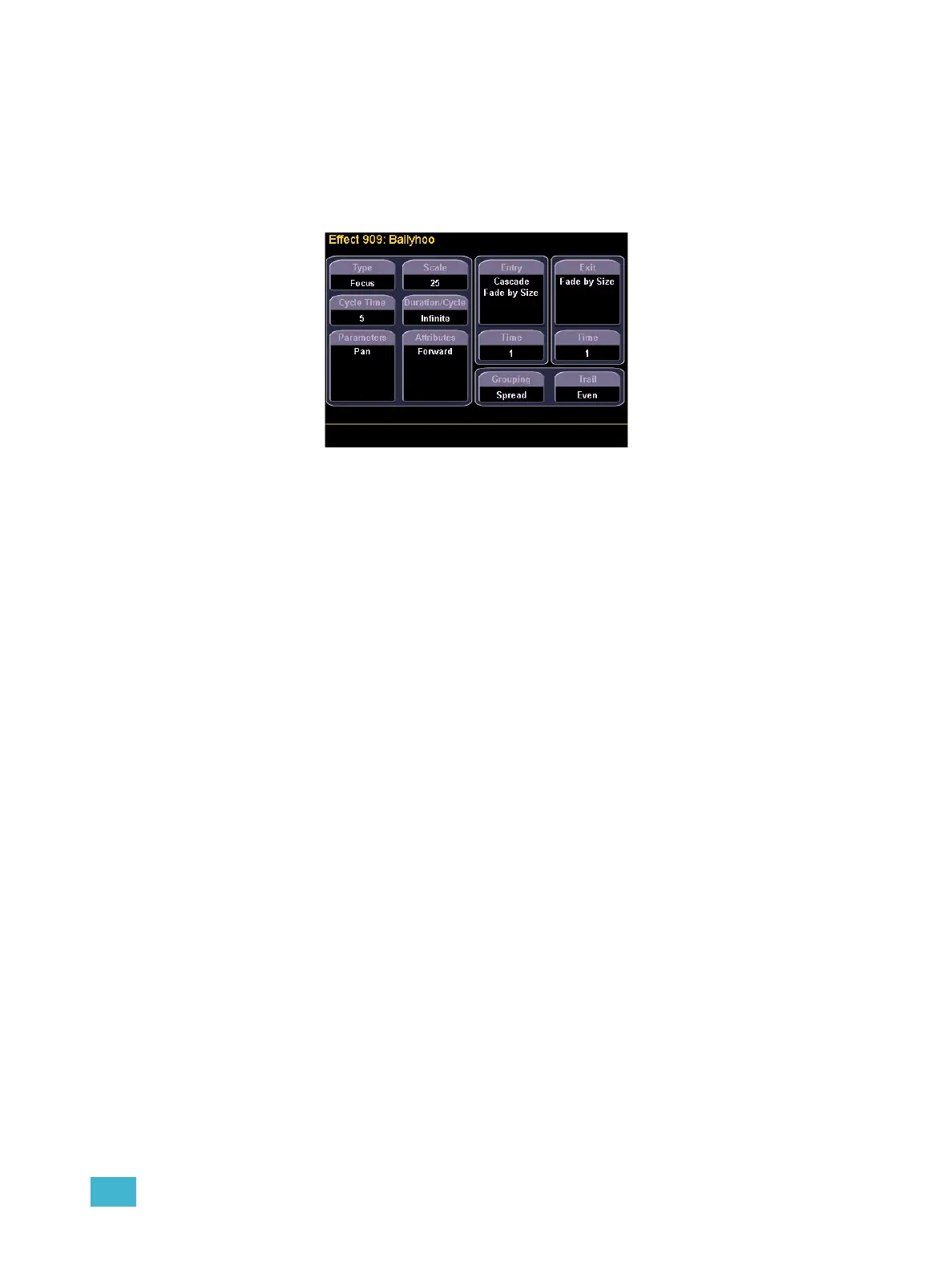
The properties display of the effects editor is shown below and definitions of properties follow:
Type
Defines the effect type: step-based, absolute, or relative (linear, focus, or color). To change the
type, press {Type} and then press the desired effect type in the buttons to the left.
• <Effect> [1] {Type} {Step based} [Enter]
Scale
Applies only to relative effects. This modifies the amount the pattern is offset from the current
parameter values. The scale is expressed as a percentage increase or decrease (25 = 25% of the
programmed value).
• {Scale} [3] [0] [Enter] or you may adjust this using the “Scale” encoder.
Cycle Time
Provides a cumulative time to complete one full iteration of an effect. In relative effects, the cycle
time determines the length of time required for one channel to complete the cycle.
In absolute and step-based effects, the cycle time determines the time required to complete one full
iteration of the effect. In these effect types, modifying the cycle time changes the timing values
proportionally within the effect itself.
To change the cycle time, press {Cycle Time} and then enter the desired time (in minutes and
seconds) from the keypad, followed by [Enter]. This can also be adjusted from the encoder.



 To Next Page