78 Eos Operations Manual
{Database} Display and Settings
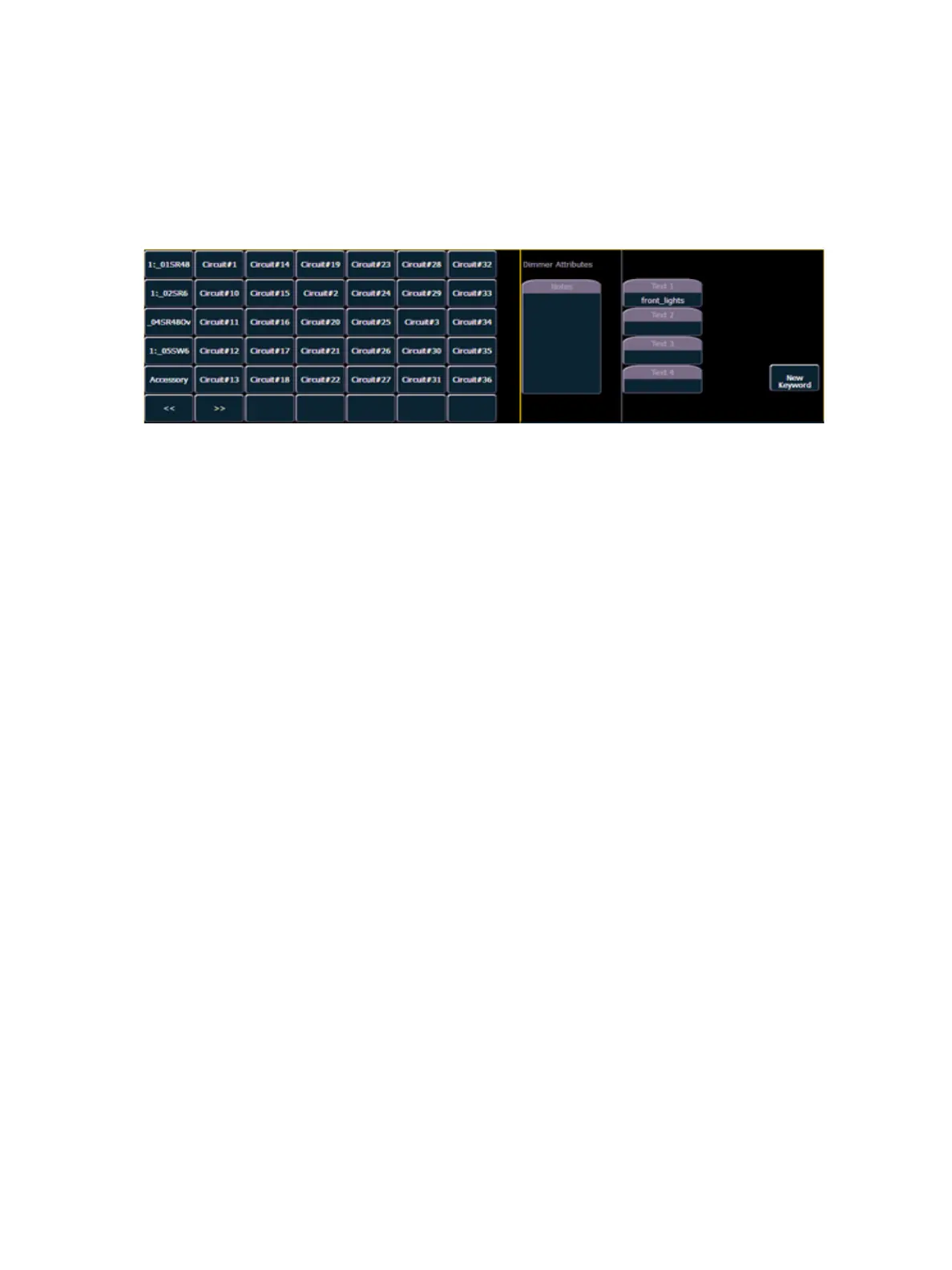
The {Database} page provides you with additional fields for entering information that can be used
by the “Query” function. See “Using [Query]” on page 226. These fields include {Notes} and {Text
1} through {Text 4}. Clicking on {Text 1} through {Text 4} will open up a display for selection of
keywords. It will display keywords that were already created as well as showing an option for
creating new keywords. Clicking on {New Keyword} will display an alphanumeric keyboard for
entering in a new keyword
• {Text} - Text fields are used to provide up to four keywords about any channel or group of
channels. These fields can be anything that you think is important about a channel, such as
its location (FOH), an attribute of it (wash, spot) or other characteristics of the channel (such
as gel R80). You may use the virtual keyboard in the CIA, or an external keyboard, to provide
up to 30 characters of key words about the device.
• [5] {Database} {Text 1} < FOH right> [Enter] - adds text to channel 5.
• {Notes} - Provides you the ability to attach a text note to a channel or group of channels.
Select the {Notes} button on the CIA to display the virtual keyboard. You may type a label or
any length of note regarding your channel in this space.
• [5] {Database} {Notes} <this fixture is a backup to channel 15 for front of house right
/ new lamp installed on 10/4/06> [Enter] - adds a note to channel 5.
Using {Offset} in Patch
Using the {Offset} feature in patch allows you to force a numerical offset between the starting
address of channels in patch or for offsetting your channel selection. This feature is useful when
you have configurable devices in your show such as a Source Four Revolution which has option
slots for additional addresses (scrollers, indexing pattern wheels, and so on), or when you want to
start your addresses at some known multipler.
• [1] [Thru] [5] {Type} {Source Four Revolution} [At] [1] {Offset} [3] [1] [Enter] - fixtures will
be patched with a patch address offset of 31 channels, allowing you to have additional space
within the patch for a given fixture type regardless of configuration or personality.
• [1] [Thru] [2] [0] {Offset} [2] {Type} {VL1000} [At] [1] {Offset} [2] [0] [Enter]- selects every
other channel in the list and patches them with an offset of 20 addresses.



 To Next Page