312 Eos Operations Manual
Eos Configuration Utility Reference
With an external keyboard connected to your Eos console, you can force the console to boot into
the utility instead of the main console application. During the boot process, a countdown timer will
appear just below the Eos logo. You will have 5 seconds to hold down “e”, “o” and “s” at the same
time on the connected keyboard.
Otherwise, you can enter the ECU from the Eos application by choosing Browser>Exit Eos.
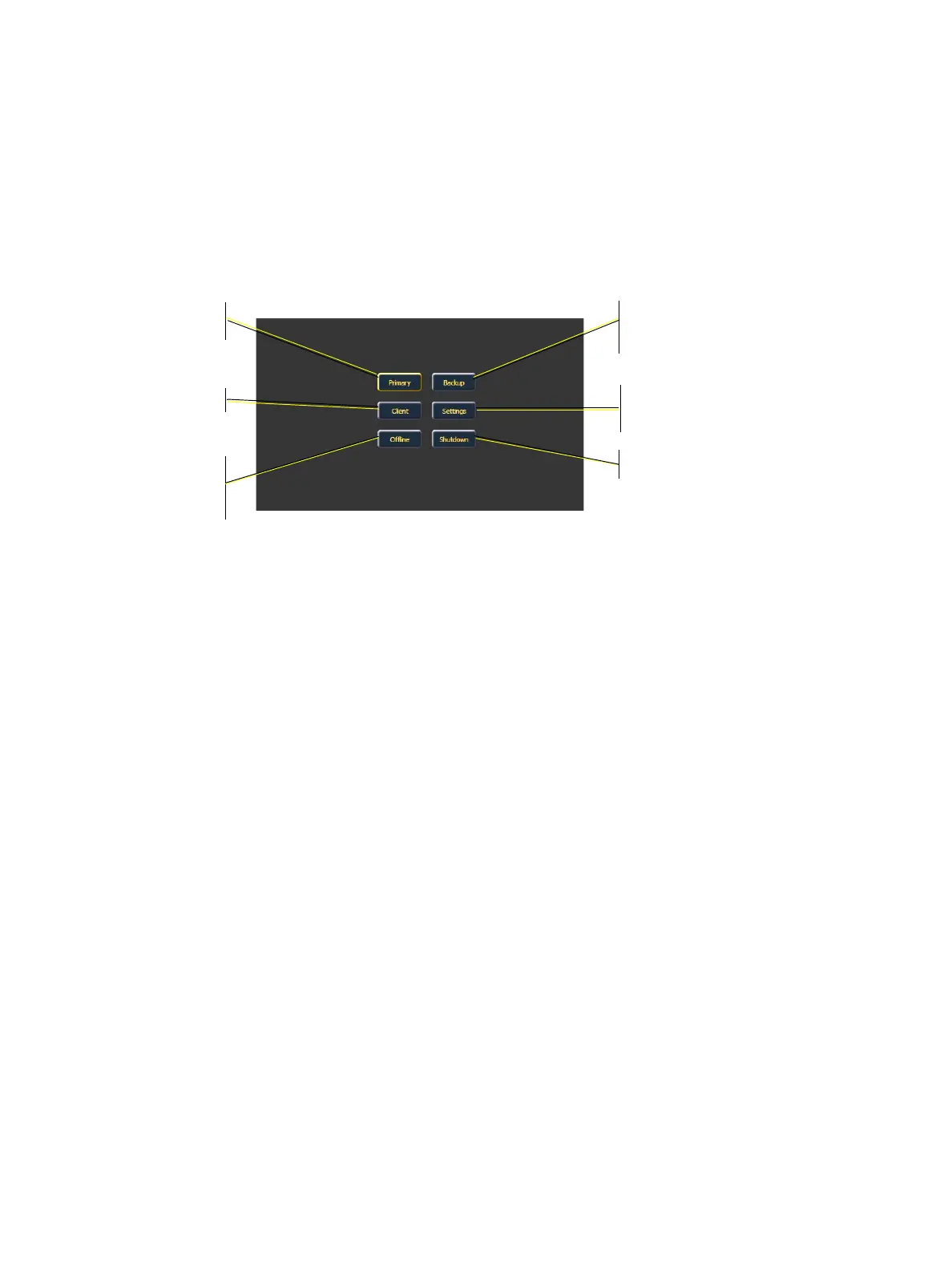
Starting Screen
This is the starting screen of the utility. From here you can choose to boot the console in one of
several different modes, change various settings, or shutdown the console.
Primary
This is the mode for using a single console on a network. On a system with multiple consoles, the
primary is the console that client and backup consoles synchronize with, making it the source of all
information a client or backup console sees on the network.
Primary mode can be run on Eos, Ion and RPUs (Remote Processor Unit).
Client
A device set to client mode can act as a remote controller or remote video station for a system. A
client device cannot output to the lighting system. Only a primary or backup processor can do this.
User ID determines some interaction between the client and other devices. If the client and the
primary console have the same User ID, they will act as one. If they have different User IDs, they
will have separate command lines.
Client mode can be run on Eos, Ion, RPUs, RVIs, and personal computers with the client dongle.
Clicking Primary will
start the console in
Primary mode.
Clicking Client assigns
this console as a client.
Clicking Offline will put
the console in offline
mode and will not interact
on the network with other
devices
Clicking Backup will assign this console
as a backup to a processor in Primary
mode.
Clicking Settings will take you to the
settings and screens of the Eos
Configuration Utility (ECU) described
below.
Clicking Shutdown will shutdown the
Eos console after a confirmation.
Eos Welcome Screen / Eos Configuration Utility entry point



 To Next Page