58 Eos Operations Manual
You may exit the partial show load screen at any time by pressing the {Cancel} button. This will
return you to the browser.
You may clear all selected components from the table at any time by pressing the {Reset} button.
You may exit the advanced loading screen at any time by pressing the {Advanced} button. This will
return you to the general partial show load screen.
Merging Show Files
Eos supports the merging of .esf show files.
You have the option of merging .esf show files from the Show File Archive, a File Server (if
connected), or a USB device.
To merge a show file, navigate within the Browser to: File> Merge>. Navigate to the desired
storage location and press [Select]. When using merge, Eos displays only the available files.
Navigate to the specific file and press [Select].
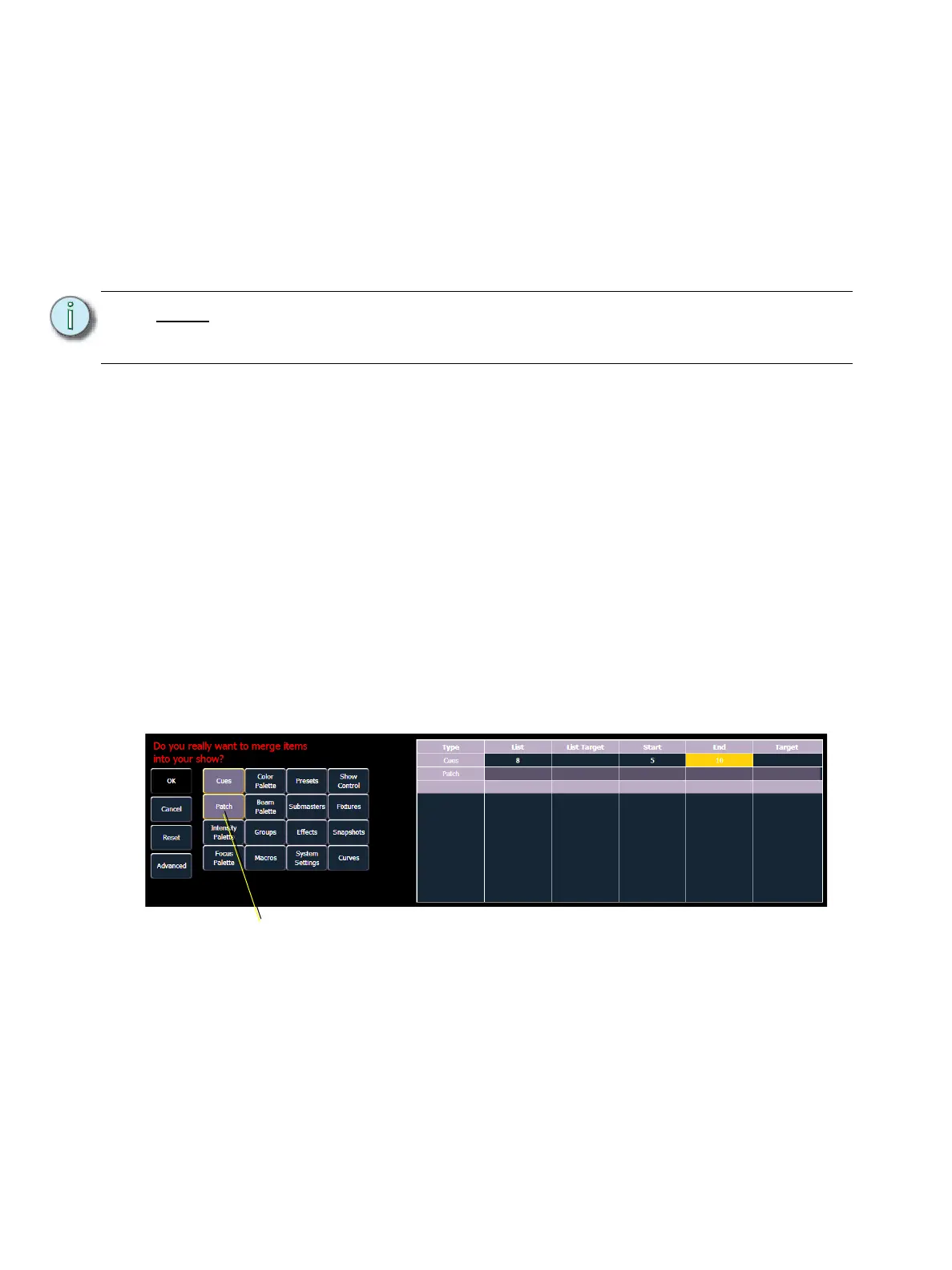
This will open the merge screen in the CIA. From this screen you can choose which aspects of the
show file you want to merge. By default all aspects are unselected (black). Selected show aspects
will appear in gray.
If you select the {Advanced} button in the merge show loading screen, you will have the
opportunity to load partial components from the show file and be able to specify the desired location
of those partial components in the current show file.
For example, you could specify only cues 5-10 from cue list 8 and load them as cues 20-25 in cue
list 7 in the new show. You could also specify only specific palettes, presets, effects, and so on. To
see the complete list of show components, press the {Advanced} key in the merge show loading
screen.
Note:
Merging show files is different from opening show files. When you do a partial
open of show components, untouched record targets are cleared. When you do a
merge, those record targets remain.



 To Next Page