28 Eos Operations Manual
Clear Functions
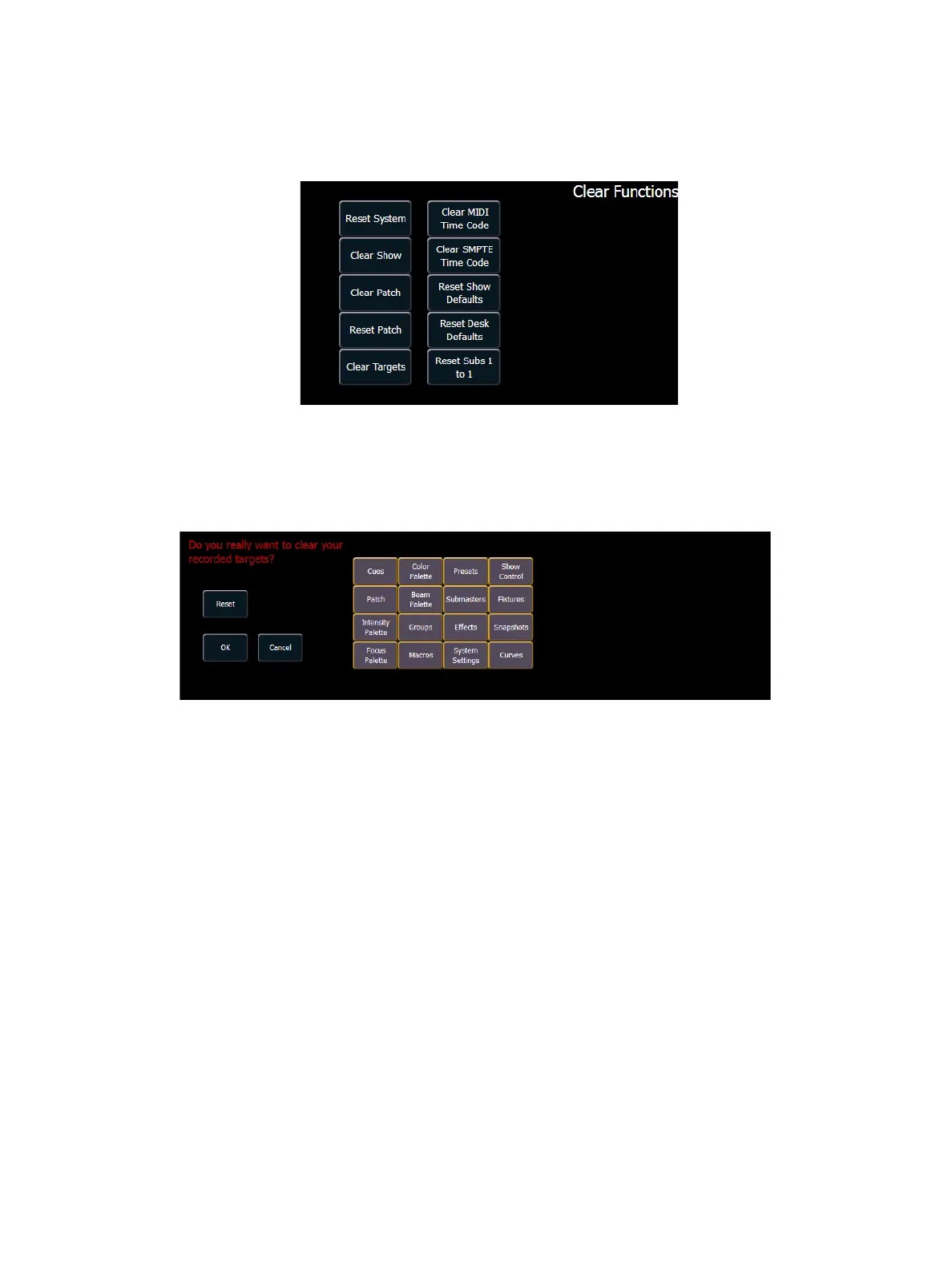
You can access the various clear options from the browser by selecting {Clear} from the main
browser menu. The clear functions window will open in the CIA.
From this menu you can select one of the available clear options by clicking on the desired button
in the CIA. Eos will ask you for a confirmation before performing the selected clear. For {Clear
Targets}, Eos will allow you to choose which record targets you want to clear.
From the {Clear Targets} screen you can select which record targets you wish to clear. The buttons
at the center of the CIA represent all of the record targets that you can choose to clear. By default
all components are selected (gray) and will be cleared. To withhold any targets from being cleared,
simply deselect them in the CIA by clicking the respective button.
To reselect all targets, click the {Reset} button and all buttons will return to gray (selected). To stop
the process, click the {Cancel} button.
When you have selected or deselected all of the record targets you require, click {OK}.
After clearing, the CIA will return to the browser. If you want to perform additional clear functions,
you must select {Clear} from the browser again.
To exit the clear functions screen without clearing, press the [Displays] key at any time or select a
clear button and then select {Cancel} from the confirmation screen.



 To Next Page