86 Eos Operations Manual
Creating a New Fixture
New fixtures are created from the fixture creator list in the CIA (see above).
To create a new fixture, press {New}. A new fixture will be added to the bottom of the fixture list.
Name New Fixture
Once the new fixture appears in the list, it is recommended that you name the fixture you are about
to create.
To name a fixture in the creator list:
Step 1: Press [Page
T] to arrow down to the new fixture.
Step 2: Press {Type}. The virtual keyboard will open in the CIA.
Step 3: Enter the desired name for the new fixture on the virtual (or attached alphanumeric)
keyboard.
Step 4: Press [Enter]. The name will appear in the “Type” column for the new fixture.
Add parameters
After naming the fixture, you can specify which parameters the new fixture contains.
To add parameters to a new fixture:
Step 1: Use the [Page] keys to select the new fixture from the fixture list.
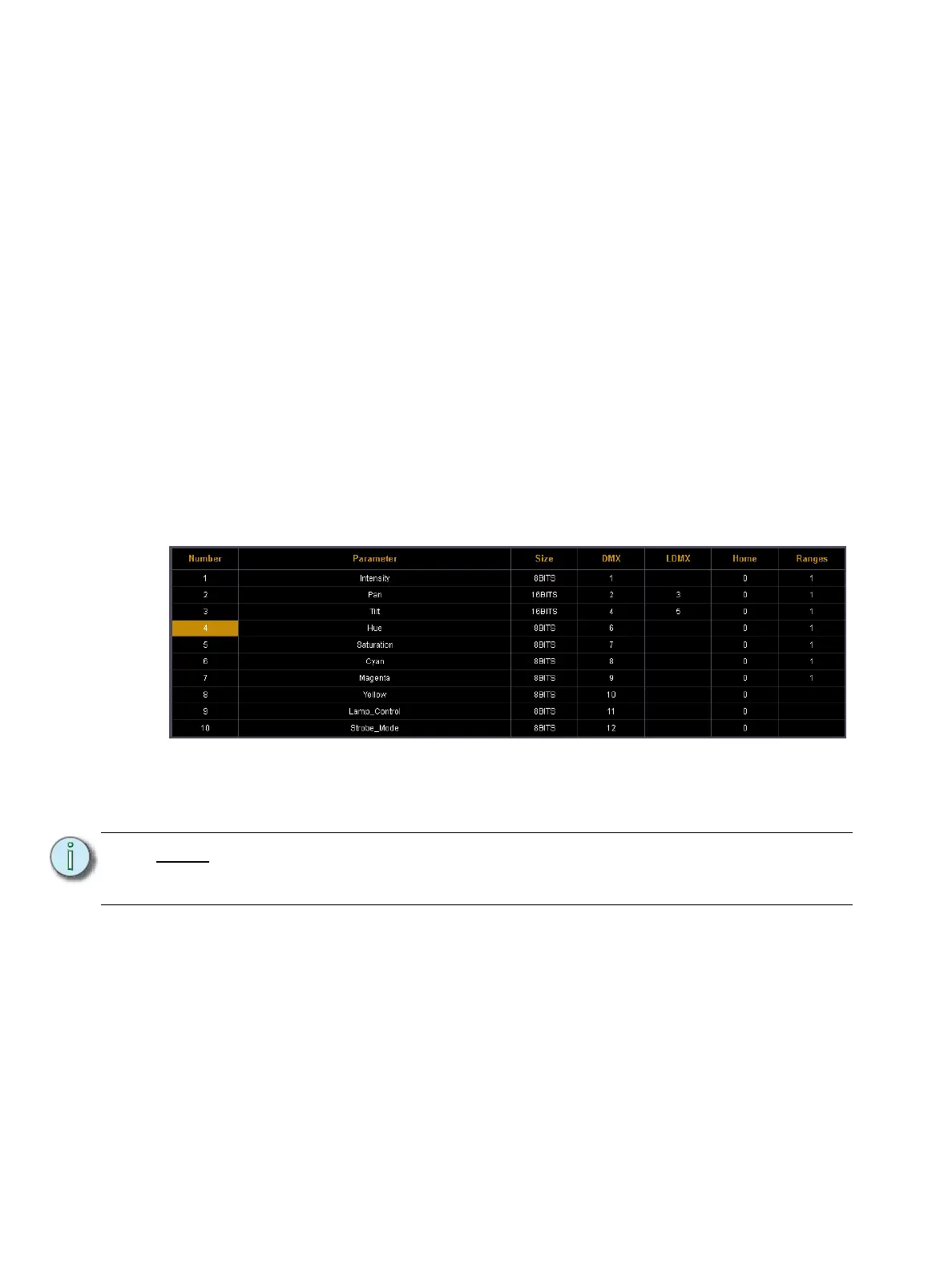
Step 2: Press {Edit}. That fixture will open in a new display in the CIA.
Step 3: Determine the total number of parameters that your fixture has. Do not count 16-bit
channels as two channels, this will be done in a later step.
Step 4: Press {New} to add parameter slots. Repeat this step until you have as many slots as
are required by the number determined in step 1.
Note:
When {New} is pressed, the parameter slot will appear in the list with a default
name in the “Parameter” column. You may disregard these default parameters as
you will redefine the designations in a later step.



 To Next Page