60 Eos Operations Manual
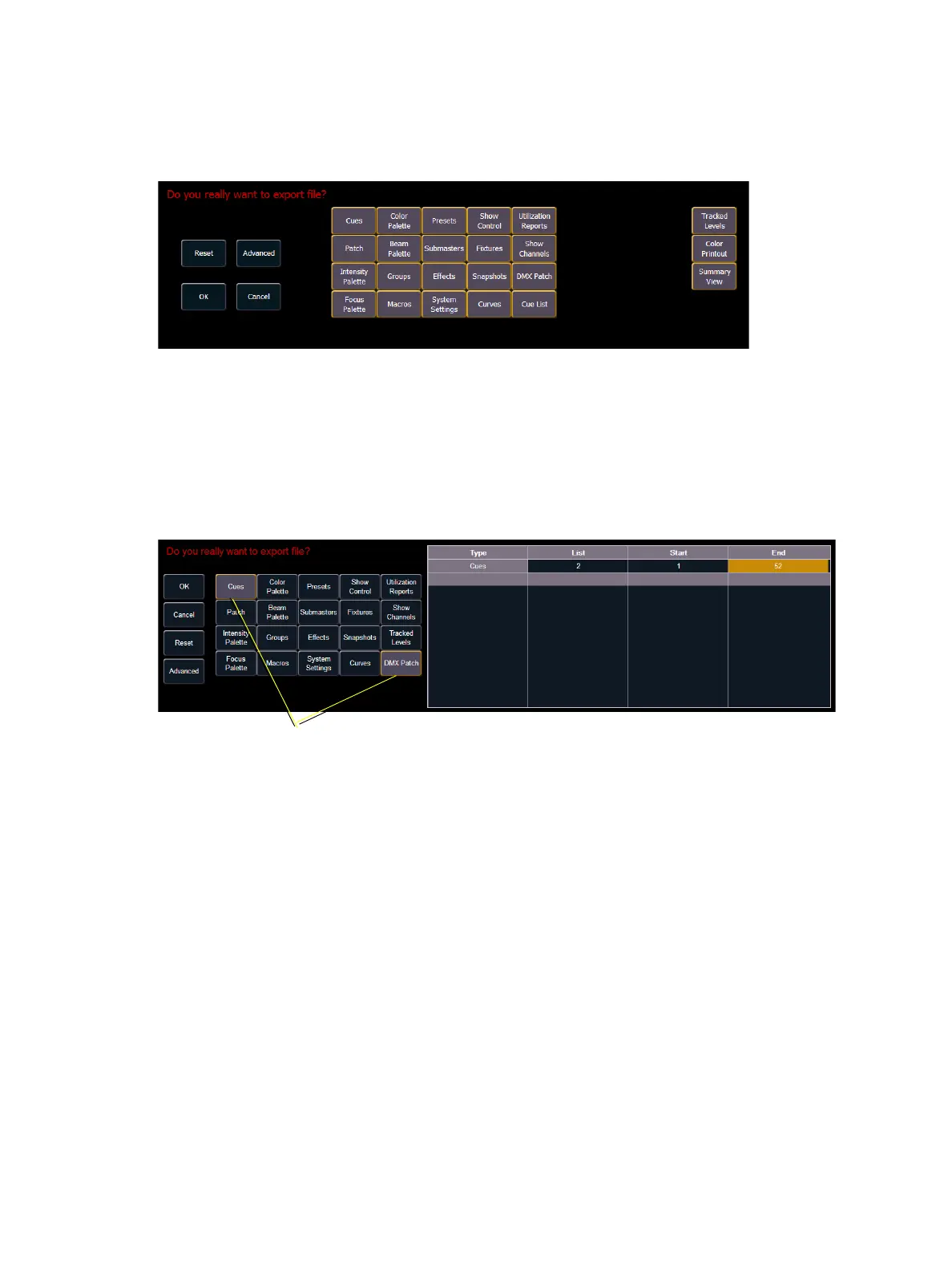
This will open the printing screen in the CIA. From this screen you can choose which aspects of the
show file you want to save to PDF. By default all aspects are selected (gray) and will be saved. To
withhold any show aspects from printing, simply deselect them in the CIA by touching the
respective button. Deselected show aspects will appear in black.
To reselect all show aspects, press the {Reset} touchbutton and all buttons will return to gray
(selected). To stop the show file from being saved to a PDF and return to the browser, press the
{Cancel} button. When you have selected/deselected all of the show aspects you require, press
the {Ok} touchbutton to create the PDF file.
You can also choose to print specific portions of show aspects. To select this information, press the
{Advanced} button. The touchbuttons at the center of the CIA will again represent all of the show
aspects that you can choose. By default all aspects will be deselected (black).
As you select aspects, they will be added to the table in the CIA. For each component in the list, you
can specify the desired range by pressing the proper area in the table and entering numbers from
the keypad. The columns in the table are:
• List - The list you are taking data from (such as a cue list).
• Start - The first in a range of components (such as a range of cues).
• End - The last in a range of components.
To deselect all show aspects, press the {Reset} touchbutton and all buttons will return to black
(deselected).
To return to the main print screen, press the {Advanced} button. To stop the show file from being
saved to a PDF file and return to the browser, press the {Cancel} button. If you are ready to save
the file, press the {Ok} button. You will be prompted to name the file.
The PDF will have the show name, date and time it was created, and date and times for when the
show file was last saved. It also gives the Eos software version information. If multiple aspects were
selected to save to the file, there will be hyperlinks at the top of the PDF so you can quickly jump to
a section.



 To Next Page