Overture Software Manual
Page 2-2
Revision 1.5 USING OVERTURE
2.2. MEDIA MANAGEMENT SCREEN
This section describes the function of each panel in the Media Management Screen.
2.2.1. Main Toolbar/Drop Down Menus
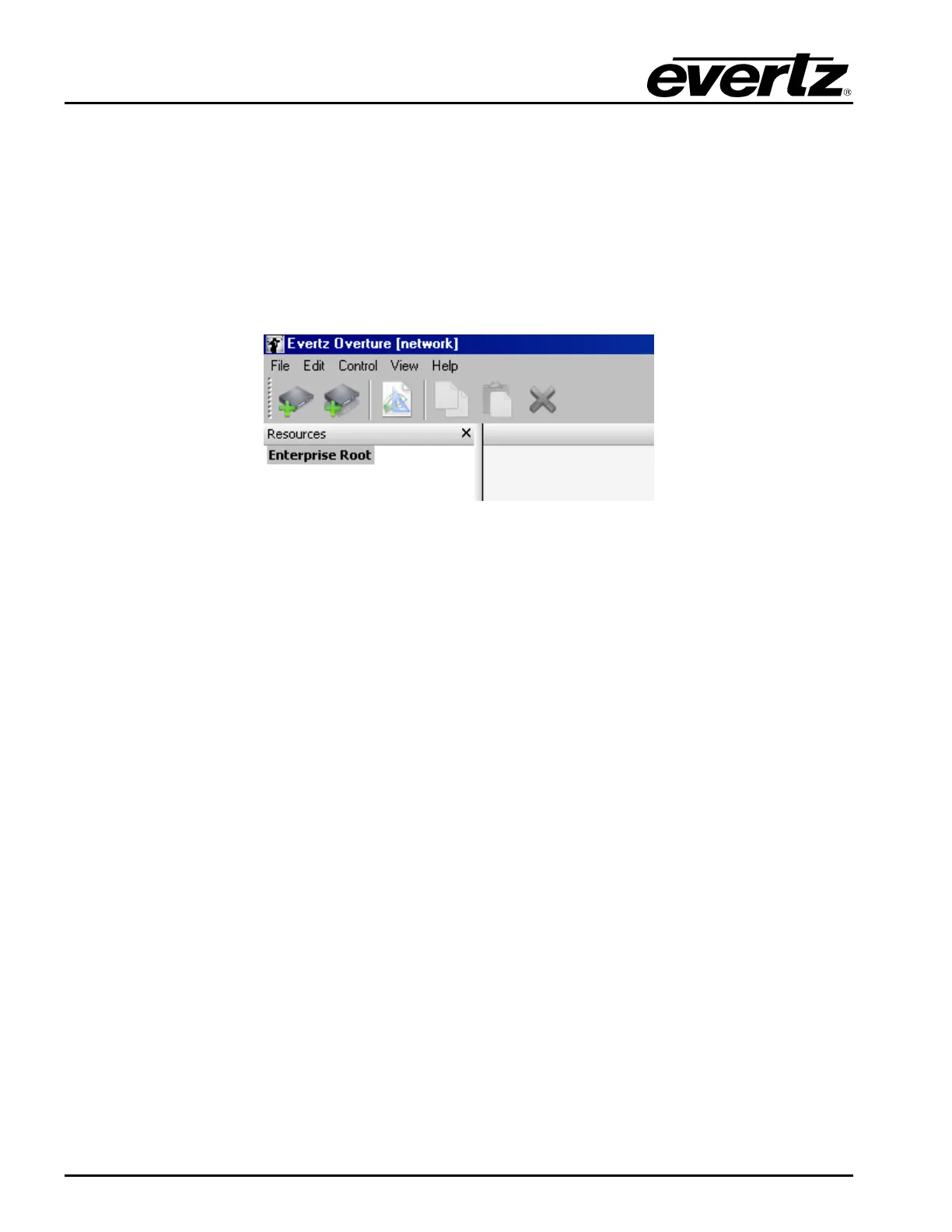
The main toolbar for the Media Management Screen enables the user to create and delete devices and
logos. Also, the user is able to control media on the various attached devices. These tasks are
executed using the drop down menus in the Main Toolbar (see Figure 2-2).
Figure 2-2: Main Toolbar/Drop Down Menus
2.2.1.1. File Menu
The File drop down menu has the following options (as shown in Figure 2-3).
• New Logo … enables the user to create a new logo. This will open the Design Canvas Screen.
See section 2.3 for more information on the Design Canvas.
• New Device … enables the user to add a new device to manage media files.
• New Device Group … enables the user to create a new group of devices to manage media
files. Device groups are used for grouping multiple devices that may represent a certain time
zone or group of stations, enabling the user to simultaneously send media files to all devices in
the group.
• Open enables the user to open the media file.
• Open From Location … opens a file from a specific location.
• Delete removes a file or device.
• Exit exits the Overture application.



 To Next Page