Overture Software Manual
Page 2-22
Revision 1.5 USING OVERTURE
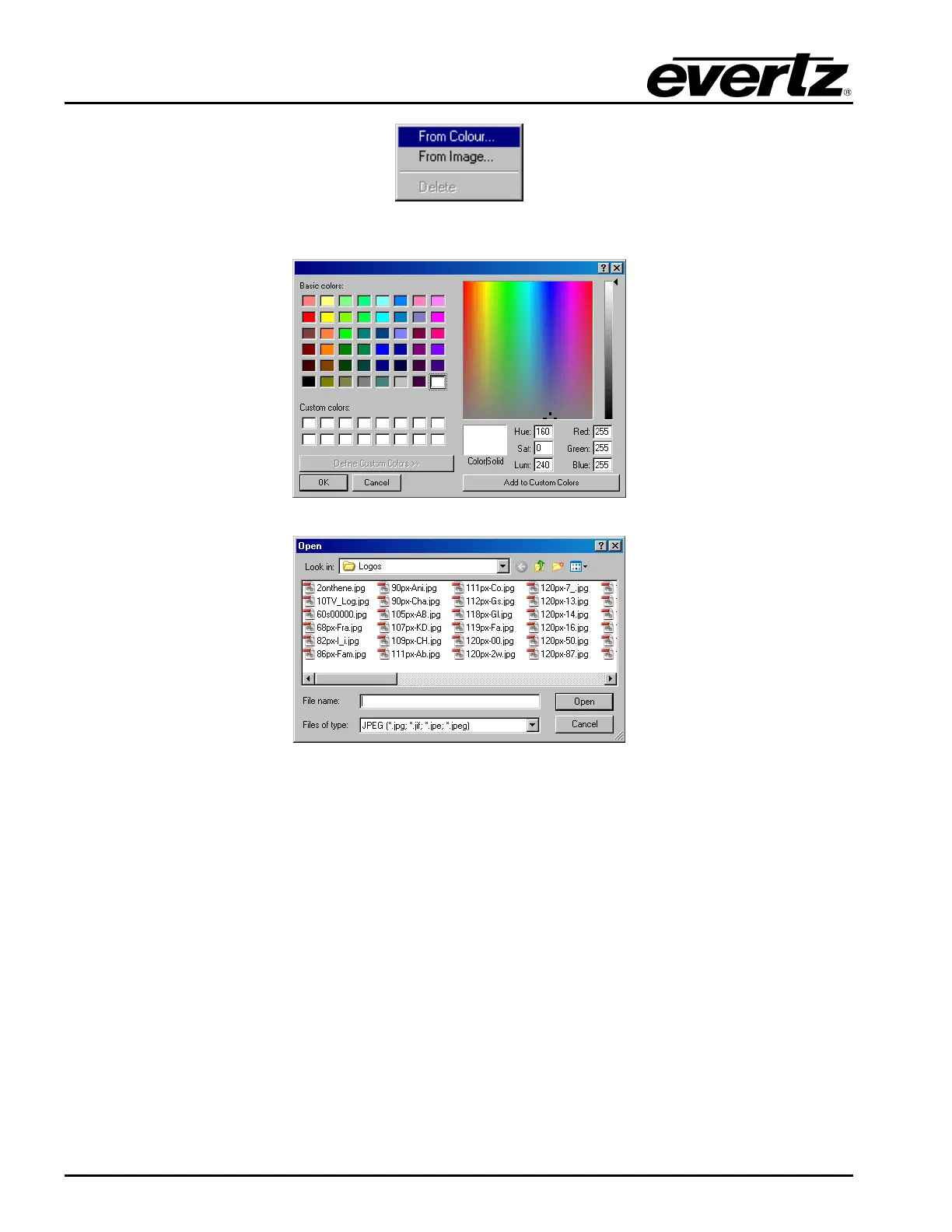
Figure 2-33: Key Menu
Figure 2-34: Key From Colour Window
Figure 2-35: Key From Image Window
2.3.1.6. View Menu
The View drop down menu provides the following options shown in Figure 2-36. The choices available
are:
• Zoom In enables the user to zoom in on the design canvas (up to 200%).
• Zoom Out enables the user to zoom out from the design canvas (up to 25%).
• Zoom to 100% enables the user to set the design canvas view to 100% (or full size for the
particular video standard).
• Zoom to Fit enables the user to set the design canvas view to fit the current window size.
• Frame Indicator enables the display of the frame number (if using a series of frames to create
an animation) when placing the image on the design canvas (shown in Figure 2-37).



 To Next Page