Overture Software Manual
Page 2-16
Revision 1.5 USING OVERTURE
2.2.5. Using the Transfer Queue Panel
The transfer queue panel (see Figure 2-21) displays the actions currently being performed. It will also
display the results of particular actions.
Some of the actions that would be displayed are:
• Connecting to devices
• File transfers
• Loading media files
• Copying media files
• Removing media files
Figure 2-21: Transfer Queue Panel
2.3. DESIGN CANVAS
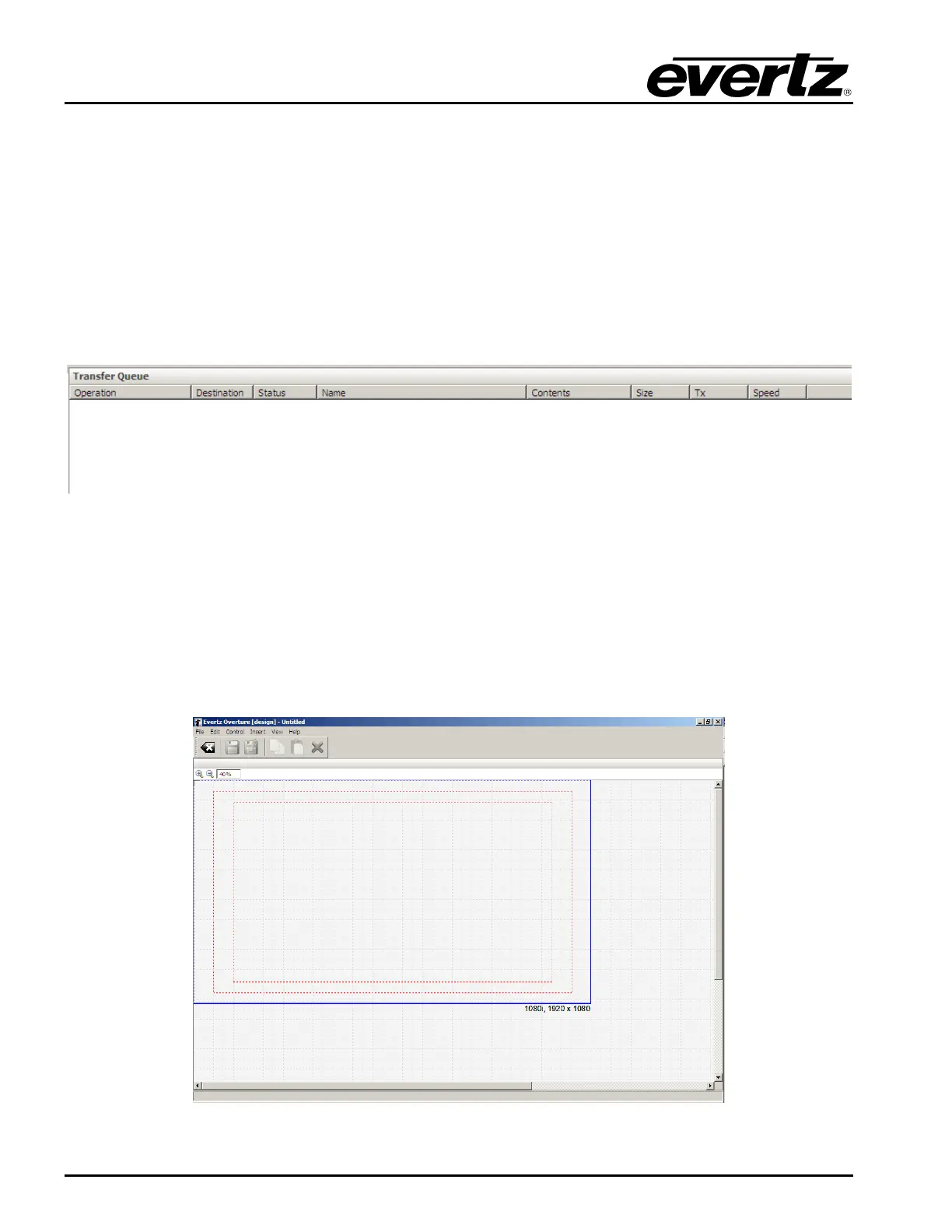
The Design Canvas screen is the main logo design window. The user will use this screen to import
various media files, such as .tiff, .tga, .bmp, etc. The Design Canvas screen enables the user to place
the logo or text title (ex. a crawl) in the desired location of the screen based on the video standard.
When selecting New Logo… or opening a media file, the design canvas screen (shown in Figure 2-22)
is opened automatically.
Figure 2-22: Design Canvas Screen



 To Next Page