Overture Software Manual
Page 2-46
Revision 1.5 USING OVERTURE
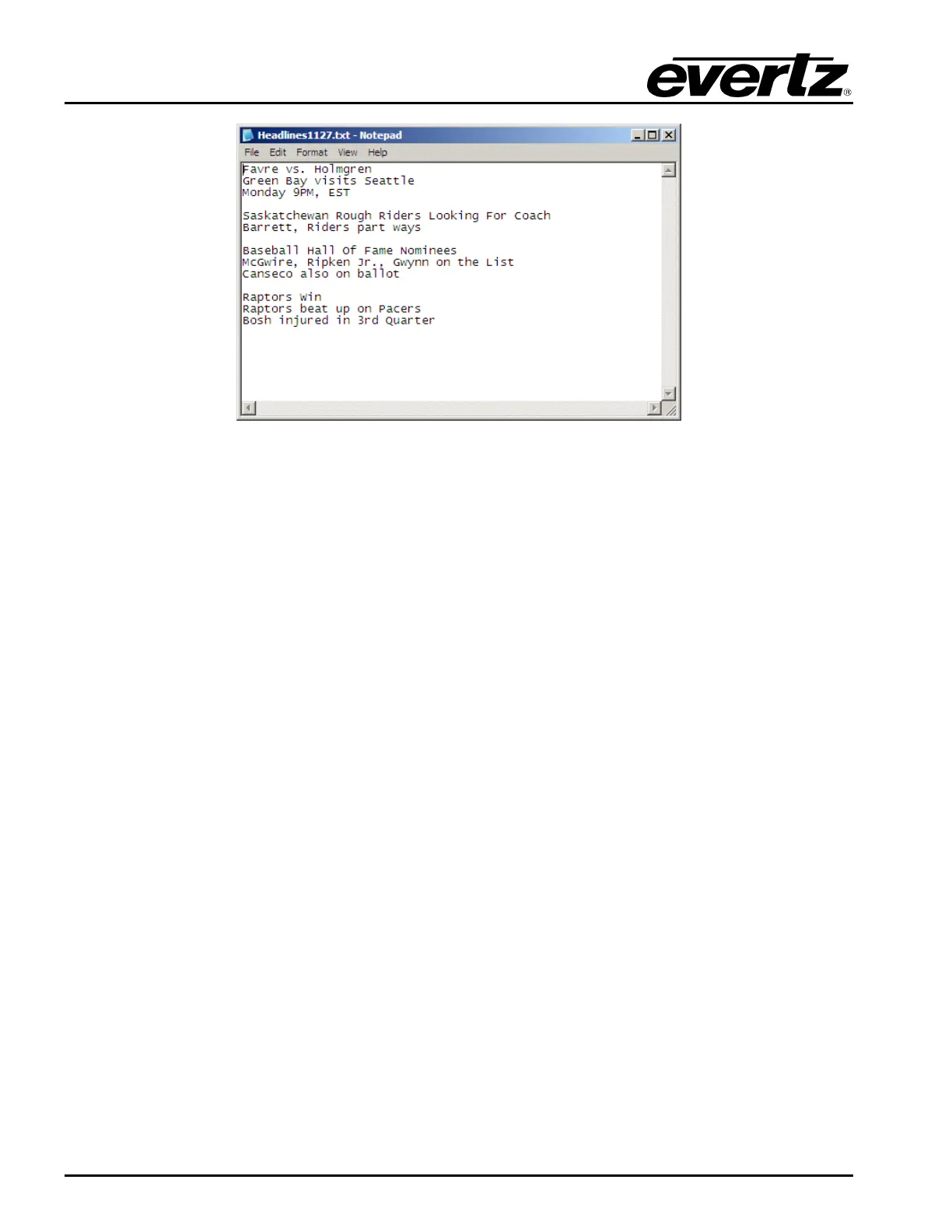
Figure 2-63: Sample Text Source File
2.6.3. Setting the Text Object parameters
The user can adjust the parameters of the text object directly. The user selects any one of the text
boxes. The Text Object menu choices are shown in Figure 2-64. The choices are:
• Increase font size enables the user to increase the font size of the text by a single increment at
a time.
• Decrease font size enables the user to decrease the font size of the text by a single decrement
at a time.
• Font… enables the user to specify the font type of the text.
• Font Colour… enables the user to set the font colour of the text.
• Font Size… enables the user to set the font size of the text.
• Use Font Outline enables the user to add an outline to the text.
• Outline Colour… enables the user to set the colour of the font outline.
• Use Font Shadow enables the user to add a shadow to the text.
• Shadow Colour… enables the user to set the colour of the shadow around the text.
• Shadow Depth… enables the user to set the depth of the shadow around the text. The range
is from 1 to 16 pixels in each the X and Y direction.



 To Next Page