Overture Software Manual
USING OVERTURE Revision 1.5 Page 2-53
2.10.2.3. Background
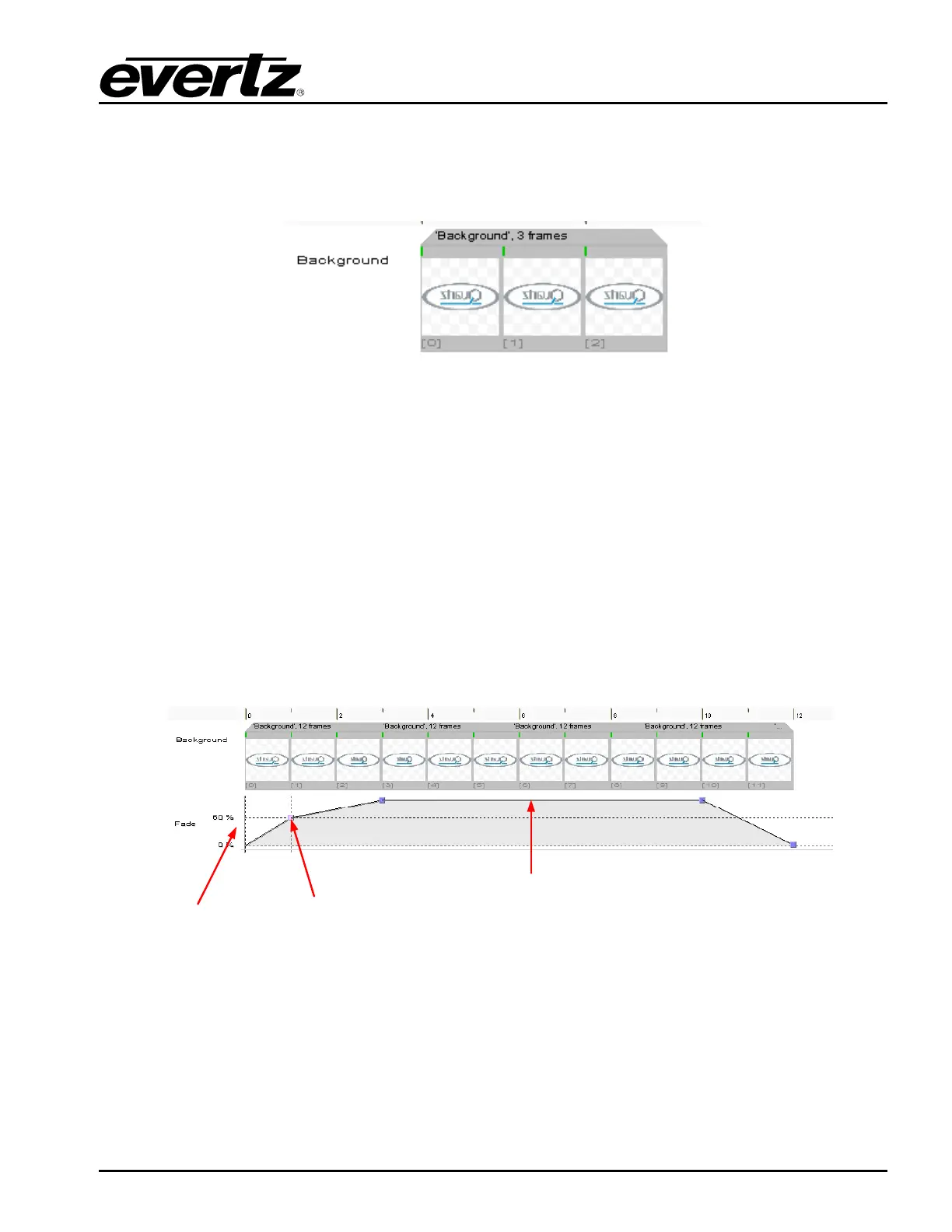
The Background is the sequence of actual frames that form the animation. They can be dragged from
the Frame Panel or Inserted directly by Right-clicking and selecting the Insert… option. The user can
also delete frames by Right-clicking and selecting the Delete option.
Figure 2-71: Background Sequence
2.10.2.4. Fade Control
The Fade Control portion of the Sequence Editor is depicted in Figure 2-72. The Fade Control allows
the user to create the Fade profile for the animated sequence. In fact, the user can create different
fade settings for individual segments of the entire sequence. This is accomplished by using the
following:
• Fade % sets the animation’s level of opacity. The range for this is from 0% (completely
transparent) to 100% (fully visible).
• Fade Sequence End Points define the end of a particular Fade Sequence.
• Fade Sequence is the sequence of frames at which the Fade % is applied to.
Fade %
Fade
Sequence
End Point
Fade
Sequence
Figure 2-72: Fade Control
2.10.2.5. Setting the Fade %
The user can set the Fade % by selecting a Fade Sequence End Point with the mouse and moving it
up or down.



 To Next Page