Overture Software Manual
Page 2-20
Revision 1.5 USING OVERTURE
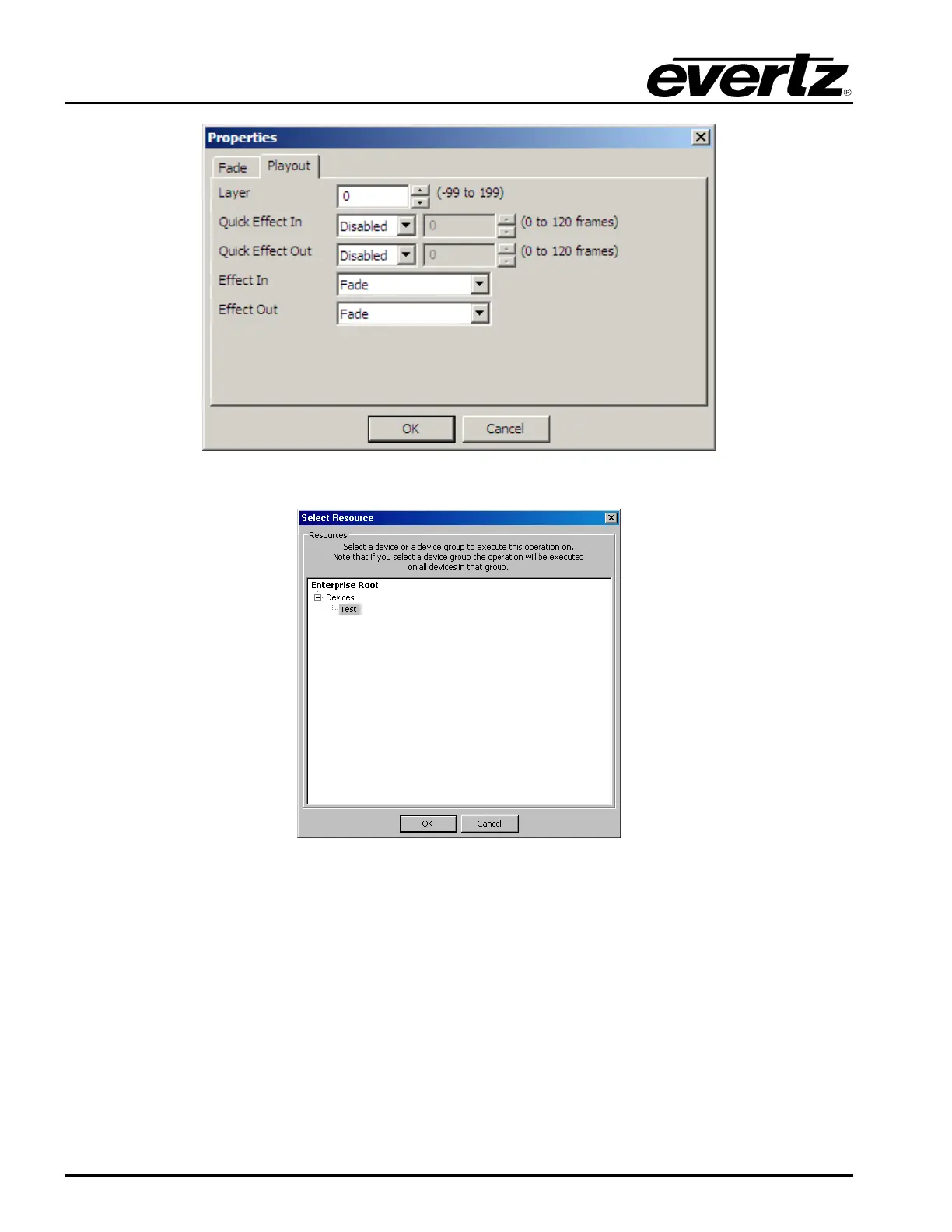
Figure 2-28: Logo Properties – Playout
Figure 2-29: Design Upload Window
2.3.1.5. Insert Menu
The Edit drop down menu provides the following options shown in Figure 2-30:
• Audio Clip… enables the user to insert an audio wav file.
• Image… enables the user to insert a fill graphic (ex. .tiff, .tga, .jpg, etc) into the design canvas.
When selected the window shown in Figure 2-31 will appear. The user simply selects the file.
For a numerical sequence (ex. an image name followed by number like image001.jpg), the user
can simply select the first file in the sequence and Overture will automatically pull the full
sequence of files into the Design Canvas.



 To Next Page