Overture Software Manual
USING OVERTURE Revision 1.5 Page 2-41
2.5.4. Scaling a Static or Animated Graphic for the Crawl
Overture will allow users to scale static or animated graphics to fit into a crawl. This is accomplished by
right clicking over the crawl and selecting the Bullets… option in the pop up menu as shown in Figure
2-55.
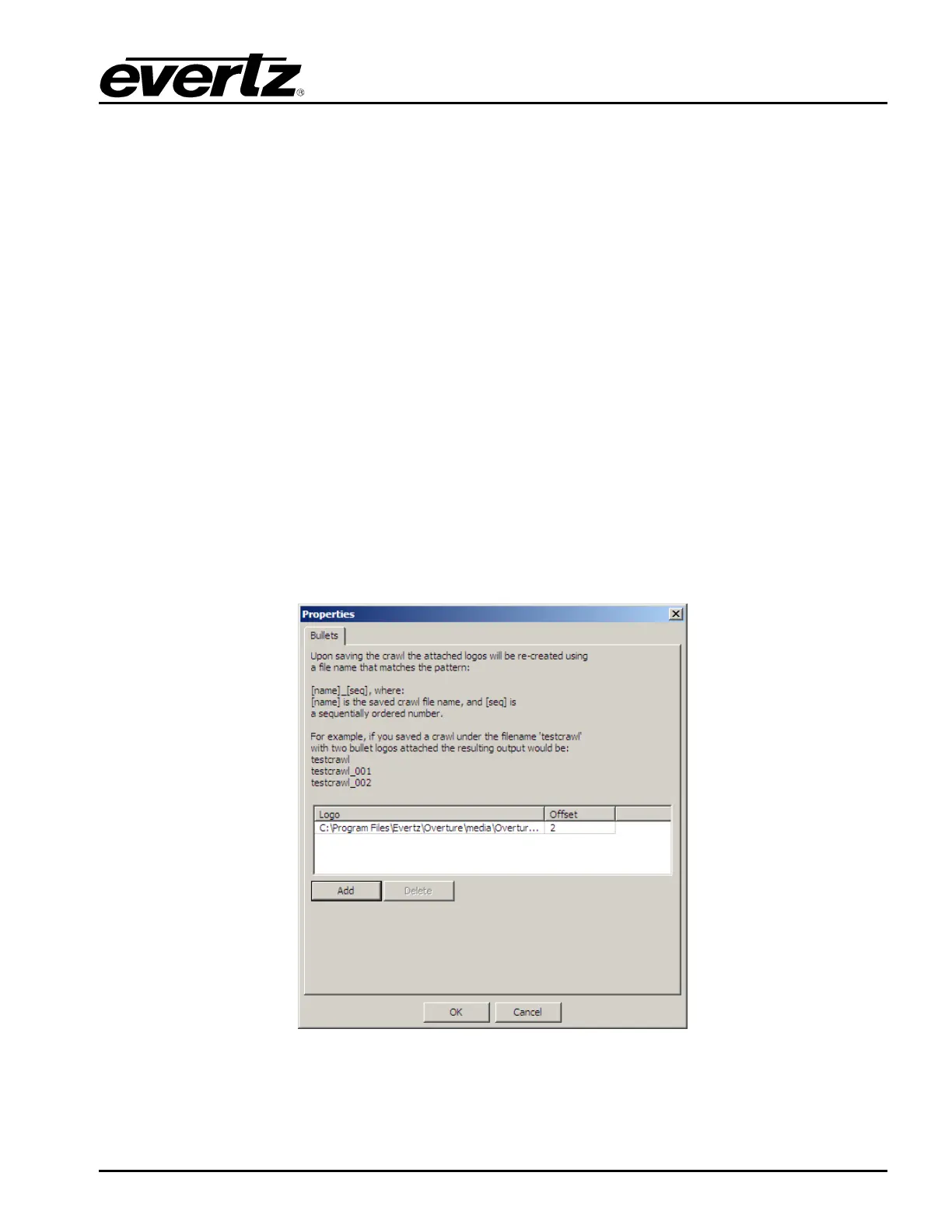
Figure 2-58 shows the Properties window for Bullets. The user must select the Add button to choose
which graphic file they want to scale to insert into the crawl. This file MUST be an existing .evl file
(either static or animated logo).
The Offset column will indicate the amount the user will have to adjust the graphic to properly center it
in the crawl. This is the “v” offset value as shown in section 2.5.5. The user SHOULD set the “v” offset
before saving the crawl.
When the user saves the crawl, Overture will create a new logo file called “<crawl_name>_001”. For
example, if the user is creating a crawl called TestCrawl, Overture will also create a file called
TestCrawl_001. This is the scaled logo file. The user can rename this file to match the name specified
as LOGO NAME in section 2.5.5.
Using the TestCrawl example, in the Set Text…, the user may have specified the following:
<graphic name= “bullet” v=”2”>
In this example, the TestCrawl_001 would be renamed bullet. Also, the v offset would be set to match
the offset displayed in the Offset column (see Figure 2-58).
Figure 2-58: Scaling a Graphic



 To Next Page