Overture Software Manual
Page 2-26
Revision 1.5 USING OVERTURE
2.4.1. Animated Text Menu
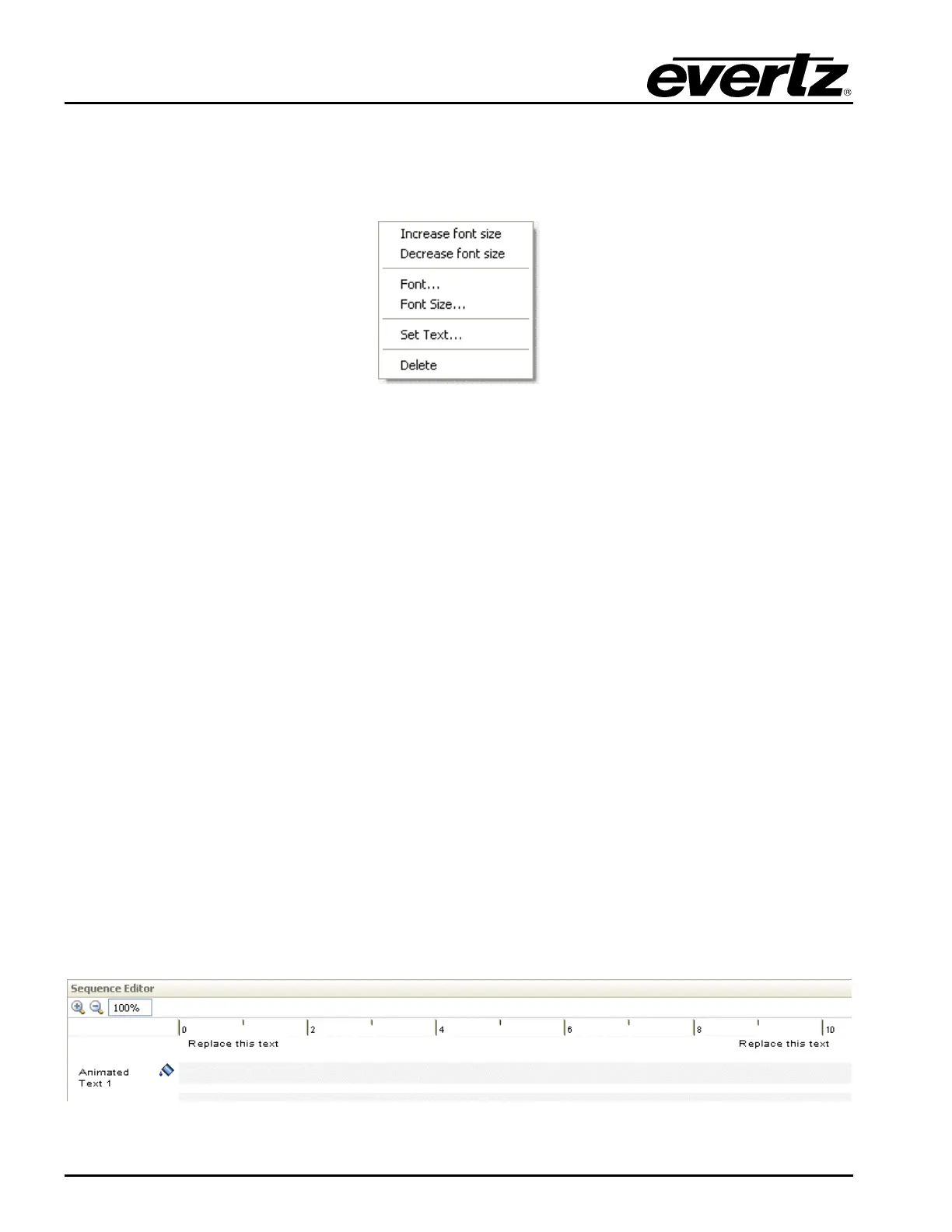
By right mouse clicking the text on the design canvas, the user can access the Animated Text menu.
The Animated Text menu provides the user with the animated text options shown in Figure 2-40.
Figure 2-40: Animated Text Menu
The following choices are available in the Animated Text menu:
• Increase font size enables the user to increase the font size of the animated text by a single
increment at a time.
• Decrease font size enables the user to decrease the font size of the animated text by a single
decrement at a time.
• Font… enables the user to specify the font type of the animated text. Note that this font MUST
BE on the device with the animated text in order for the animated text to appear.
• Font Size… enables the user to set the font size of the animated text. The size of the animated
text is adjustable from 10 to 200 point size.
• Set Text… allows the user to enter static text content.
• Delete enables the user to remove the animated text.
2.4.2. Sequence Editor
The Sequence Editor contains a fill (top bar) and key (bottom bar) for each animated text object. The
Fill effect creates the appearance of the animated text. It enables the user to change the colour or
apply a sequence of images to the animated text. The Key effect determines how the object will be
represented. It enables the user to apply a transition effect or a transitioning image sequence to the
animated text.
Figure 2-41: Animated Text Sequence Editor



 To Next Page