Overture Software Manual
Page 2-18
Revision 1.5 USING OVERTURE
Figure 2-24: Design File Menu
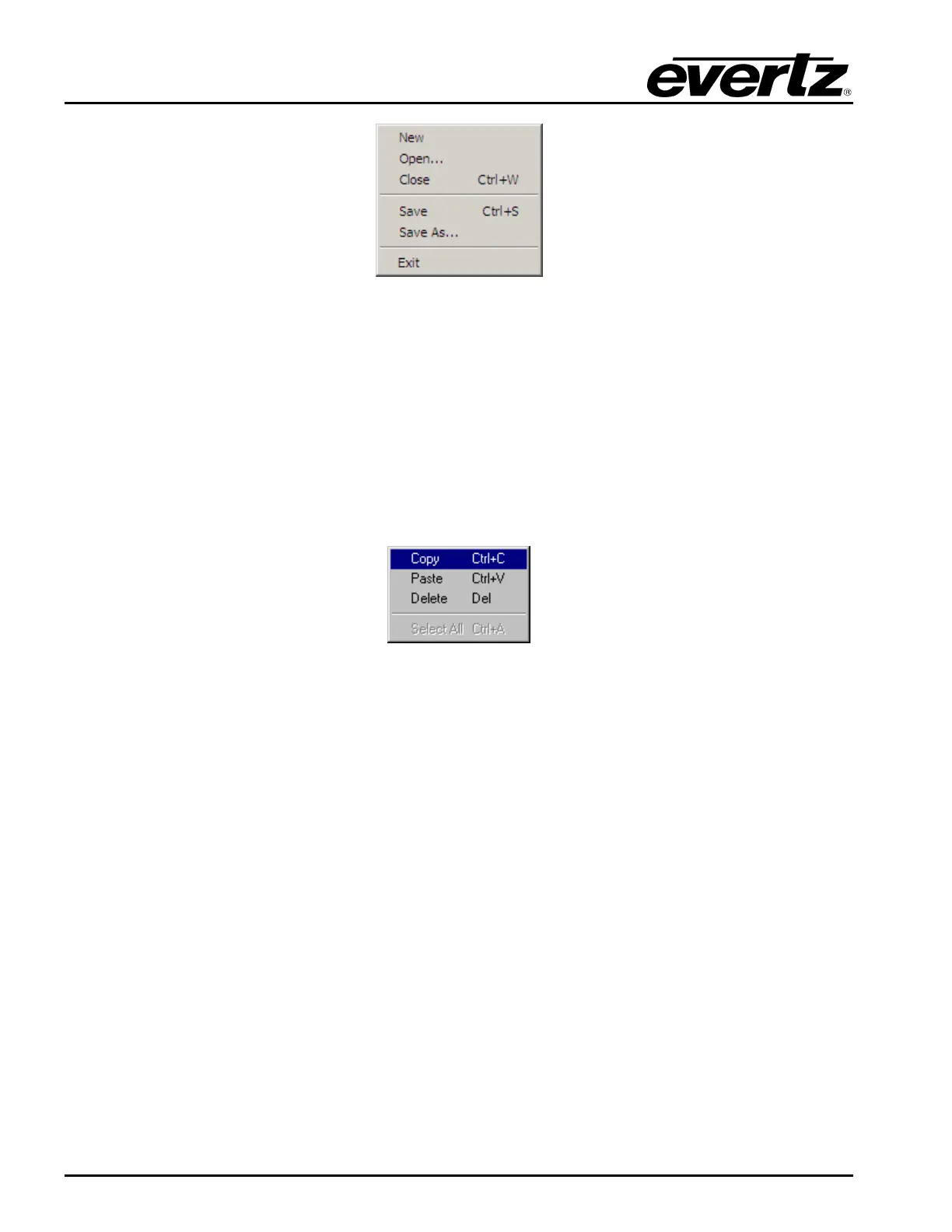
2.3.1.2. Edit Menu
The Edit drop down menu provides the options shown in Figure 2-25:
• Copy enables the user to copy individual or multiple frames.
• Paste enables the user to paste frames.
• Delete enables the user to remove frames.
• Select All enables the user to select all of the frames.
Figure 2-25: Design Edit Menu
2.3.1.3. Control Menu
The Control drop down menu provides the options shown in Figure 2-26:
• Cue enables the user to cue a media file on the selected device or device group. This will load
the selected media file into the device’s memory cache and output on the preview output of the
device. Note that the logo must have been uploaded to the device before Cue can occur.
• Fade In enables the user to fade in the selected media file. If the logo has not been loaded into
the device’s memory cache, this action will load the media file and fade it into the video signal.
Note that the logo must have been uploaded to the device before Fade In can occur.
• Fade Out enables the user to fade the selected media file out of the video signal. Note that the
logo must have been uploaded to the device before Fade Out can occur.
• Upload… enables the user to upload the .evl file to a selected device (see Figure 2-29).
• Logo Properties… enables the user to set the properties of the logo. These properties are the
number of frames to fade in, fade out, hold duration, etc. Depending on the nature of the
logo/animation, some parameters may or may not appear. For further details on the parameters
please refer to the device’s user manual (for example, 9725LG Series Users Manual).



 To Next Page