Overture Software Manual
Page 2-32
Revision 1.5 USING OVERTURE
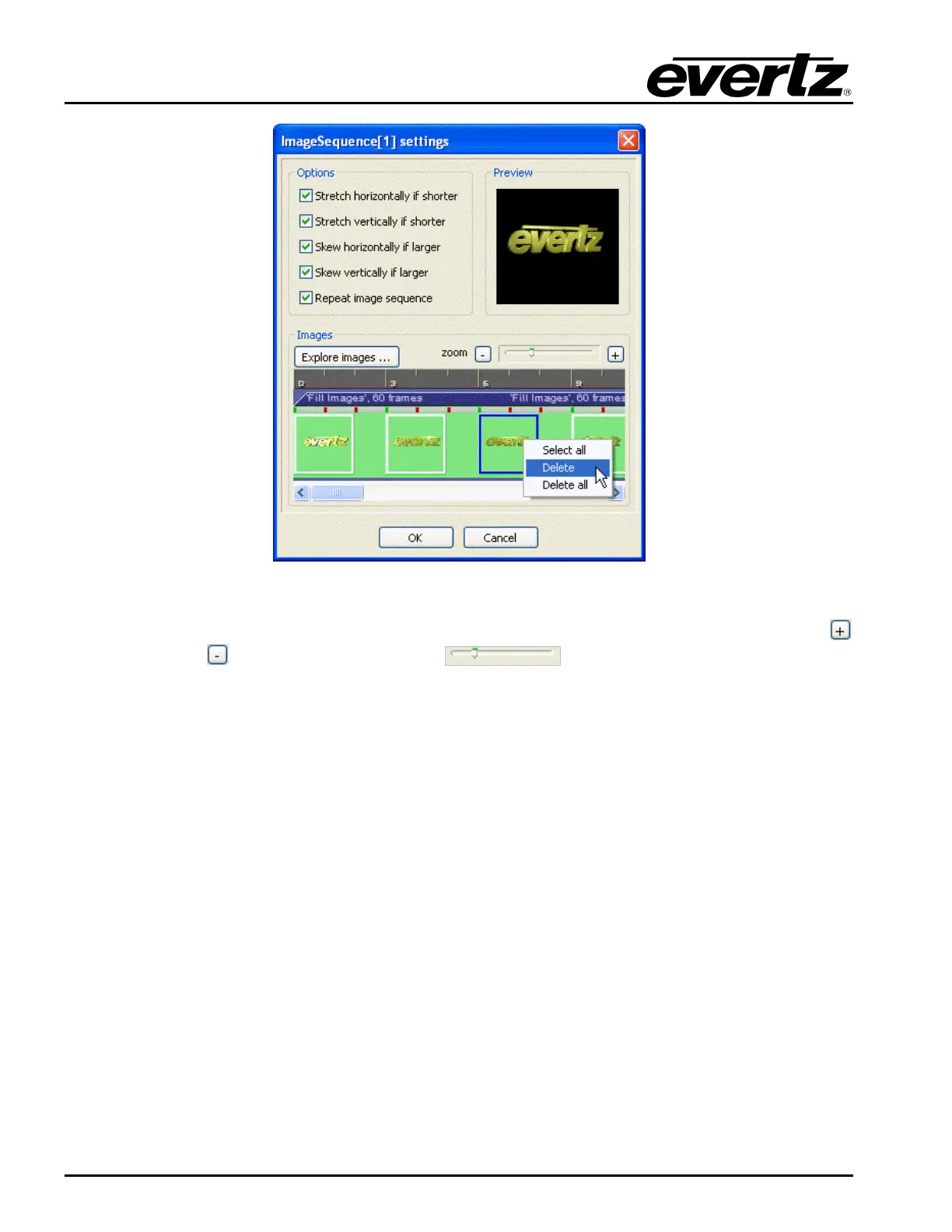
Figure 2-50: Selecting the Delete Option
8. The Zoom feature enables the user to zoom in or out on the image sequence. Use the plus
and minus
buttons or the zoom handle to control the zoom function.
9. The Options panel enables the user to manipulate the Image Sequence. To apply the Options
effects, ensure that a check mark is placed in the box next to the desired setting. The Options
settings provides the following choices:
o Stretch horizontally if shorter stretches the width of the image if it does not
horizontally fill the animated text space. Images will appear shorter and wider.
o Stretch vertically if shorter stretches the height of the image if it does not vertically fill
the animated text space. Images will appear taller and thinner.
o Skew horizontally if larger shrinks the width of the image if it is horizontally too large to
fit in the animated text space. Images will appear taller and thinner.
o Skew vertically if larger shrinks the height of the image if it is vertically too large to fit
into the animated text space. Images will appear shorter and wider.
o Repeat image sequence repeats the selected image(s) in the image sequence.
10. The Preview screen allows the user to preview the changes that are being made to the Image
Sequence. If a change is made using the Options panel or the image sequence is manipulated
on the timeline, the Preview screen will reflect the change.
11. Once the desired image sequence is achieved, select the OK button to apply the image
sequence settings.



 To Next Page