Overture Software Manual
USING OVERTURE Revision 1.5 Page 2-47
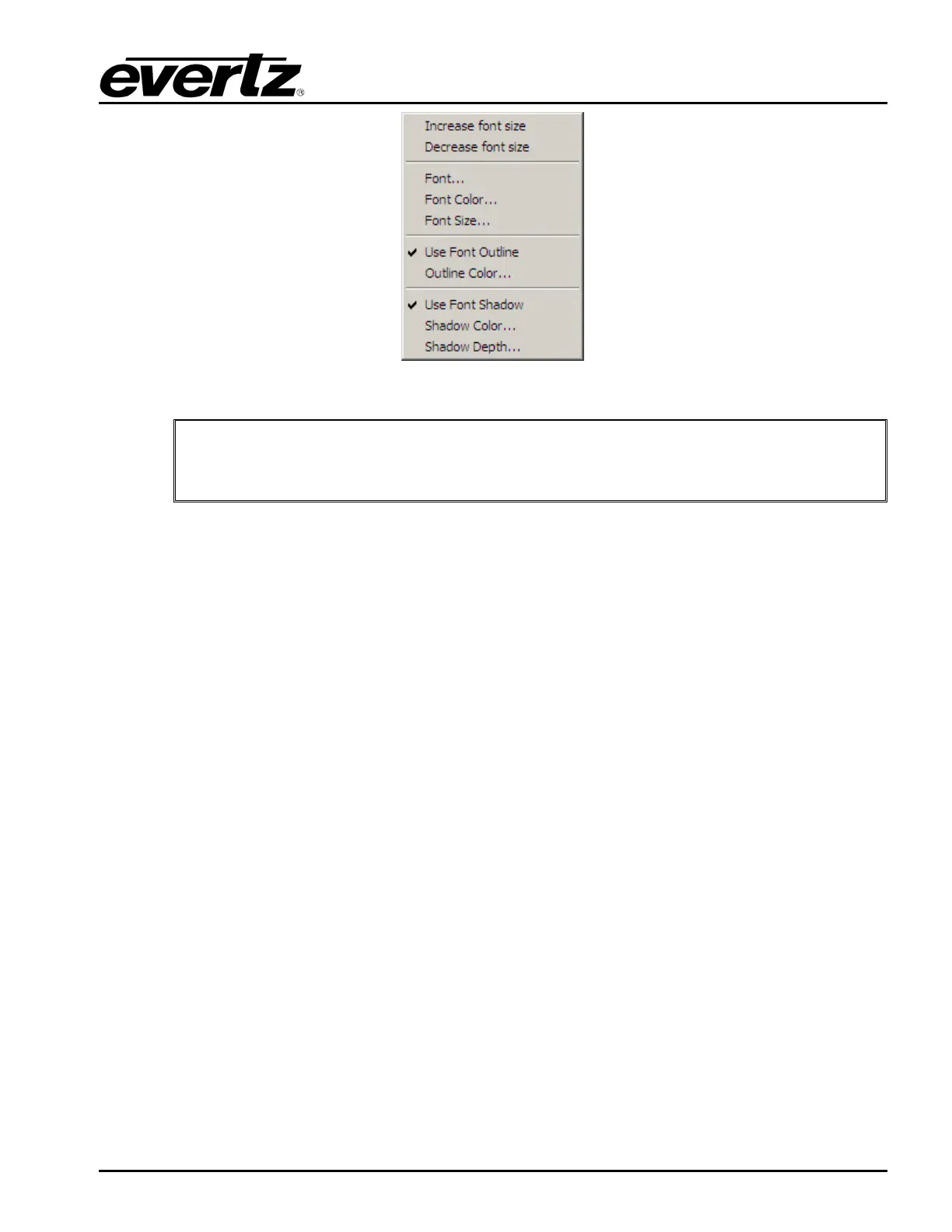
Figure 2-64: Text Object Menu
"
The user currently can only set the text parameters for all three text boxes.
Support to set text parameters for each individual text box will be in a future
release.
2.6.4. Setting Display Objects
The user can set the size of the Display Object by selecting any one of the four dashed lines. The two
horizontal lines set the height of the display area. The two vertical lines define the width of the display
area. When defining either the height or width of the display, the user MUST be aware they are
defining the area where the text will appear. If the font or text line is too large or too long, this Display
Object area will crop the text based on its size.
2.6.5. Placing the Text Objects
Using the Logo Positioning information, the three lines can be placed anywhere inside of the Display
Object area. The user can align the Text Objects individually by selecting the object and using the
mouse to navigate its position.



 To Next Page