Overture Software Manual
USING OVERTURE Revision 1.5 Page 2-9
2.2.3. Using the Media View Panel
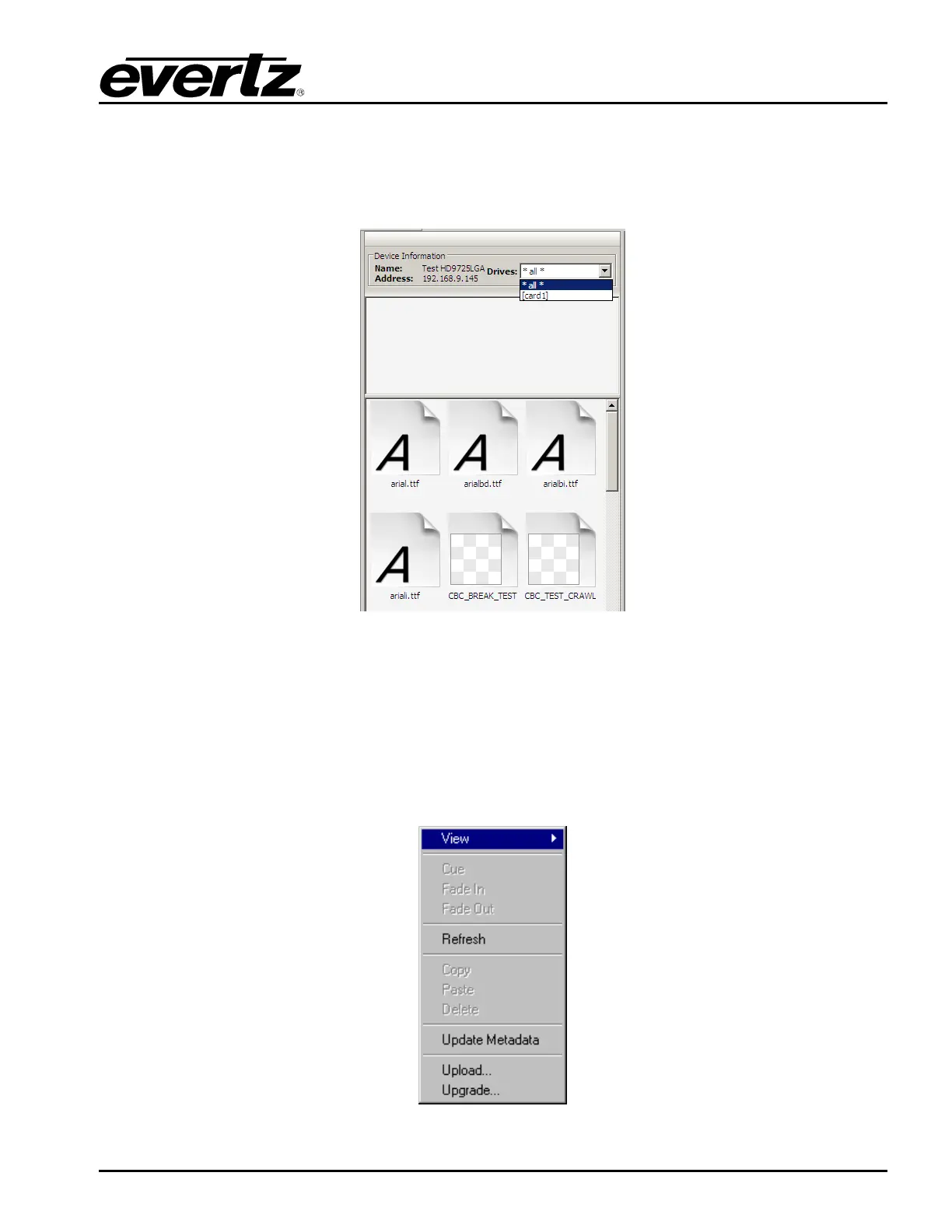
The user has the ability to manage the media on the actual devices. This is accomplished by using the
Media View panel (see Figure 2-13). When a device or device group is selected, this panel will display
all the files stored on the device.
Figure 2-13: Media View Panel
The user can select which compact flash drive they would like to view by selecting it from the Drives
pull-down menu. Depending on the device configuration, the user may see one or two drives (one for
the internal compact flash and one for the external compact flash drive). The user can select ‘*all*’ to
display all the drives at once.
If the user selects a file (or files) and Right-clicks the mouse button, they will open the menu shown in
Figure 2-14.
Figure 2-14: Media View Menu



 To Next Page