Overture Software Manual
USING OVERTURE Revision 1.5 Page 2-39
2.5.2. Moving Crawl Position
The user can move the crawl position by selecting the text object box inside the crawl. The user can
use the Logo Positioning information to place the crawl where desired.
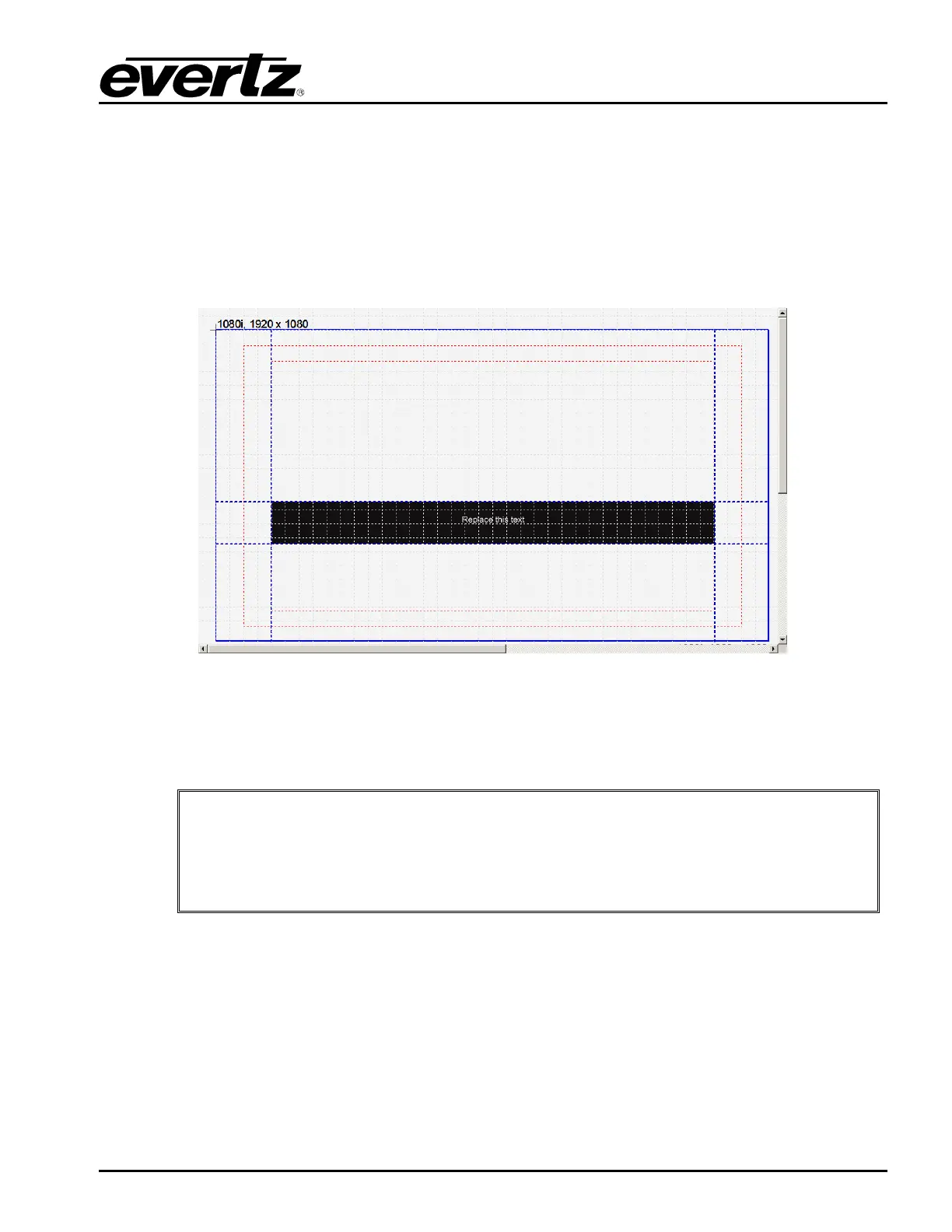
The user can also set where the crawl will begin and end within the active picture. This is
accomplished by selecting the left or right edge of the crawl object. The user then uses the mouse to
adjust the position of the left or right edge of the crawl. The user can use the Logo Positioning
information to accurately size the start and finish edges of the crawl. This is shown in Figure 2-56.
Figure 2-56: Crawl Sizing
The user can also adjust the height of the background of the crawl. This is accomplished by selecting
the top or bottom edge of the crawl object. The user then uses the mouse to adjust the position of the
top or bottom edge of the crawl.
"
When adjusting the top or bottom of the background of the crawl, the user
should note that the crawl text MIGHT be cropped. If the adjustments are made
such that the background is less than the font height of the crawl text, cropping
of the text will occur. Users should be aware of this when making the
adjustments.
2.5.3. Using a Text File for Crawl Content
The user can enter static text into the crawl, provide a text file as the content of the crawl, or define a
Really Simple Syndication (RSS 2.0) feed as the source for content of the crawl. The user selects Set
Text … option in the crawl menu (see section 2.5.1) to define the source. If static content is desired,
then the user can enter the text into the Enter Text area of the Set Text… dialog box shown in Figure
2-57.



 To Next Page