Overture Software Manual
USING OVERTURE Revision 1.5 Page 2-11
2.2.3.1. Configurable System Logos
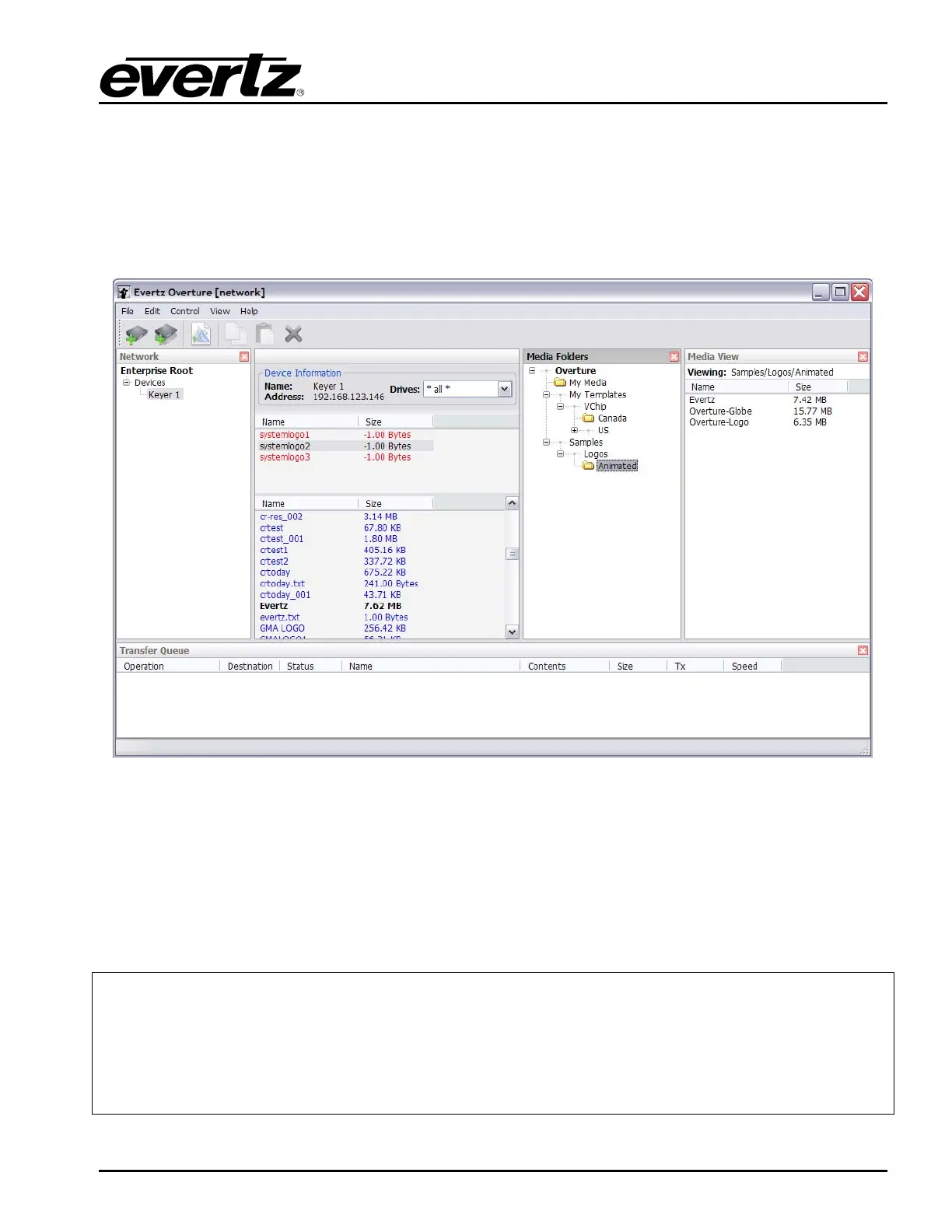
Logos can be designated as "system" logos, in which case Overture displays the logos in its upper
"system" view. Each logo in the system view is marked as either present or missing as indicated by the
item colour. System logos that are present will appear in standard font colour (in most cases BLACK,
unless otherwise changed through the Control Panel Display applet). System logos that are not present
(missing) are displayed in RED. All other logos (for example, logos that are not configured as System)
are displayed in BLUE and will appear in the lower "show" view.
Figure 2-15: System Logo Window
Overture maintains a separate System logo database for each piece of hardware, thus allowing for
independent configuration. System logos are setup in an XML configuration file named database.xml.
There is one database.xml file for each hardware device, which is located in the Overture installation
folder (typically C:\Program Files\Evertz\Overture\Cache\IPADDRESS, where IPADDRESS is the
network address of the device in question). Refer to Figure 2-16.
The following is an example of a database.xml file:
<?xml version="1" encoding="UTF-8"?>
<root>
<cf name="CompactFlashName">
<file name="Logoname"/>
…
<file name="LogonameN"/>
</cf>
</root>



 To Next Page