Overture Software Manual
Page 2-34
Revision 1.5 USING OVERTURE
• Fade enables the user to create fade in or fade out effects.
• Squares enables the user to create a transition, which dissolves the animated text in or out.
In the Choose key editor, the user can add a new key type to the animated text by selecting the New
button and clicking on either the Wipe/reveal, Fade, or Square option in the pop up menu. The new
key name will appear under the Name tab in the Choose key editor. By highlighting the new key name
and selecting the Edit button, the user can edit the settings for the key type.
In the Choose key editor, the user can add an Image Sequence by selecting the New button and
clicking the ImageSequence option in the pop up menu. The new Image Sequence name will appear
under the Name tab. By highlighting the ImageSequence[x] name and selecting the Edit button, the
user can create the Image Sequence. Refer to section 2.4.2.1.2 for more information on Image
Sequence settings.
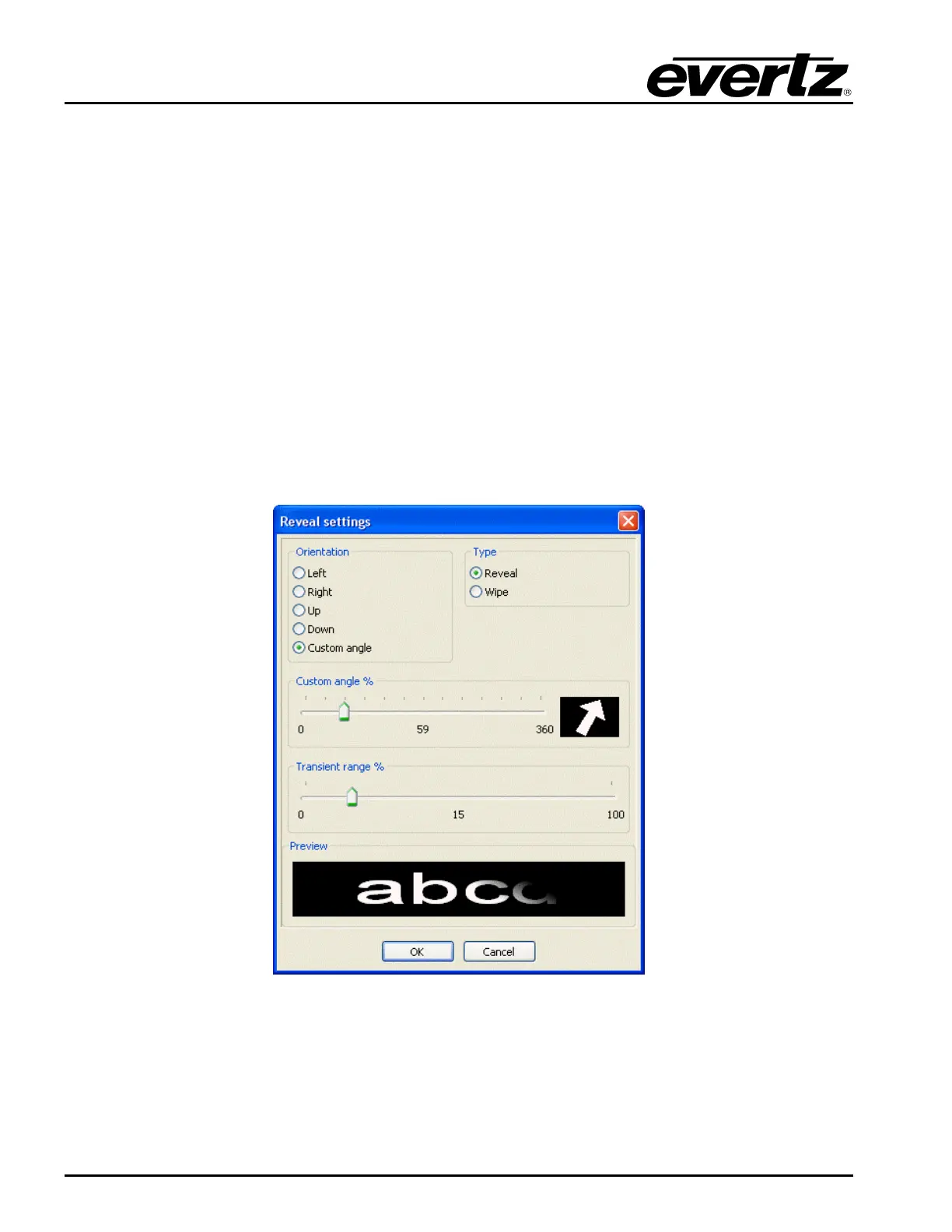
To edit a new or existing key, highlight the key name in the Name tab and select the Edit button. A
unique settings dialog box will appear for each individual key type. For example, Figure 2-52 shows the
settings dialog box when the Edit button is selected for a reveal key type. To apply the settings select
the OK button.
Figure 2-52: Reveal Settings Window



 To Next Page