Overture Software Manual
USING OVERTURE Revision 1.5 Page 2-5
2.2.1.6. Toolbar Buttons
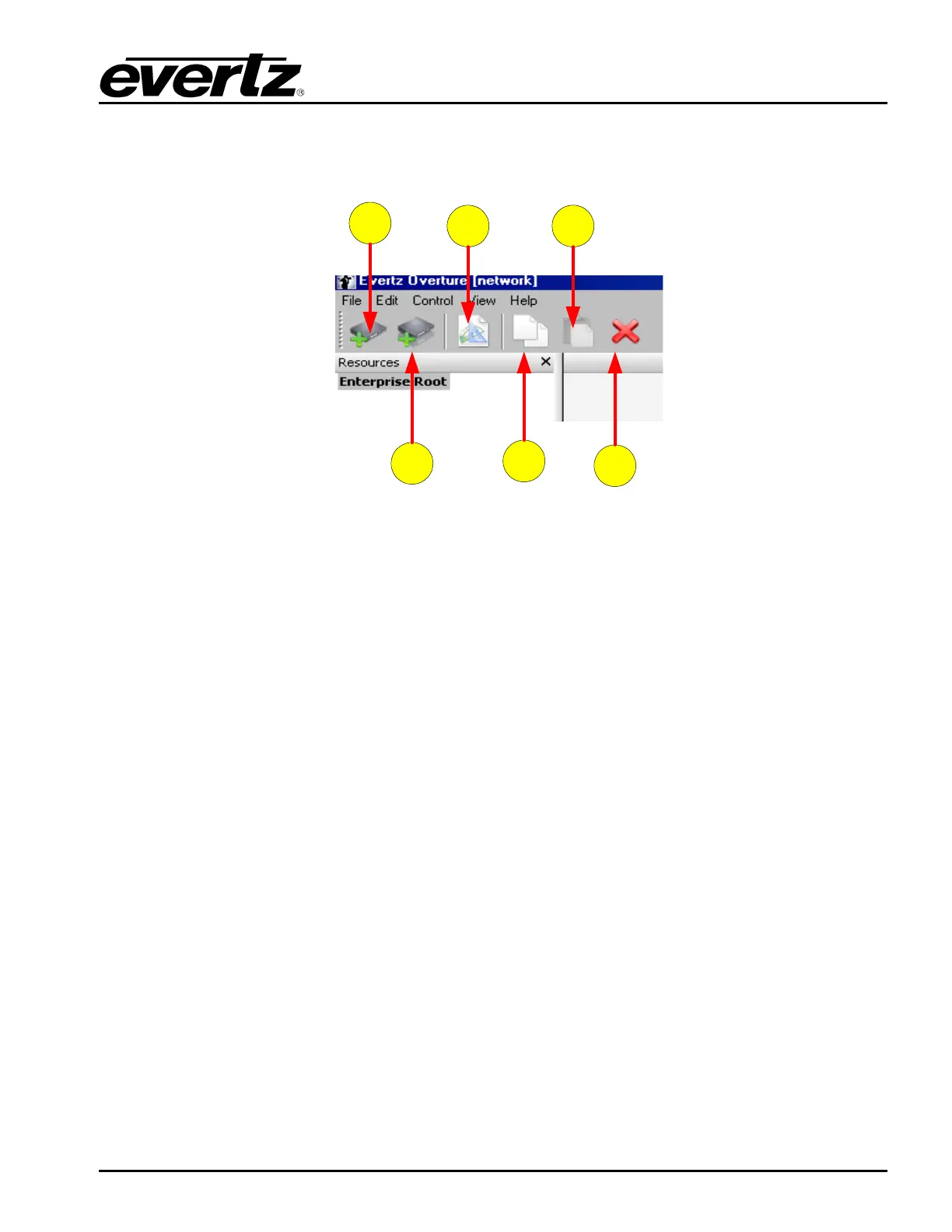
The buttons of the Main Toolbar (see Figure 2-8) are quick links to the following functionality (in order
from left to right):
1
2
4
6
53
Figure 2-8: Toolbar Buttons
1. Add a new device
2. Add a new device group
3. Create a new logo
4. Copy a selection
5. Paste a selection
6. Delete a selection
2.2.2. Using the Network Window
2.2.2.1. Adding a Device
In order to manage the media files on the Media Branding products, the user must add the device to
the list of Resources that Overture can access. To do so, the user must add the device by selecting
Add a New Device in the toolbar.
Once selected, the Create Device window (shown in Figure 2-9) will appear. The user will be required
to:
1. Create a device name. This name can be anything that uniquely identifies this device.
2. Provide a Network Address. This is the IP address of the device.
3. The user can disable an Overture search for the device by selecting the Disable Device box. The
Disable This Device box prevents Overture from connecting to the device and retrieving the file
list.
4. Provide Associations. This allows the user to assign the new device to any existing device
groups.



 To Next Page