Overture Software Manual
USING OVERTURE Revision 1.5 Page 2-33
2.4.2.2. Inserting a Key
Once the Insert key… option is selected from the pop up menu on the bottom bar in the Sequence
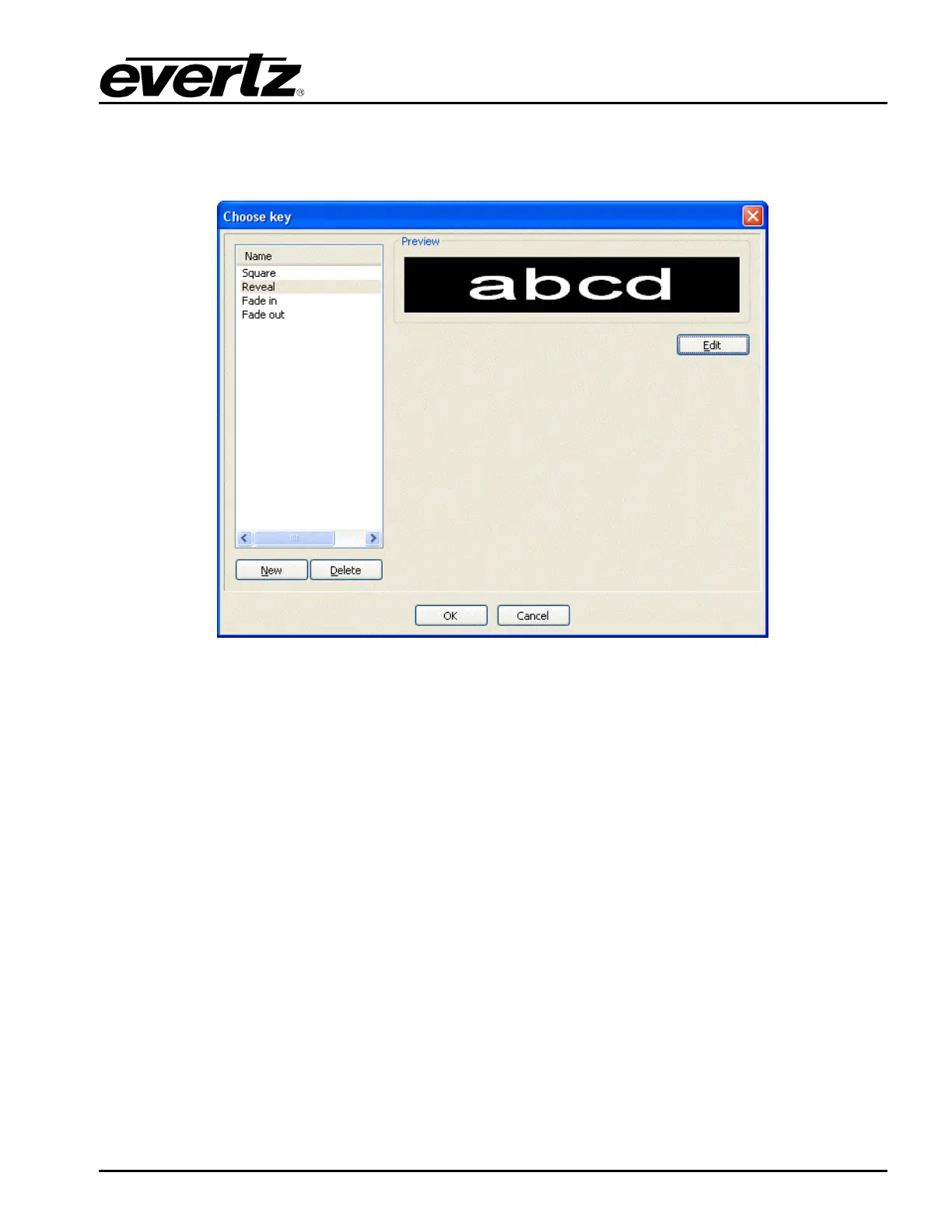
Editor, the Choose key window will appear, as shown in Figure 2-51.
Figure 2-51: Choose Key Window
The user can choose to insert an animated effect from the existing key types listed in the Name panel
or add a custom key type using the New button.
To apply an existing key type, select the desired effect from the key types listed in the Name tab. The
default key types in the Name tab include:
• Square enables the user to apply a square transition, which dissolves the animated text in or
out.
• Reveal enables the user to apply a reveal transition, which gradually reveals the animated text
from a specified direction.
• Fade in enables the user to fade in the animated text.
• Fade out enables the user to fade out the animated text.
If the user has selected the desired effect from the list of default options, select OK.
To add a new key type, select the New button in the Choose key window (see Figure 2-51). A pop up
menu will appear, which provides four options for creating new key types. These options include:
• Wipe/Reveal enables the user to create a transition, which wipes or reveals the animated text
from a specified direction.
• ImageSequence enables the user to create a new Image Sequence to apply to the key of the
animated text.



 To Next Page