Overture Software Manual
USING OVERTURE Revision 1.5 Page 2-29
2.4.2.1.2. Image Sequence Settings
In the Choose fill editor, the user can add an image sequence by selecting the New button and
clicking on the ImageSequence option in the pop up menu. The new Image Sequence name will
appear under the Name tab. Highlight the ImageSequence[x] name in the Name tab, then select the
Edit button located under the preview screen.
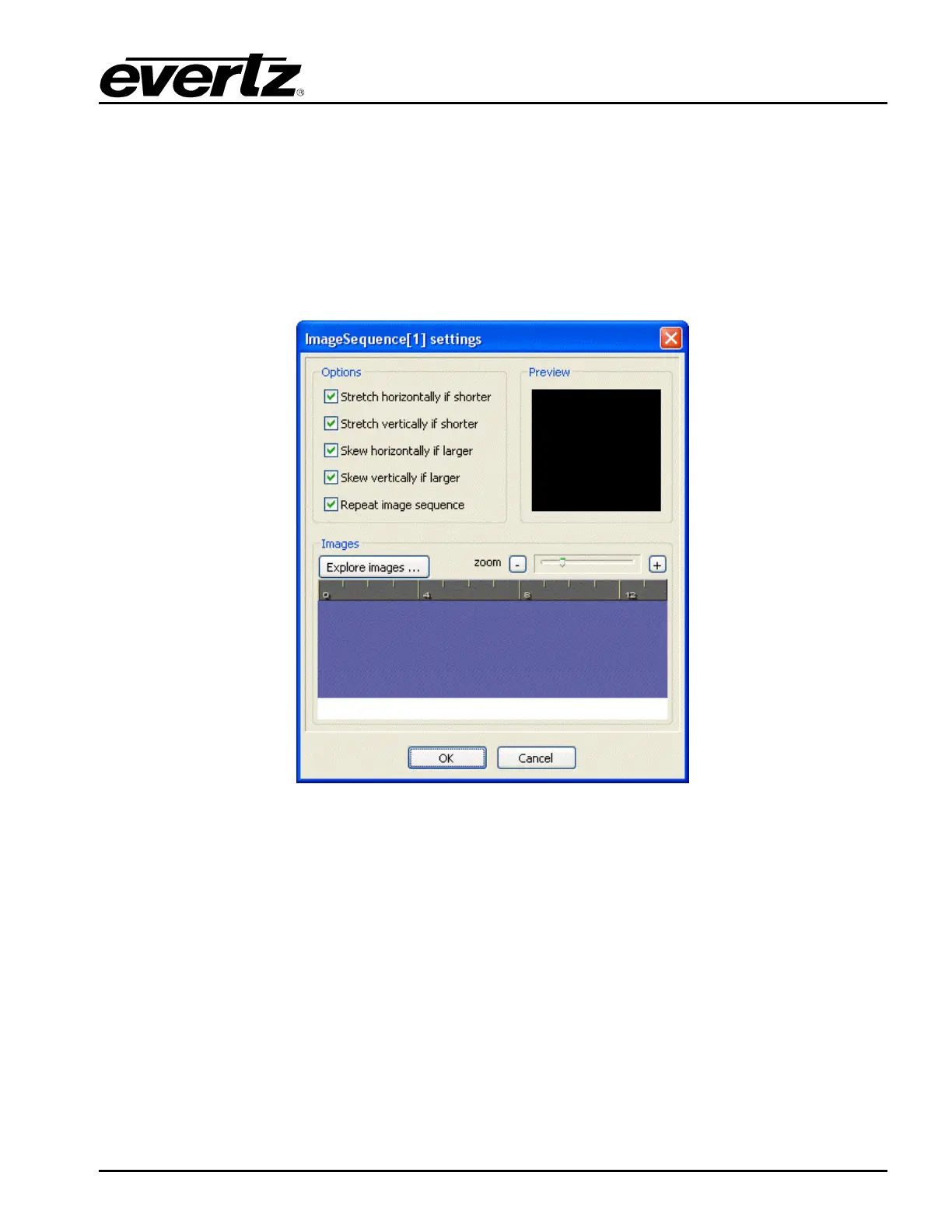
Once the Edit button is selected, the ImageSequence[x] settings window will appear as shown in
Figure 2-46. The ImageSequence[x] settings window enables the user to customize an image
sequence using a variety of image settings.
Figure 2-46: Image Sequence Settings Window
The following procedure outlines how to create an image sequence in the ImageSequence[x] settings
editor:
1. Select the Explore images… button in the ImageSequence[x] settings editor. The Images
dialog box will appear as shown in Figure 2-47.



 To Next Page