Overture Software Manual
Page 2-54
Revision 1.5 USING OVERTURE
2.10.2.6. Setting a Fade Sequence End Point
The user can set a Fade Sequence End Point with the mouse by moving the cursor to a particular
point in a Fade Sequence and double-clicking the mouse button. The Fade Sequence End Point can
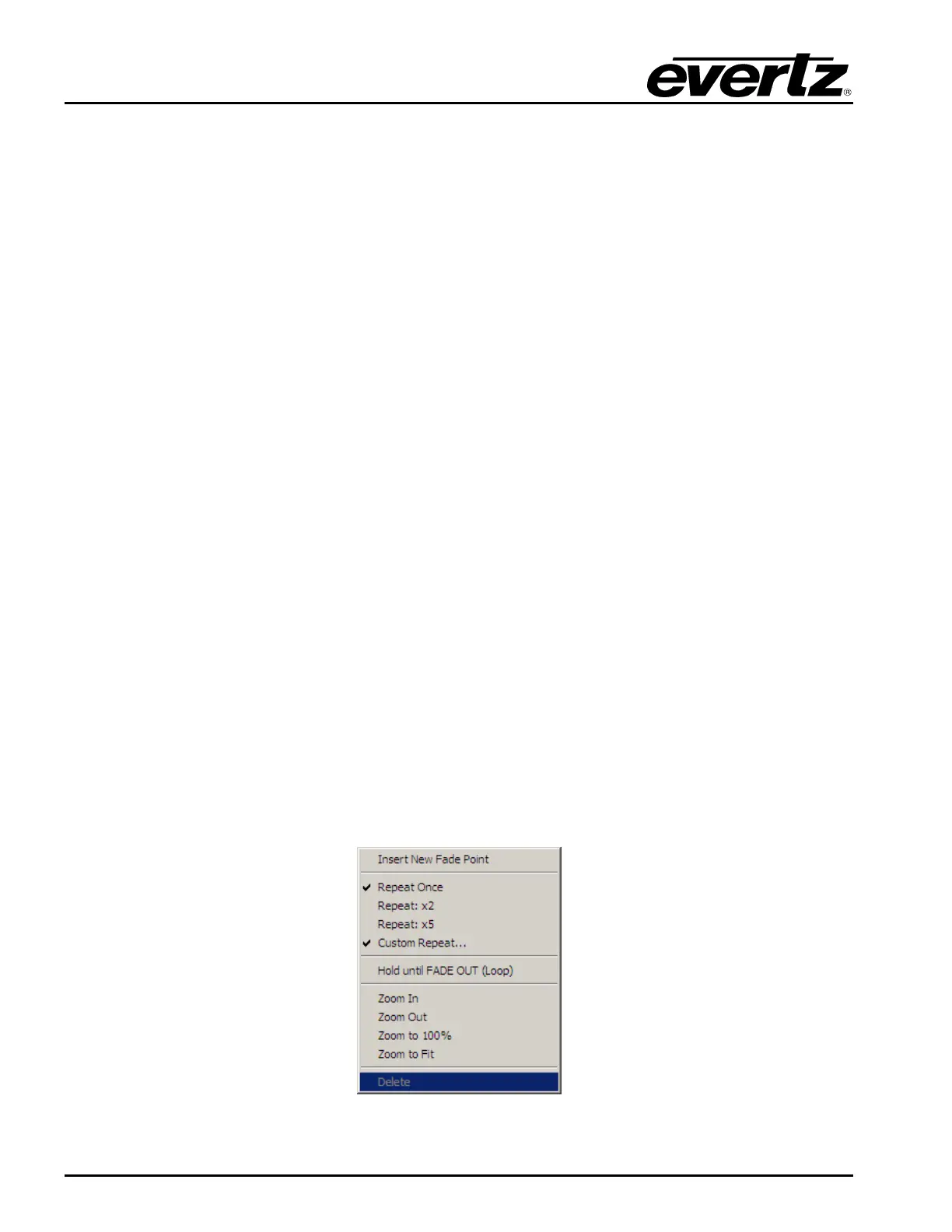
be removed by Right-clicking and selecting Delete in the Fade menu (see Figure 2-73).
2.10.2.7. Using a Fade Sequence
A Fade Sequence is a sequence of frames between two Fade Sequence End Points. The user can
set the Fade % as was described in section 2.10.2.5. The user can also set the number of times the
sequence is repeated. The Repeat option is found in the Fade Menu (see Figure 2-73) with the mouse
by moving the cursor to a particular point in a Fade Sequence and double-clicking the mouse button.
The Fade menu provides the options shown in Figure 2-73. The choices available are:
• Insert New Fade Point enables the user to insert a Fade point into the sequence.
• Repeat Once plays the selected Fade Sequence only one time.
• Repeat: X2 plays the selected Fade Sequence twice.
• Repeat: X5 plays the selected Fade Sequence five times.
• Custom Repeat… enables the user to set the number of times the Fade Sequence is
repeated. The choices are 1 to 65536.
• Hold until FADE OUT (Loop) will hold the sequence on screen until the user explicitly issues a
Fade Out (either via Main Screen or Front Panel of the device).
• Zoom In enables the user to zoom in on the Sequence Editor (up to 200%).
• Zoom Out enables the user to zoom out from the Sequence Editor (up to 25%).
• Zoom to 100% enables the user to set the Sequence Editor view to 100% (or full size for the
particular video standard).
• Zoom to Fit enables the user to set the Sequence Editor view to fit the current window size.
Figure 2-73: Fade Menu



 To Previous Page