Overture Software Manual
USING OVERTURE Revision 1.5 Page 2-27
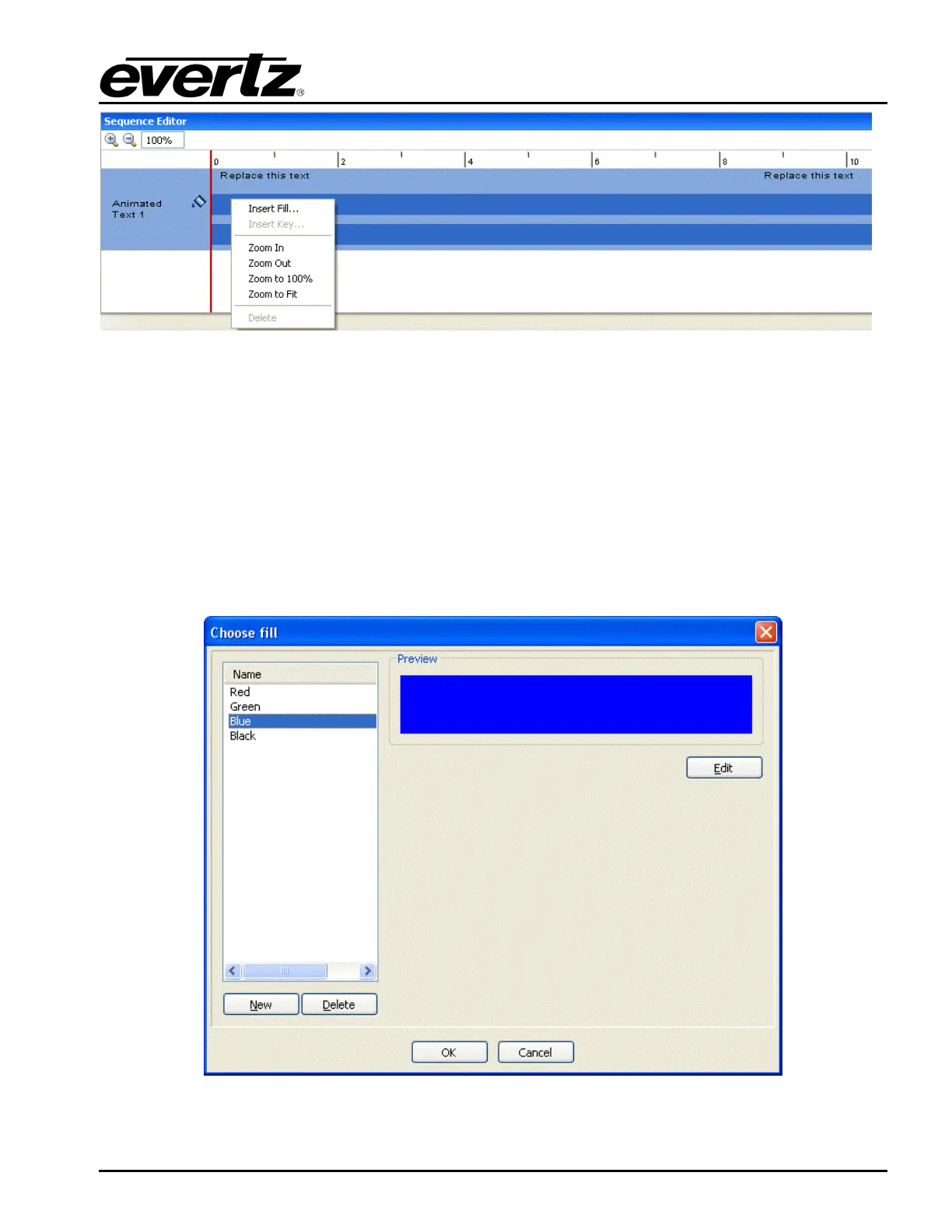
Figure 2-42: Animated Text Sequence Editor with ‘Fill bar’ selected
As shown in Figure 2-42, Fill is the top bar and Key is the bottom bar in the sequence editor. To insert
a fill, select a location on the timeline and right mouse click the top bar when the red vertical line
appears. When the right click menu pops up, select the Insert Fill… option (see Figure 2-42). To insert
a key, select a location on the timeline and right mouse click the bottom bar when the red vertical line
appears. When the right click menu pops up, select the Insert Key… option.
2.4.2.1. Inserting a Fill
Once the Insert Fill… option is selected from the pop up menu in the top bar of the Sequence Editor,
the Choose fill window will appear as shown in Figure 2-43. The user can choose to insert a fill from a
solid colour or an Image Sequence.
Figure 2-43: Choose Fill Window



 To Next Page