Overture Software Manual
Page 2-48
Revision 1.5 USING OVERTURE
2.7. Creating a Date
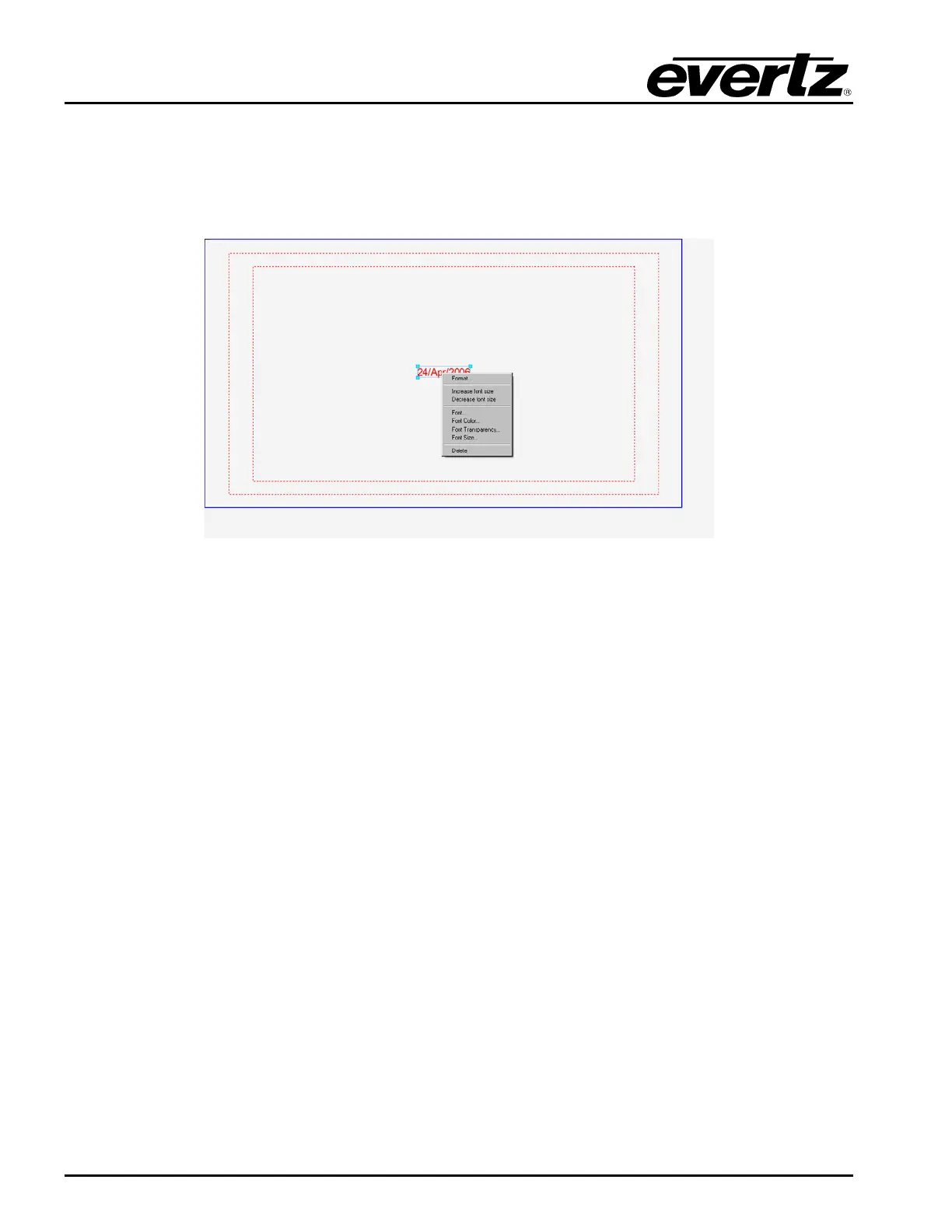
To create a Date object, the user can select the Date from the Image Object (see 2.3.1.5). Once
selected, the user will see a date object appear on the design canvas as shown in Figure 2-65. The
user can set the placement of the date by selecting and dragging it to the desired position by using the
mouse.
Figure 2-65: Date Image
2.7.1. Date Menu
The Date menu provides the options shown in Figure 2-65. The choices available are:
• Format enables the user to set the format of the date.
• Increase font size enables the user to increase the font size of the date by a single increment
at a time.
• Decrease font size enables the user to decrease the font size of the date by a single
decrement at a time.
• Font… enables the user to specify the font type of the date.
• Font Colour… enables the user to set the font colour of the date.
• Font Transparency… enables the user to set the opacity of the font of the date. The range
available is 0 to 255.
• Font Size… enables the user to set the font size of the date.
• Delete enables the user to remove the date.



 To Next Page