Overture Software Manual
USING OVERTURE Revision 1.5 Page 2-7
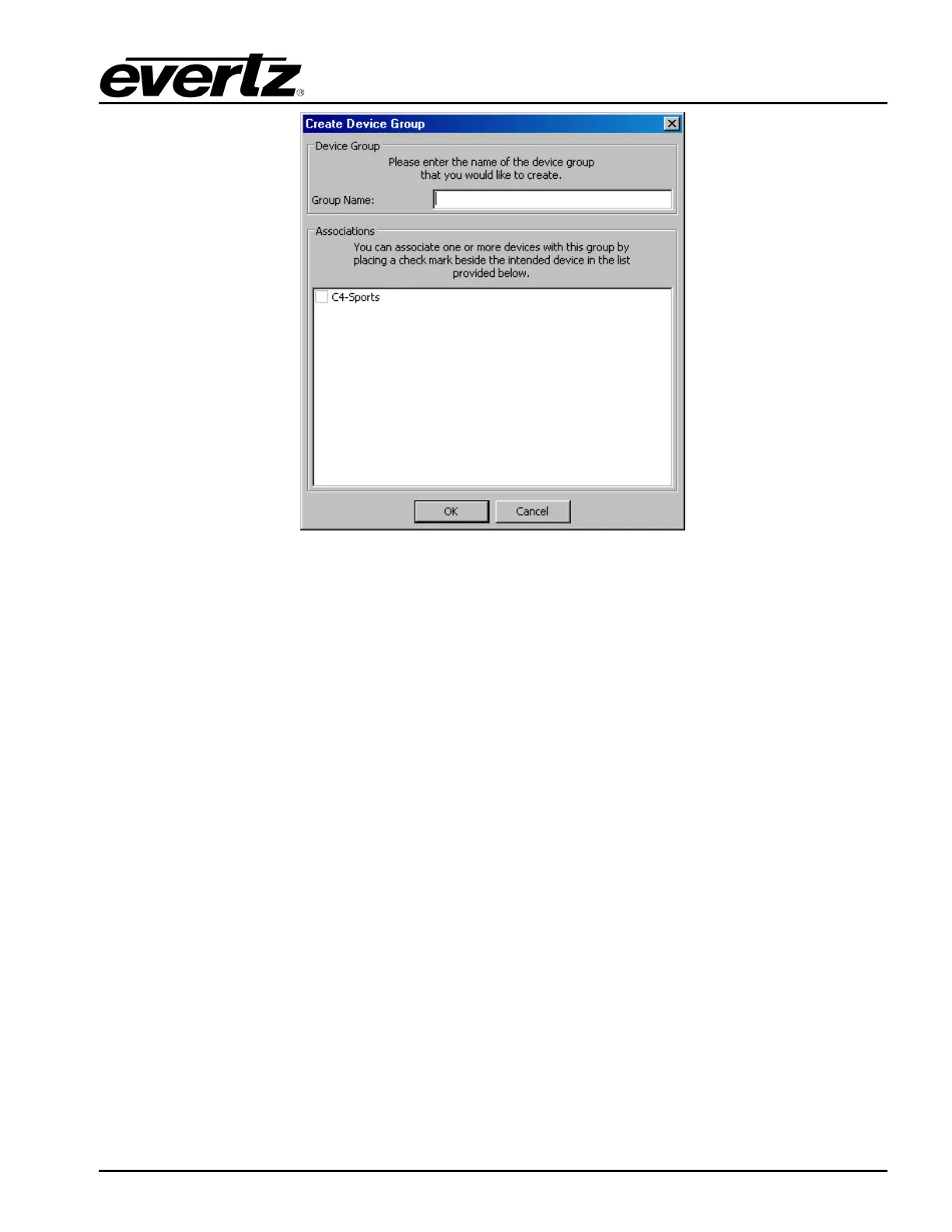
Figure 2-10: Create Device Group Window
2.2.2.3. Resource List Menu
To display the Resource List drop down menu, select a device in the list and Right-click the mouse
button. The menu has the following options (as shown in Figure 2-11):
• New Device… will enable the user to add a new device. See 2.2.2.1 for further details.
• New Device Group… will enable the user to add a new device group. See 2.2.2.2 for further
details.
• Disable Device will disable the device from the list of resources. The device still remains,
however Overture will not try to connect to it when it is selected.
• Paste enables the user to paste a copied file to a device.
• Delete enables the user to remove a device from the Network Window.
• Refresh will refresh the view of the selected window.
• Properties enables the user to view and modify the properties of a device in the Network
Window.
• Upload… enables the user to upload a media file to the selected device.
• Upgrade… enables the user to upgrade the firmware of the selected device. See 2.2.2.4 for
further details.



 To Next Page