Overture Software Manual
Page 2-42
Revision 1.5 USING OVERTURE
2.5.5. Inserting a Static or Animated Graphic into the Crawl
The user can also add a static or animated graphic into the crawl to separate crawl headlines. First the
user must create a text data file and set it as the source for the crawl content (see section 2.5.3). To
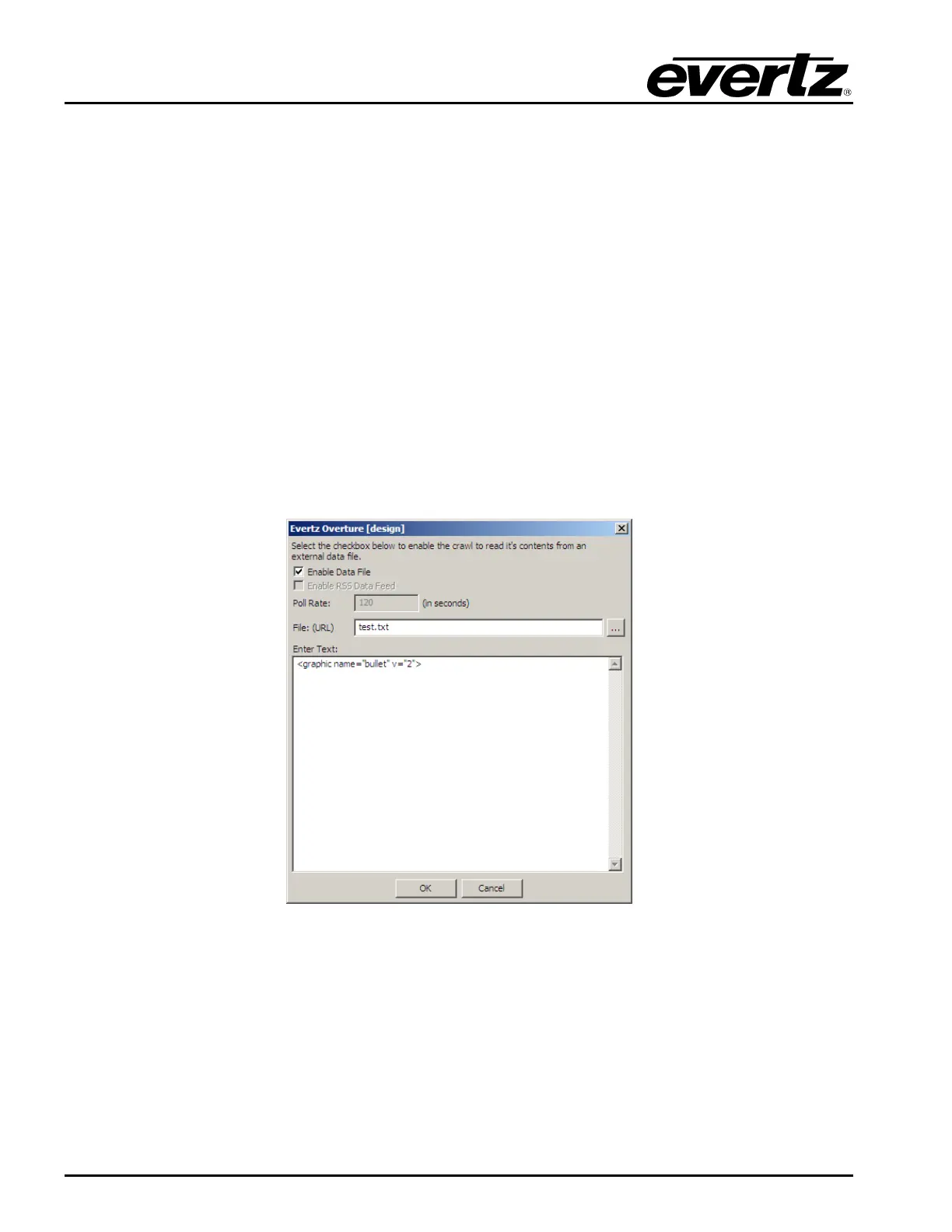
insert a graphic into the crawl, the user must define an information tag for the crawl. Figure 2-59 shows
an example of this. In this example, a bullet graphic will be inserted after EVERY carriage return in the
text data file called test.txt.
To insert a graphic, the user must use the following syntax in the “Enter text: “ box:
<graphic name=“LOGO NAME” v=”X”> , where LOGO NAME is the name of the logo
file and X is a numerical value.
This is a special tag that is interpreted by the Logo/Media Inserters. The graphic name= identifies
the logo to insert into the crawl. This logo MUST be created in Overture and loaded on the device in
the same compact flash drive that the crawl is stored. The next parameter, v=”X” allows the user to
adjust the (vertical) position in lines of the logo within the crawl. When the logo is first inserted into the
crawl, a baseline is created for the logo using the bottom edge of the font. The ‘v’ parameter will make
adjustments to the logo with respect to this baseline.
Figure 2-59: Inserting graphic into crawl



 To Next Page