Overture Software Manual
USING OVERTURE Revision 1.5 Page 2-35
2.4.3. Adjusting the Fill and Key Effects on the Sequence Editor
Select the OK button to apply the fill and key settings. Once the fill and key effects are applied to the
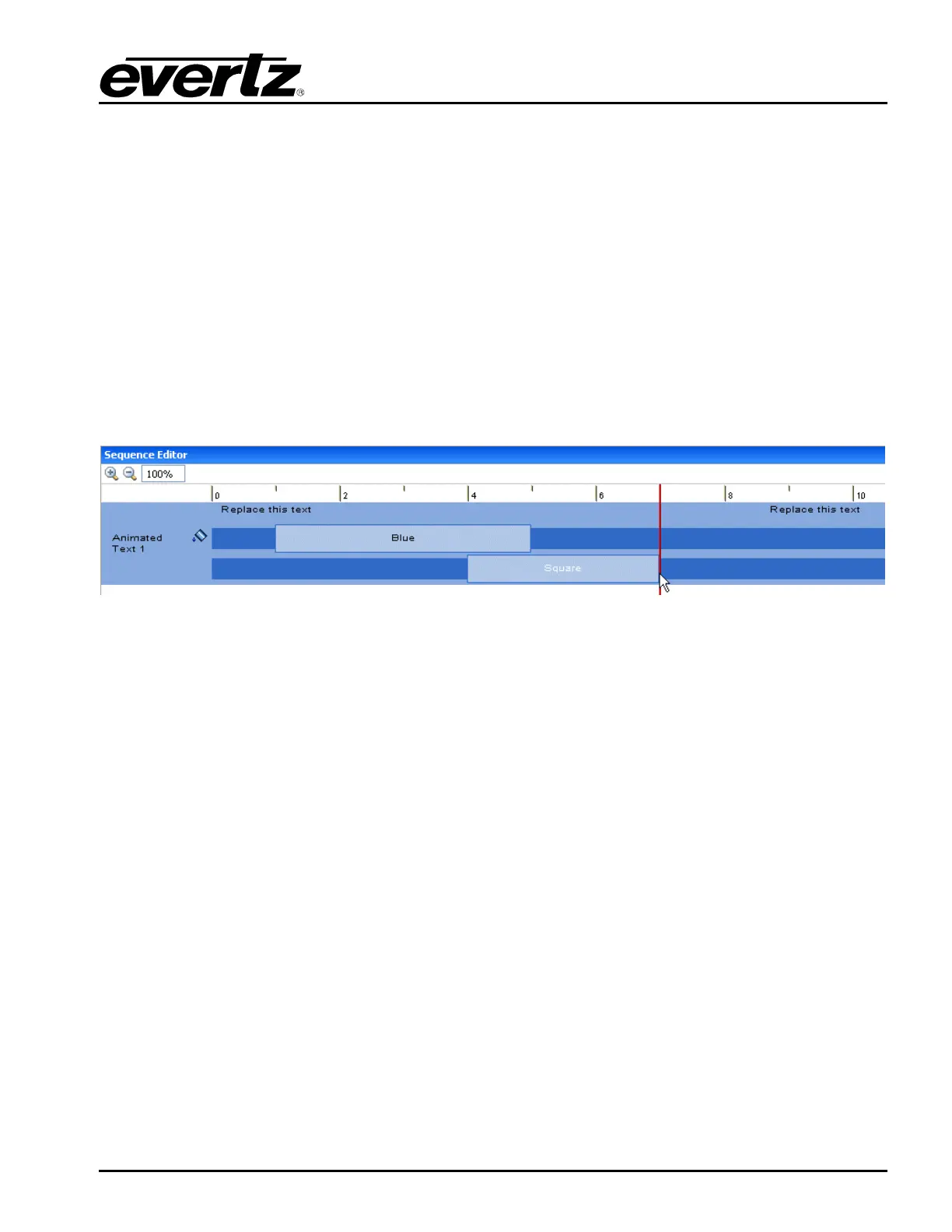
animated text, the location and duration of the fill and key sequences can be adjusted (see Figure
2-53). A fill and/or key box will appear in the sequence editor to reflect the presence of the effect. For
example, Figure 2-53 shows a Blue fill and a Square Key have been applied to Animated Text 1.
The length of the key and fill bars determine how long it takes to carry out the effect. The timeline on
the Sequence Editor is measured in frames, therefore, expand or shorten the effect based on the
number of frames desired to carry out the effect.
To adjust the location of the effect, use the mouse to select and drag the fill and/or key to the desired
location on the timeline. To adjust the duration of the effect, click on the beginning or end of the fill or
key bar in the timeline and lengthen or shorten the effect in the sequence editor. To adjust previously
applied settings, double click on the fill or key bar in the sequence editor timeline to re-open the
Choose key or Choose fill dialog box.
Figure 2-53: Animated Text Sequence Editor with Fill and Key Effects Applied



 To Next Page