Overture Software Manual
USING OVERTURE Revision 1.5 Page 2-17
2.3.1. Design Canvas Main Toolbar/Drop-down Menus
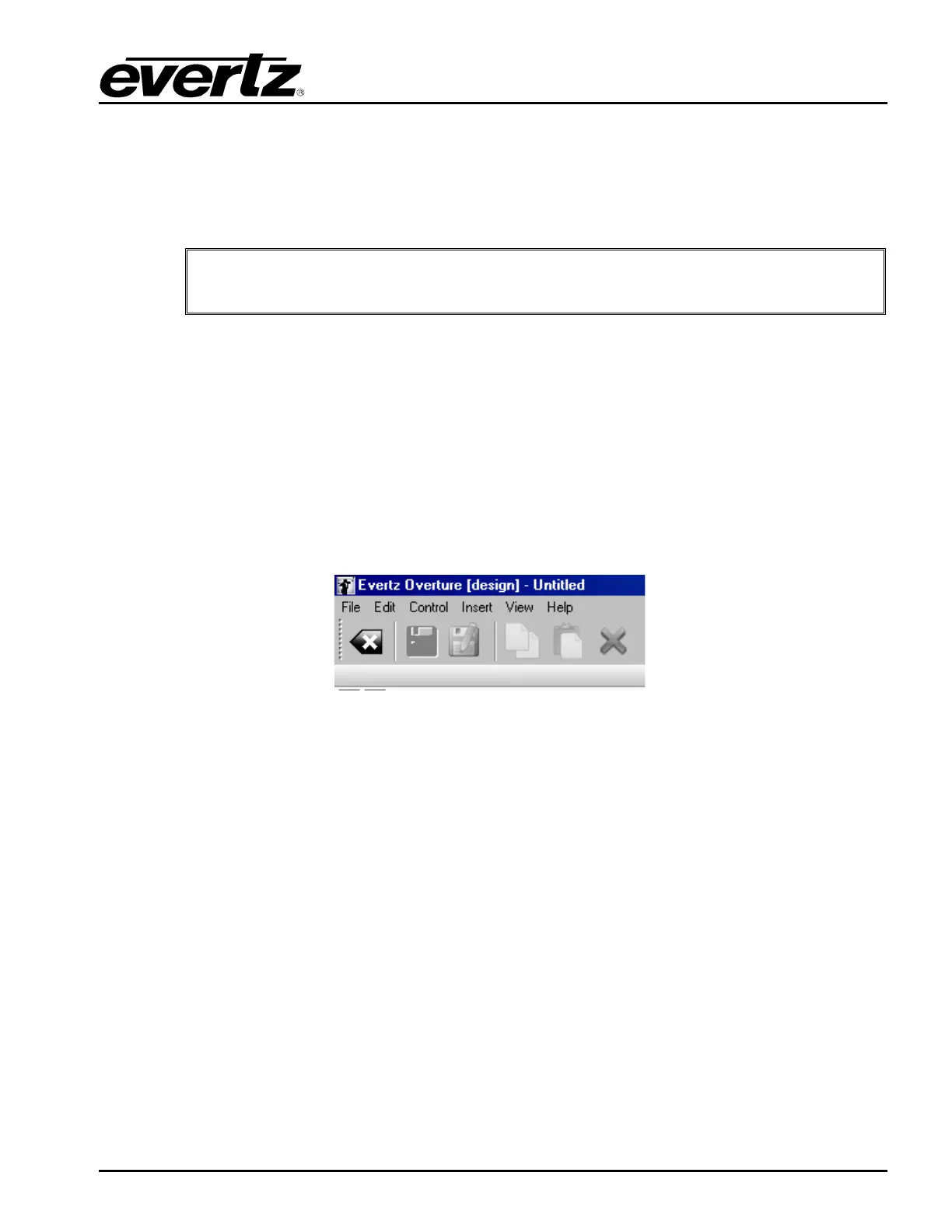
The Design Canvas has it’s own toolbar and set of drop-down menus. The toolbar is shown in Figure
2-23. The available toolbar buttons are described as follows (from left to right):
• Back to Main Screen will exit the Design Canvas and return the user to the Main Screen.
"
Caution: Any changes that have not been saved at this point will be lost. Always
save the media file before exiting.
• Save saves the media file as an Evertz file format known as .evl. The .evl file contains all of the
frame sequences, fade controls, and logo positions.
• Save As… saves the media file as a specified .evl file. The .evl file contains all of the frame
sequences, fade controls, and logo positions.
• Copy enables the user to copy a file or frame sequence.
• Paste enables the user to paste a file or frame sequence.
• Delete enables the user to remove a file or frame sequence.
Figure 2-23: Design Canvas Main Toolbar
2.3.1.1. File Menu
The File drop down menu provides the following options as shown in Figure 2-24. The choices
available are:
• New will enable the user to create a new media file.
• Close will exit the Design Canvas and return the user to the Main Screen. The user should use
caution when selecting this button. A dialog box will appear to prompt the user to save any
changes. Any changes that have not been saved at this point WILL BE LOST. Always save
the media file before exiting.
• Save saves the media file as an Evertz File Format known as .evl. The .evl file contains all of
the frame sequences, fade controls, and logo positions.
• Save As… saves the media file as a specified .evl file. The .evl file contains all of the frame
sequences, fade controls, and logo positions.
• Exit exits the Overture application.



 To Next Page