Graphical User Interface Overview
32 88000 Series
Navigation Buttons
Navigation Buttons
Navigation buttons appear when there is not enough room on one page to
display all available test applications. The left and right arrow buttons allow
respectively accessing the previous or next window. The buttons in
between the left and right arrow buttons allow directly selecting the
window for the type of test application listed.
Status Bar
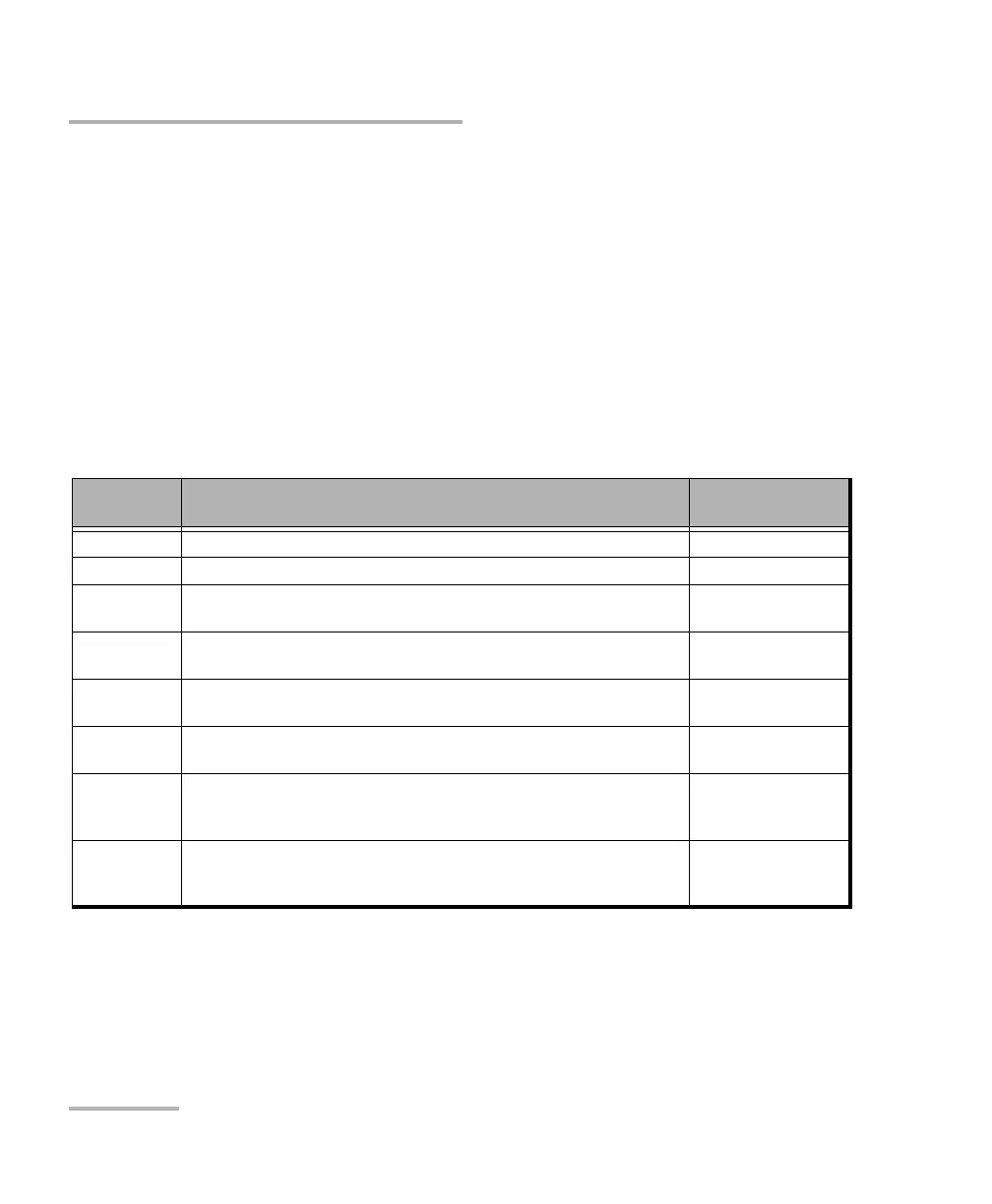
The status bar displays the following information.
Icon
and/or text
Description Test Application
Test icon Icon representing the active test application. All
P1, P2, P3, P4 Port identification number: Port x All
A1, A2, B1,
B2
Port identification number composed of the port of the FTBx-88260
module (A or B) and the transceiver system port (1 or 2)
All
TX/RX, TX, RX Indicates the direction of the signal per port. Transport,
Wander (DS1/E1)
Interface/
Signal
The interface or signal rate per port: 1GE Optical, 40G, OTU1,
OTU2, OTU3, etc.
All
(BTS) or
(RRH)
BTS: Emulation mode is Base Station
RRH: Emulation mode is Remote Radio Head
CPRI/OBSAI BERT
LINK Green arrow: Link up.
Red arrow: Link down.
Gray arrow: Awaiting incoming data to provide a status.
All
CPRI/OBSAI BERT
FlexO status
and size
Indicates the FlexO group status and its size:
Green arrow: FlexO Group Up.
Red arrow: FlexO Group Down.
FlexO BERT







 To Next Page