FARO
®
Laser Scanner Manual
106
Chapter 7: Controller Software
• restore operators, scan profiles, scanner parameters and wallpapers from
archived backups or scanner snapshots.
• import operators, profiles and wallpapers that were newly created with
SCENE.
• import formerly backed up operators, profiles and wallpapers that were
modified with SCENE.
• import operators, profiles, wallpapers and scanner parameters from other
scanners.
To restore data, it must be saved to a SD card. For this, create a directory on
the SD card, named “Backup”, and then copy the folder with the data you want
to restore to this directory. If you use SCENE to create new or modify backed
up data, this will be done automatically by SCENE.
When finished, insert the SD card with the data you want to restore.
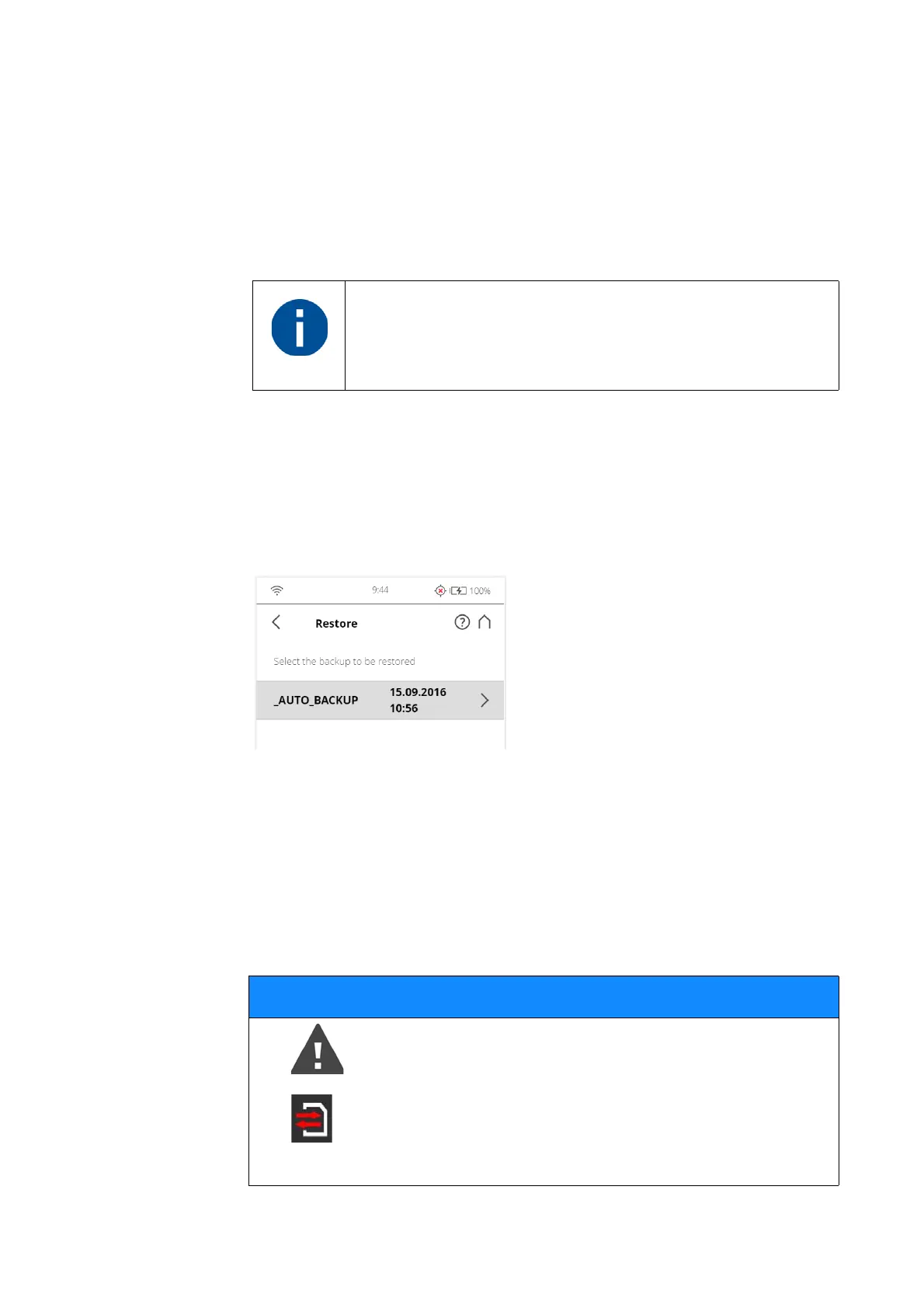
Figure 7-79: Service, Restore - Select Backup File
This screen shows you a list of all backup packages on the inserted SD card.
_AUTO_BACKUP is the automatically generated scanner snapshot (see
Backup on page 104). _SCENE_BACKUP is the scanner snapshot that has
been created or modified with SCENE. Tap on the backup package you want
to restore. A new screen will appear.
Select the data from the backup package you want to restore and tap the
Restore button to start the restore operation
The number behind Operators and Profiles informs about the
number of operators, scan profiles and wallpapers on the
scanner.
NOTICE
The restored data will override existing data on the
scanner.
For example, if you want to restore or import scan profiles,
all the existing scan profiles on the scanner will be
overridden by the new profiles. The scanner's default
profiles remain unaffected from this operation. FARO
recommends backing up your data before restoring.



 To Next Page