FARO
®
Laser Scanner Manual
39
Chapter 6: Getting Started
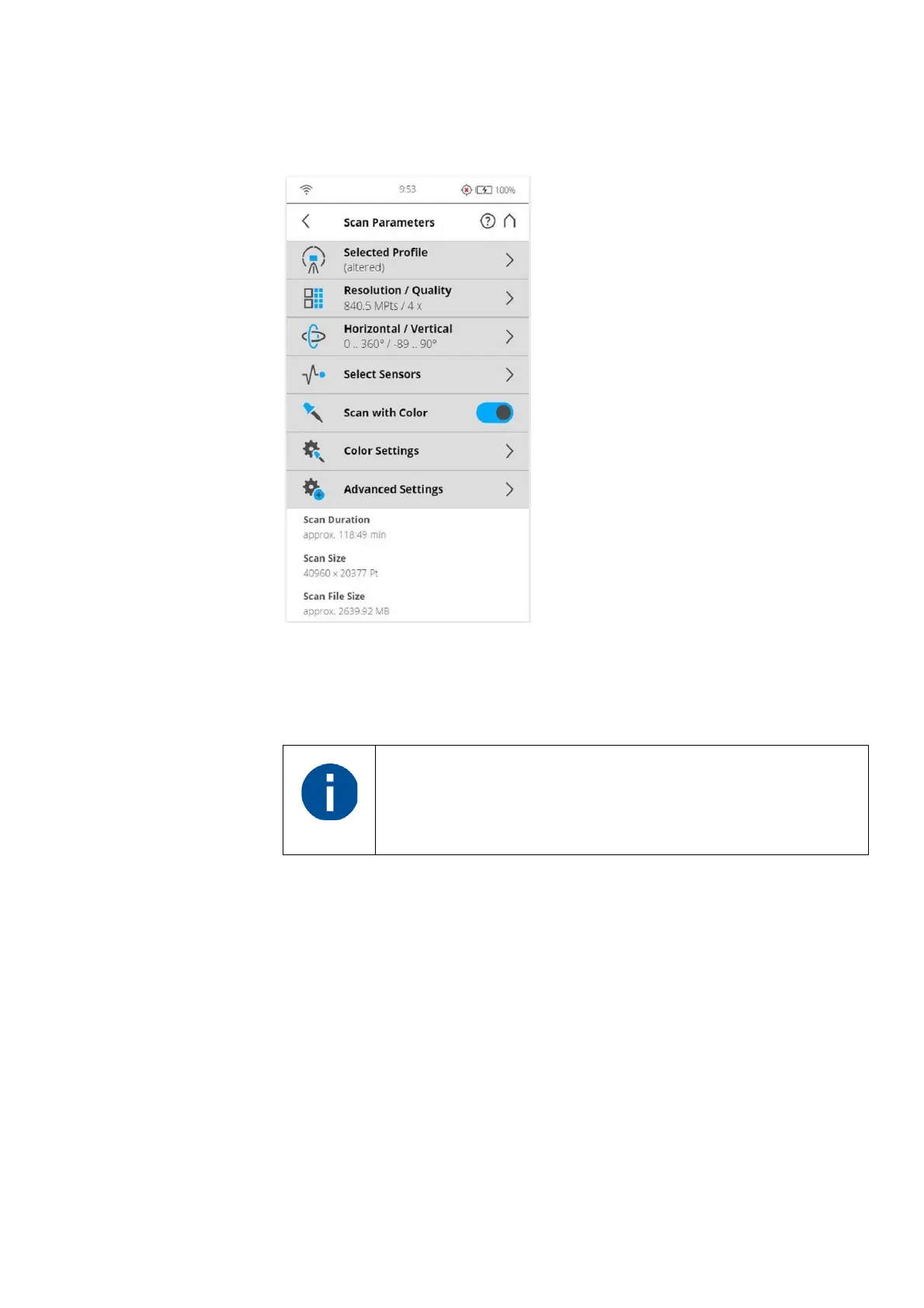
To choose a predefined scan profile or to change the scanning parameters tap
the Parameters button.
Figure 6-22: Change the Scan Parameters
Selected Profile - Shows the name of the selected scan profile. Tap to select
a scan profile. If the scanning parameters differ from the selected profile,
altered is appended to its name.
Additionally, you may edit the scanning parameters individually by changing
the following settings:
Resolution and Quality - Displays the selected resolution in megapoints and
the selected quality. Tap the button to change these values.
Horizontal and Vertical Scan Range - Displays the scan range with the
horizontal and the vertical start and end angles in degrees. Tap to adjust them.
Select Sensors - Opens the screen to enable or disable the automatic use of
the data of the built-in sensors for the scan registration in SCENE.
Scan with Color - Switch colored scan recording on or off. If switched on, the
scanner will also take color photos of the scanned environment with the
integrated color camera. These photos will be taken right after the laser scan
Selecting a predefined scan profile overwrites all current
scanning parameters with the settings of the selected scan
profile.



 To Next Page