FARO
®
Laser Scanner Manual
91
Chapter 7: Controller Software
Battery health information - Provides information on the condition of the
currently inserted battery. It informs about the amount of capacity remaining in
the battery. Over time, the capacity of a Lithium Ion battery will decay. If the
indicated battery condition is „Replace Battery“, the remaining capacity of the
battery is very low and you should consider replacing it by a new one.
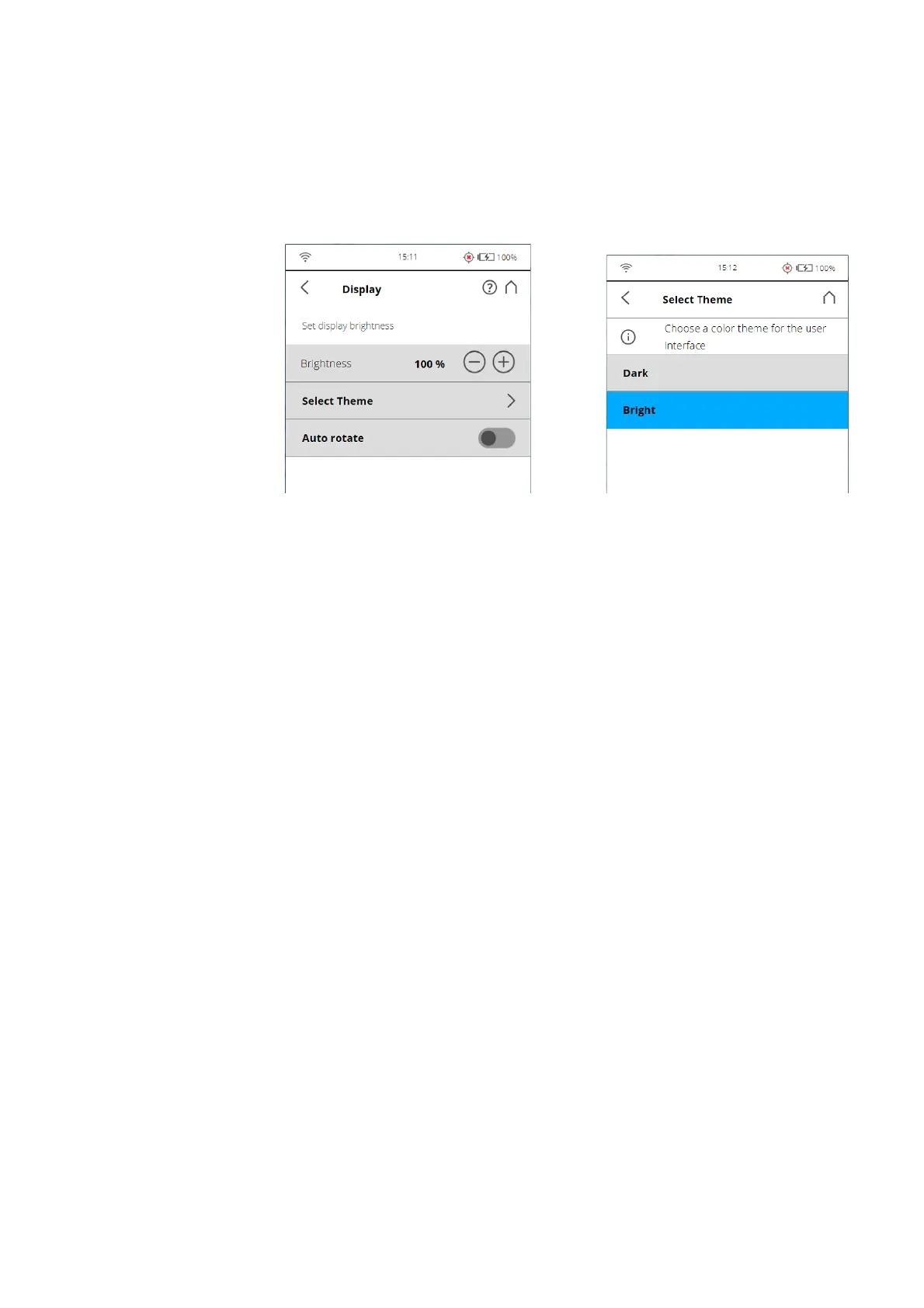
Display
Figure 7-66: General Settings, Display
Brightness - Set the brightness of the screen.
Select Theme - Change the theme of the Home screen. Tap to get the screen
background theme options to Dark or Bright.
Calibrate the display - If you experience the touch screen to be slightly
misaligned, you can recalibrate it. Tap this button and follow the instructions
on the screen that appears. We recommend using a stylus to calibrate the
display. If the calibration of the touch screen is corrupted you must reset the
calibration of the display to its factory settings.
• Shut down the scanner using the Power button.
• Wait until the scanner has shut down, then press and hold down the Power
button for at least five seconds until the LED on the sensor side of the
scanner illuminates yellow, then release the button again. The scanner will
then boot up and reset the calibration of the touch screen to its factory
settings.
Auto rotate - Turn on to let the display rotate depending on the scanner
orientation. This option is helpful when the scanner is located upside down.
Date and Time See
Setting the Date and Time on page 35.
Language See
Setting the Interface Language on page 33.
Units See
Setting the Unit of Length and the Temperature Scale on page 37.
WLAN The WLAN interface can be used for remote connections, especially if your
scanner is not equipped with an automation interface connection.



 To Next Page