4.10-2 Section 4: Using the Model 9500B — Current Function
Final Width = 215mm
Descriptions assume 9500B/1100
4.10.5.1 Right Side Screen Keys —
Digit Edit
Keys operate on the value marked by the
cursor. The key labels will change depending
on the cursor position, as indicated.:
i. Cursor on Units/div:
X10 Multiplies the Units/div by ten.
÷10 Divides the Units/div by ten.
∆ = Ø Toggles the Deviation value
between the marked value and zero.
Toggles the value between positive
and negative (DC only).
ii. Cursor on Multiplier:
∆ = Ø Toggles the Deviation value
between the marked value and zero.
Toggles the value between positive
and negative (DC only).
iii. Cursor on Deviation:
∆ = Ø Toggles the Deviation value
between the marked value and zero.
Press to set Deviation value in
absolute units.
Press to set Deviation value in
percent of set value.
iv. Cursor on Frequency/Period:
X10 Multiplies the marked value by ten.
÷10 Divides the marked value by ten.
∆ = Ø Toggles the Deviation value
between the marked value and zero.
Press to change display from
Frequency to Period (not DC).
Press to change display from Period
to Frequency (not DC).
∆%
∆A
∆% ∆A
1
1
4.10.5 Current Operation
4.10.4.4 Current Selection Summary
'DC' and 'Square' can be regarded as a combined
dual function, as each has a similar purpose,
and switching between the two is accomplished
by selection in a common 'Waveform' menu.
The parametric differences are evident once
the appropriate waveform soft key has been
pressed.
Detailed operation follows below:
paras 4.10.5 (Current Operation)
paras 4.10.6/7 (Square Operation)
paras 4.10.8/9 (DCI Operation).
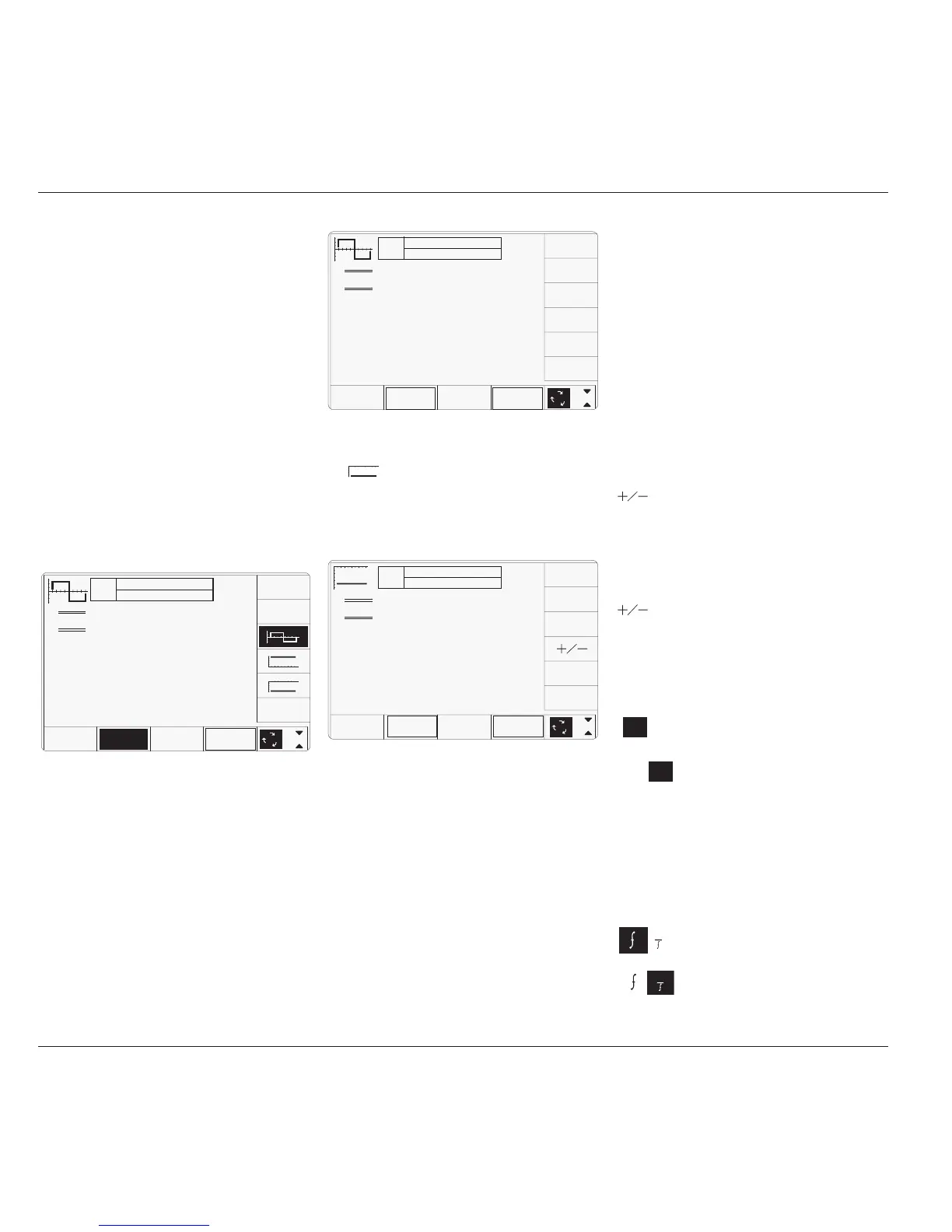
4.10.4.3 DCI Selection
Pressing one of the two DC keys, for example:
the
(DC Negative) key, will return to the
previous screen, with the DC Negative icon
showing in the top left corner. The parameters
listed on the screen will be changed to reflect
DC instead of Square:
The WAVEFORM key label is highlighted to
indicate that waveform selection is available,
as is the presently-selected waveform icon.
The only square current waveform available is
the symmetrical version, so the others shown
on this screen are for DC current. Selecting
any of these three will return to the previous
screen, with the icon of the selected waveform
showing in the top left corner:
4.10.4 Menu Selections
Signal Channel selection, Trigger Channel
selection, Cable selection and Trigger Ratio all
operate in the same way as in DC/Square
function. Refer to paras 4.5.3.
Note: Without Option 5, only one signal
channel and one trigger channel is
available.
4.10.4.1 Retained Channel Memory
Refer to para 4.5.3.6.
4.10.4.2 Choosing a Waveshape
All waveshapes in this function can be selected
on a second menu screen. This is activated by
pressing the '
WAVEFORM
' screen key on the
bottom row. The screen changes to show the
available waveforms:
TODAY'S DATE TIME
OFF
SIGNAL CH1 5ØΩ
TRIGGER NONE
x 1Ø
÷ 1Ø
∆ = Ø
1.ØØ mA/div x4 = 4.ØØØØ mA
pk-pk
Deviation
= ØØ.ØØ %
O/P
Amplitude
= 4.ØØØØ mA
pk-pk
Frequency
= 1.ØØØØ kHz
1
2
5
1.Ø
WAVE
FORM
CHANNEL
SELECT
TODAY'S DATE TIME
OFF
SIGNAL CH1 5ØΩ
TRIGGER NONE
x 1Ø
÷ 1Ø
∆ = Ø
1.ØØ mA/div x4 = 4.ØØØØ mA
Deviation
= ØØ.ØØ %
O/P
Amplitude
= +4.ØØØØ mA
WAVE
FORM
CHANNEL
SELECT
1
2
5
1.Ø
TODAY'S DATE TIME
OFF
SIGNAL CH1 5ØΩ
TRIGGER NONE
1.ØØ mA/div x4 = 4.ØØØØ mA
pk-pk
Deviation
= ØØ.ØØ %
O/P
Amplitude
= 4.ØØØØ mA
pk-pk
Frequency
= 1.ØØØØ kHz
WAVE
FORM
1
2
5
1.Ø
CHANNEL
SELECT


 To Next Page