3-4 Section 3: Model 9500B Controls: Modes of Operation
Final Width = 215mm
Descriptions assume 9500B/1100
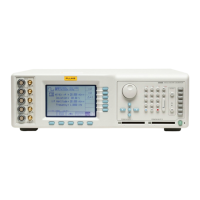
3.2.3 Output Controls
The aim of this discussion is to become familiar with the 9500B
interactive display, and the manipulation of front-panel controls.
We have chosen DC/Square as a typical function for manipulation (it is
also likely to be the most familiar to most new operators).
Full details of the DC/Square function are not given here, they appear
in Section 4 Subsection 4.5.
3.2.3.1 Front Panel Control Sets
We have already seen that there are two sets of front-panel controls
which manipulate the output configuration, but briefly, to establish a
base-line, here they are again:
1. Controls positioned in the right half of the front panel. They are:
a. Major Function keys, arranged in a column down the right
edge.
b. Moving left, the OUTPUT OFF and ON keys, arranged in a
separate column because of their importance.
c. Alpha-numeric Keypad.
d. Cursor Controls:
See paras 3.2.3.4.
2. Screen Soft Keys, around the display itself, are used to select sub-
functions and individual parameters (identified in the areas used as
screen key labels).
Before we proceed, we need to identify the components present on a
typical menu screen. A representation of a DC/Square display in
Manual mode is given as Fig 3.2.1.
3.2.3.2 Entry to Manual Mode
This discussion is conducted in Manual mode, which you may not
recognize at present. Refer to paras 3.4.1. To enter MANUAL mode:
1. Press the front panel Mode key;
2. Press the MANUAL screen key beneath the display.
Ensure that the 9500B is installed and switched on as in Section 2. If,
after selecting Manual mode, the display does not correspond to Fig.
3.2.1, press the
key in the top right corner of the front panel.
Familiarize yourself with Fig. 3.2.1. This is the default version of
the menu screen which will appear when you enter DC/Square
function for the first time (unless the default has been changed in
Config Mode).
N.B. Contrast inversions of symbols and fields indicate those elements
which have been selected, 'Scope Mode' (1-2-5) only in this
case.
3.2.3.4 Editing on the Screen
We have already mentioned 'Scope Mode'. This is not a major mode of
the same importance as Manual mode, but identifies a specific means
of making selections or entering changes on the screen.
In all editing, the Tab key
is used to select the required variable for
adjustment.
There are two modes, selected by the right-most soft key on the bottom
row beneath the screen, which toggles between 'Direct' mode
5
2
1
1.Ø
and 'Scope' mode
1
2
5
1.Ø
encompassing three main ways of adjusting
values presented on the screen:
1. Direct Mode
5
2
1
1.Ø
Once the
key has selected the required variable, two triangular
markers presented above and below a digit in the selected numeric
value form a cursor, and two methods of value adjustment are
available:
a. Digit Edit.
Cursor keys:


 To Next Page