Revision 14
75 August 02, 2019
5.2.2.3 General Toolbar
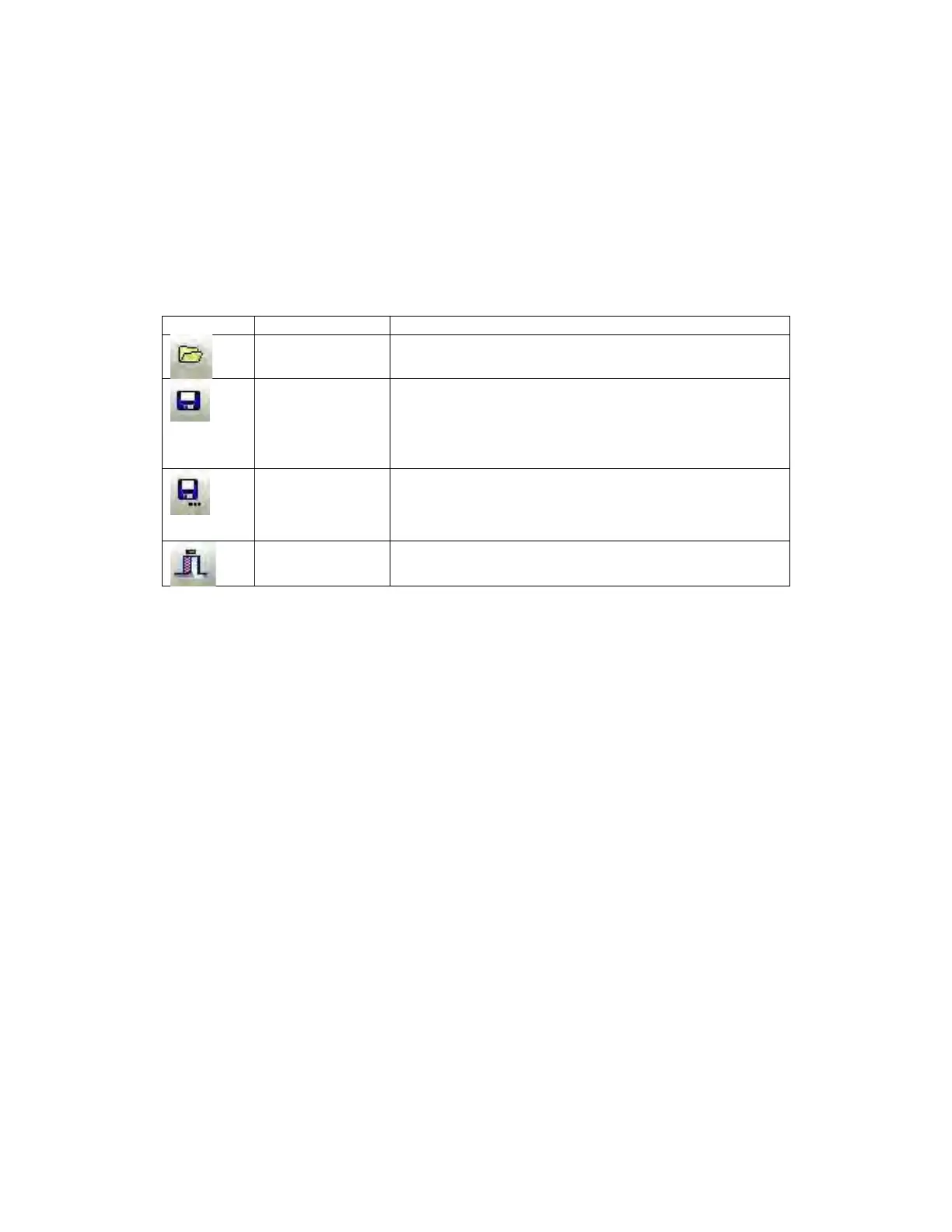
The General toolbar contains several buttons that allow the user to load and save
configuration files, print configurations, and open the context selective help file. Table 5-3
shows the buttons in the General toolbar. A saved configuration file can be opened, edited
and re-saved when offline (not connected to the analyzer).
Table 5-3: General Toolbar Buttons
Opens a saved analyzer configuration file. This can be
done online or offline.
Configuration
Saves current configuration to a file. If the configuration
has been saved to a file previously, pressing this button
will overwrite the existing configuration file. If offline, a
saved configuration file needs to be opened before one
a new file
Saves current configuration to a new file with a file
name of the user’s choosing. If offline, a saved
configuration file needs to be opened before one can
Pressing this button will cause the GUI to close. It is
advisable to log off the analyzer prior to exiting the GUI.
5.2.3 Application Screens (Tabs)
The GUI is a tab-driven system which includes the 17 tabs listed in Table 5-4. Each tab
contains information about the analyzer and most allow for editing of system parameters (in
Update mode). The specifics of each tab will be discussed in Section 5.4 to 5.20.


 To Next Page